How I Organize Skool Content for Clear Community Access
I’ve run Skool communities for creators and course operators. Clutter hits hard when posts pile up and members hunt for answers. You post lessons, tips, and updates, but everything blurs into noise. I fix that with simple tools inside...


I’ve run Skool communities for creators and course operators. Clutter hits hard when posts pile up and members hunt for answers. You post lessons, tips, and updates, but everything blurs into noise.
I fix that with simple tools inside Skool. Categories sort discussions. Modules stack courses. Pinned posts highlight essentials. This setup lets members find what they need fast. No extra apps required.
Let’s walk through my process step by step.
Skool’s Core Content Tools
Skool keeps things in one place. The community feed acts as your main hub. Members see posts, replies, and events there. I start every group with this feed because it drives daily engagement.
The classroom tab holds structured content. You build modules for courses or resources. Each module groups lessons with videos, files, or text. Members access them anytime from their profile.
Gamification adds structure too. Points reward posts and comments. Leaderboards show active members. This encourages use of organized areas without forcing rules.


I check settings first. Go to group settings, then community. Here, you toggle features like maps or rules. These basics prevent chaos before it starts. For example, set rules to guide post types. Members follow them because they see pins and categories right away.
Skool limits categories to 10 per group. That’s enough for most needs. Plans matter here. The $9 Hobby handles basics up to 100 members. Pro at $99 unlocks unlimited scale and payments. I pick based on group size.
This core setup reduces overwhelm. Members log in and know where to go.
Building Modules and Categories
I organize Skool content by stacking modules like blocks. In the classroom, create a module for each topic. Drag them to reorder. Add lessons inside: a video welcome, then action steps.
Modules shine for courses. Drip content over weeks if needed. Members unlock as they progress. Discussions link back to the feed, so talks stay tied to lessons.
Categories handle the feed. They sort posts into buckets. I set up 3 to 5 at launch: Q&A, Wins, Resources. Go to settings, community, categories. Add names with emojis for quick scans, like 📣 Announcements.
Posts land in categories when members choose them. Sort by newest or most active. Admins post only in key spots, like announcements. This keeps essentials on top.
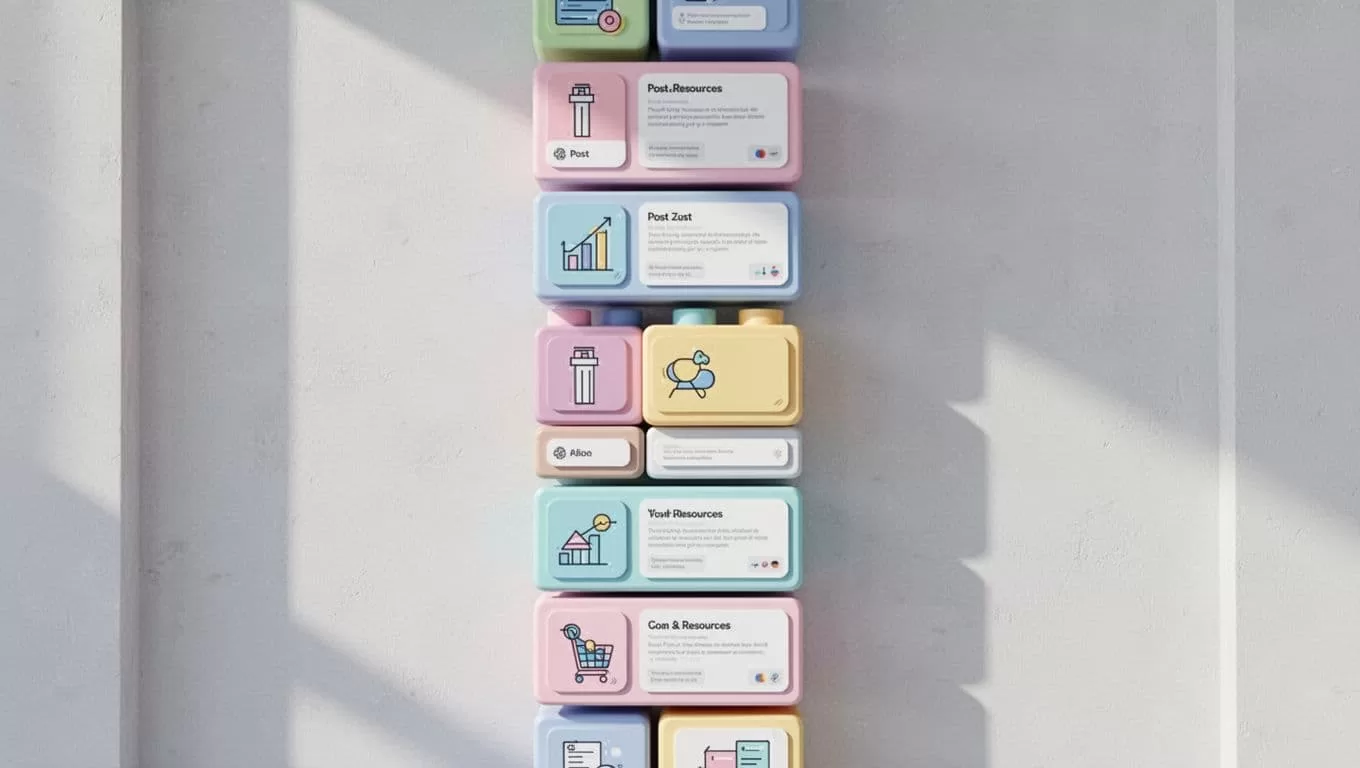
For a coaching group, my first module is “Week 1 Basics.” It has a video and file download. Category below matches: “Week 1 Q&A.” Members post questions there. No digging through 100 general posts.
Skool’s guide to setting up categories walks through the clicks. I follow it exactly. Result? Feed stays fresh. Old content hides but searchable.
Start small. Too many categories confuse people. Test with your top topics. Adjust after a month based on post volume.
Mastering Pinned Posts
Pinned posts anchor your community. They stick at the top of the feed or categories. I pin three max: rules, FAQ, and a welcome guide.
Admins pin from the post menu. Choose feed top or a page. Up to 12 per classroom page. This spotlights key items without daily reposts.
New members see pins first. That cuts support questions by half in my groups. For example, pin “How to Post Wins” in the Wins category. It collects replies over time.


Pin action posts too. These prompt homework or shares. Tie one to each module. Members comment right there. It turns passive lessons into group energy.
Skool help on pinning posts covers options like course page pins. I use that for collections, like pinning related tips under one lesson.
Unpin when outdated. Refresh monthly. This keeps trust high because info stays current.
Handling Recurring Content
Recurring content builds habits. Skool lacks auto-posts, but the calendar fills that gap. Schedule weekly lives or tips as events.
Set recurring events: Monday motivation calls, monthly Q&As. Skool adjusts for time zones. Members RSVP and get reminders. Host inside the platform, no Zoom link needed.
For posts, I batch them. Write five tips, schedule over weeks. Pin the series starter. Members anticipate returns.
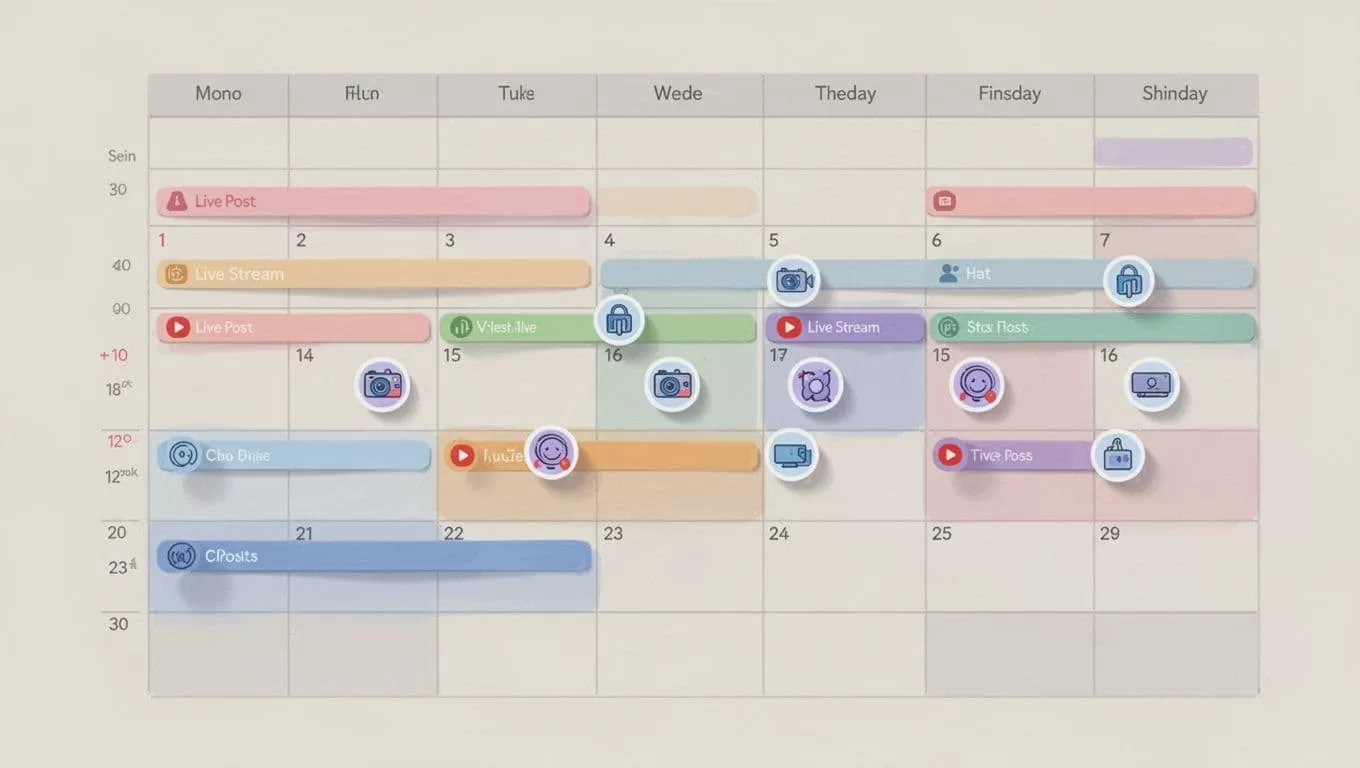
Gamification helps here. Award points for event attendance or themed posts. Leaderboards track regulars. In one group, this doubled weekly check-ins.
Link events to categories. Post recaps in Resources. This weaves repeats into your structure.
I review calendar weekly. Cancel low-attend ones. Focus energy where members show up.
Member Resources Setup
Resources live in modules or a dedicated classroom section. I create a “Member Hub” module first. Stack files like welcome packs, templates, cheat sheets.
Upload PDFs, videos, links. Organize subfolders if needed, but keep flat for speed. Members download straight from mobile.
Avoid feed dumps. Pin a resource index post instead. It lists modules with quick previews.
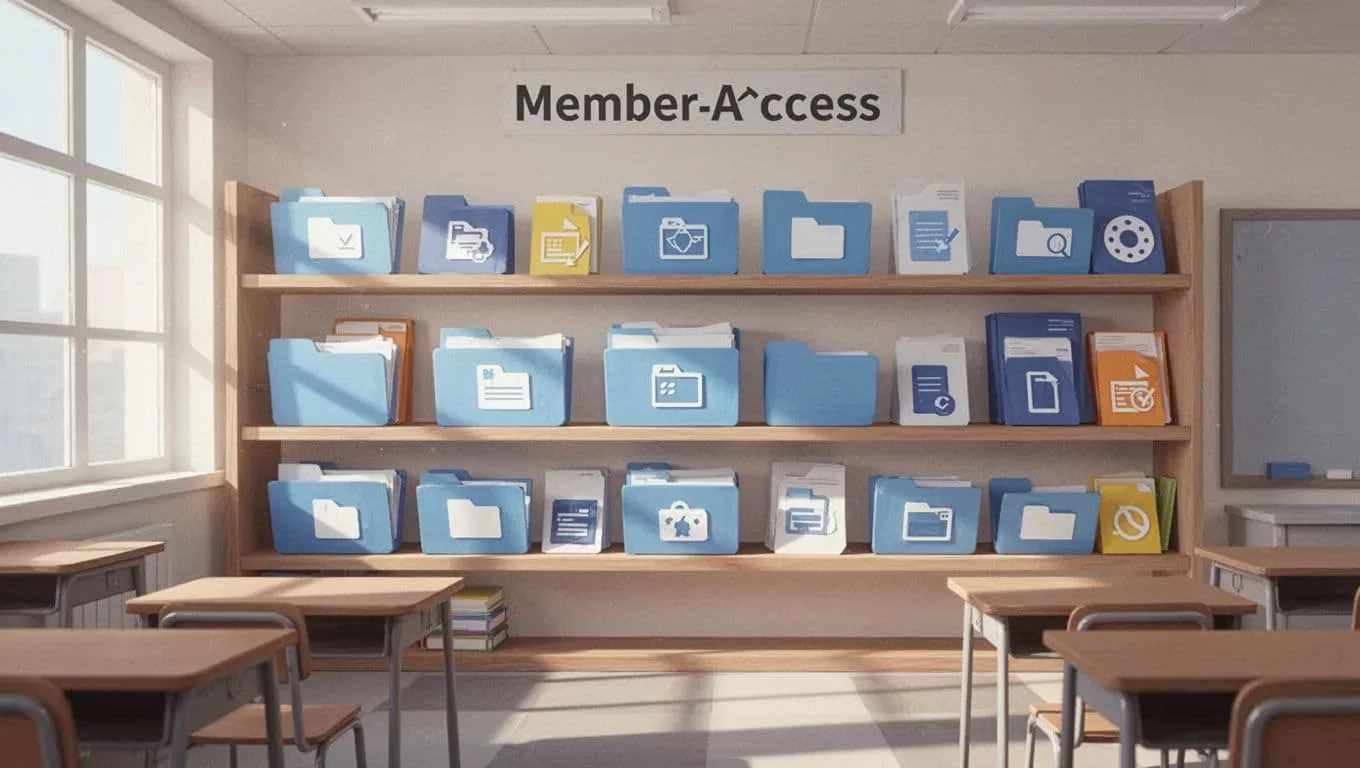
For course operators, gate resources behind payments. Pro plan analytics show downloads. Track what’s hot.
I cross-link in pins: “Grab templates [here](internal module link).” This guides without clutter.
Test access on mobile. If it loads slow, trim files. Simplicity wins.
Check Skool community setup basics for rules and moderation ties. Clean resources pair with them.
For scaling, I built a Skool membership site with these steps. It handles retention through easy access. See my guide to launching Skool memberships.
Conclusion
Organizing Skool content boils down to categories, modules, pins, events, and resources. I use them to cut clutter and boost finds.
Members stay longer when paths are clear. Your group feels alive, not buried.
Pick one tool today: set categories or pin rules. Watch engagement climb. That’s the steady win.
(Word count: 1487)

