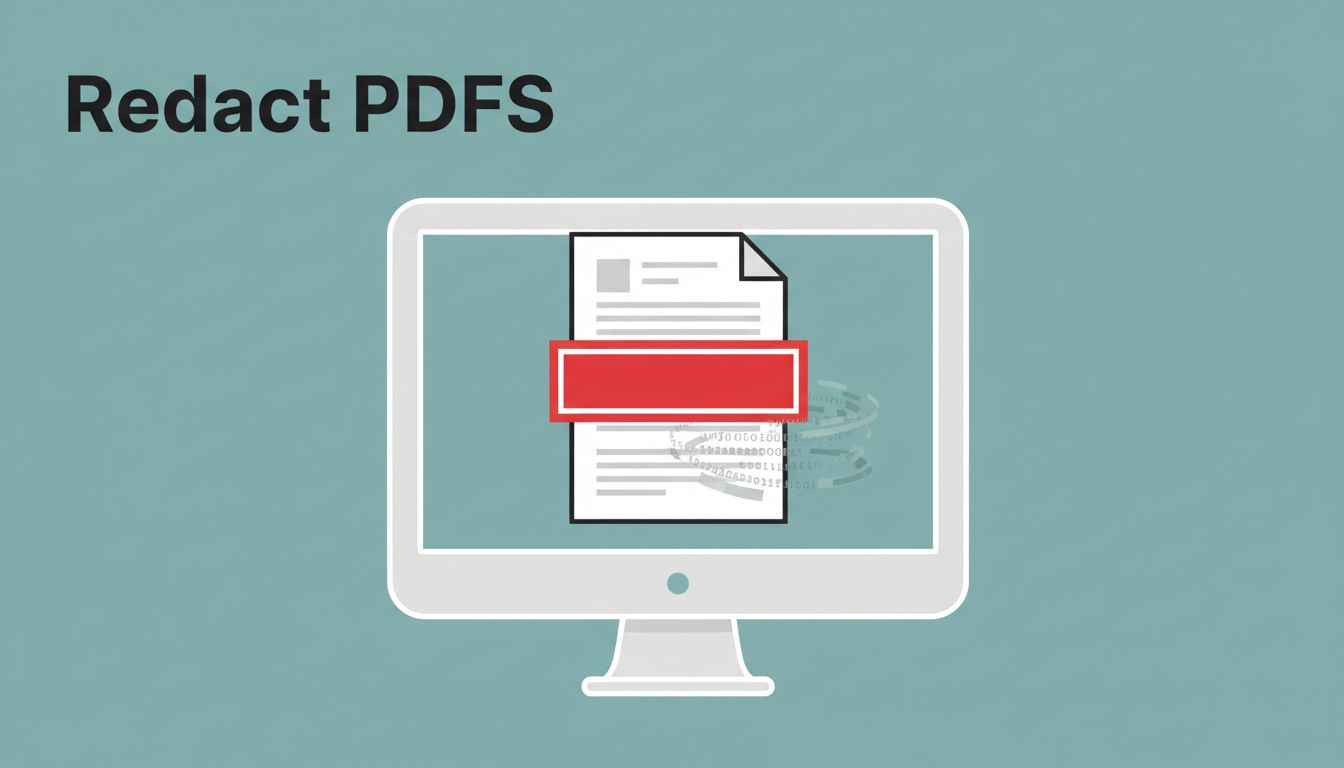
A black box can hide text on screen and still leave that text inside the file. That mistake turns a private PDF into a document that can leak with one bad click.
When I prepare a PDF for sharing, I treat PDF redaction as permanent removal, not visual cover-up. If the file can still be searched, copied, or opened in a hidden layer, it isn’t safe yet.
I handle PDFs in careful passes, because the safe way takes a few extra minutes and saves a lot of trouble later.
Why a black box is not redaction
True redaction removes content from the PDF structure. A black rectangle often just sits on top.
| Method | What it does | Safe to share? |
|---|---|---|
| True redaction | Removes text, images, and hidden data from the file | Yes |
| Black box overlay | Covers the content visually, but may leave the original data inside | No |
That difference matters more than most people think. A viewer can sometimes copy the hidden text, search for it, or pull it back from the document data. Scanned files can also hold OCR text under the image.
If I can still copy, search, or recover the hidden text, the redaction failed.
For a plain-English explanation of the risk, I like this 2026 guide to redaction. It makes the core point clearly, remove the data, don’t just hide it.
What I remove before I share a PDF
I start by scanning for the obvious items, then I look for details that hide in plain sight. The most common things I remove are:
- Social Security numbers, tax IDs, and passport numbers.
- Bank account numbers, card numbers, invoice IDs, and payment details.
- Home addresses, phone numbers, email addresses, and signatures.
- Health data, case notes, and employee or patient records.
- Confidential business information, like pricing, client names, deal terms, and internal comments.
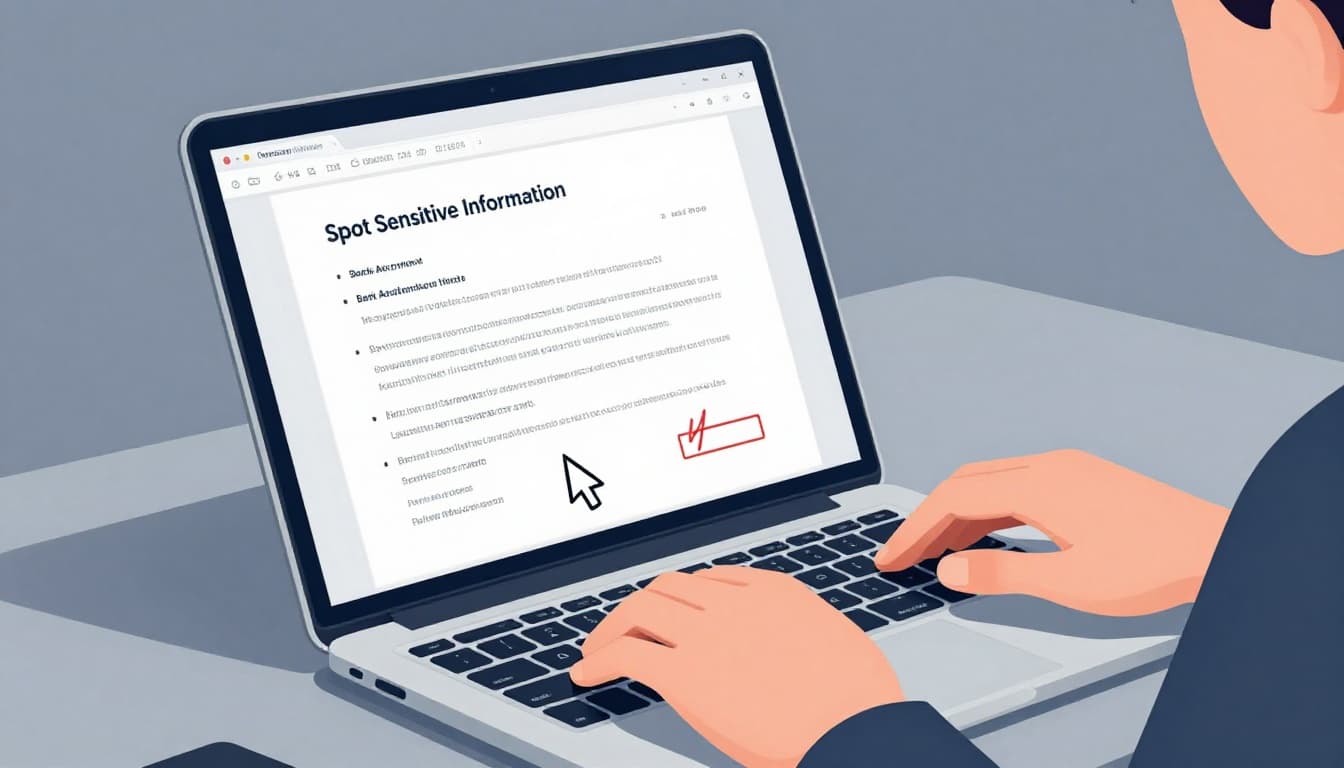
I also watch for clues in headers, footers, file names, bookmarks, and comments. A page can look harmless and still reveal a client, a project, or a payment trail.
My step-by-step PDF redaction workflow
I use the same basic process every time, whether I’m in Acrobat, Preview, Foxit, or another editor. The exact menu names may vary by software version, but the workflow stays the same.
- I save a working copy first.
I keep the original file untouched. That gives me a clean fallback if I miss something. - I mark every sensitive item.
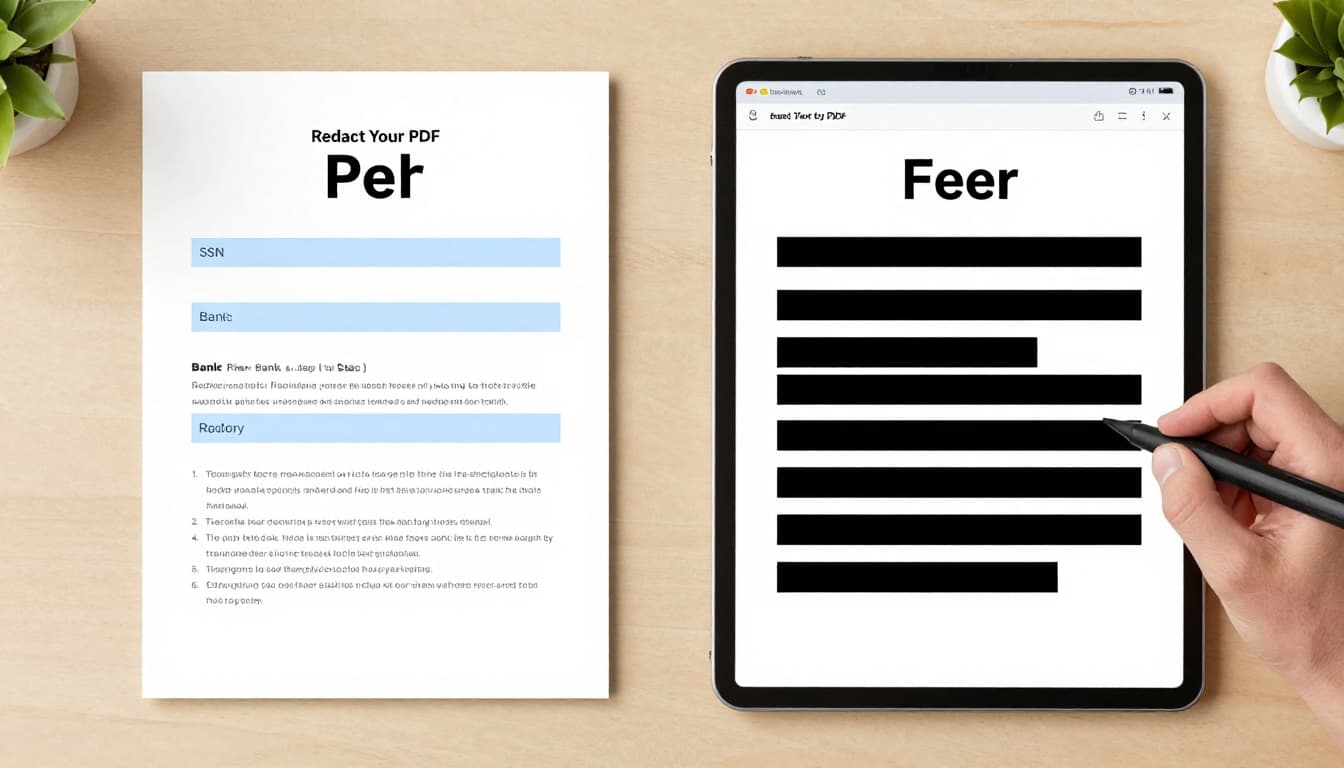
I use the tool’s real redaction feature, not a highlight, shape, or drawing tool. Those tools only change the look of the page. - I apply the redaction, then save again.
This is the point where the file should permanently drop the selected content. A good guide on this process is how to securely black out sensitive information in PDF files.
4. I remove hidden extras.
I check metadata, attachments, form fields, comments, and any layer that might still hold the text. Scanned PDFs need the same attention, because OCR can preserve words under the image.
5. I reopen the final file and test it.
I search for the redacted words, copy text from the page, and confirm nothing comes back. If I can still recover the data, I start over.
When I share the file inside a team workspace, I also pair redaction with secure Google Workspace document sharing. That keeps the document from spreading farther than it should.
My final checklist before I hit send
I run one last pass before anyone else sees the PDF. This part is small, but it catches the mistakes that matter.
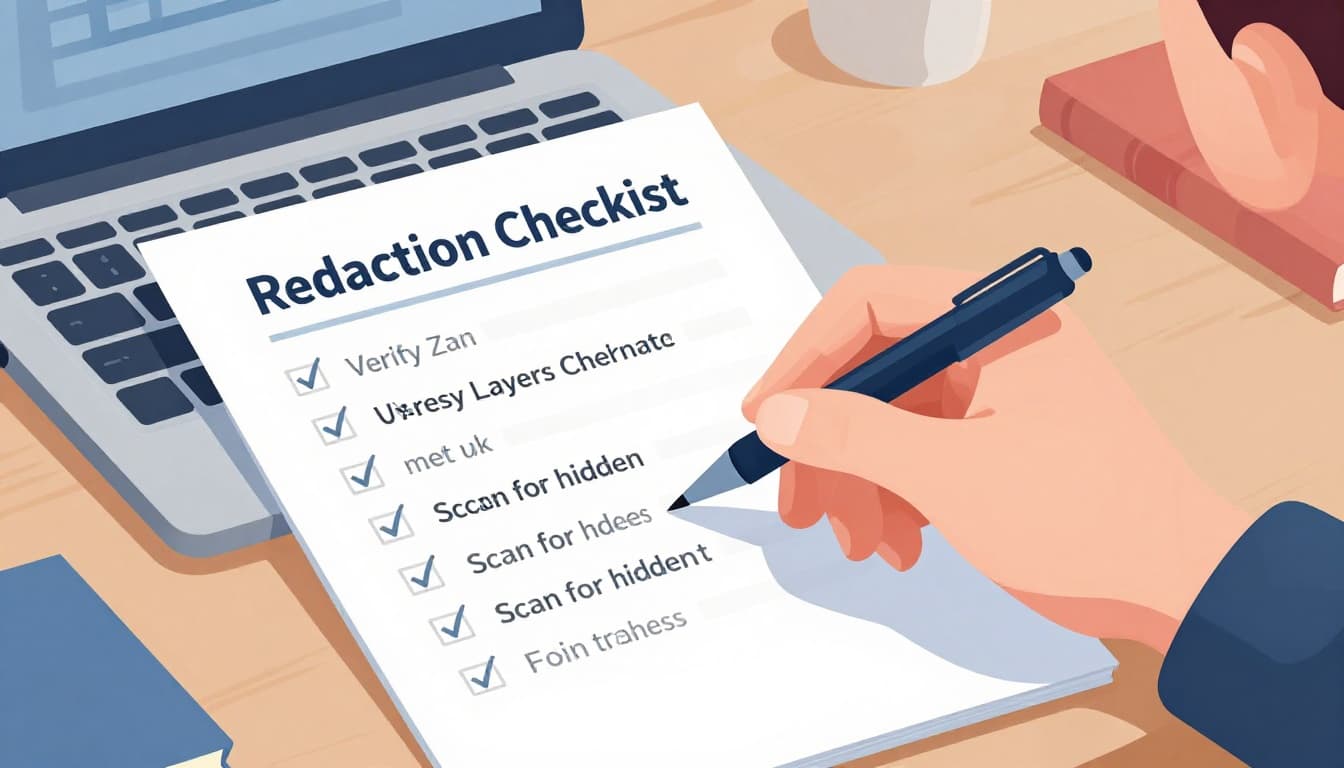
- I reopen the saved file, not the working draft.
- I search for every redacted name, number, and phrase.
- I copy text from the page and make sure nothing leaks.
- I check metadata, comments, attachments, and form fields.
- I confirm the sharing settings match the audience.
If one item fails, I don’t send the file. I fix it and run the checks again.
A PDF can look clean and still carry old data under the surface. That’s why I trust the file only after I’ve removed the content, checked the hidden layers, and tested the final copy.
When I take redaction seriously, I protect the people named in the file and the business that shares it. That’s the standard I want every time I send a PDF.