How I Set Up Shared File Access Reviews Without the Noise
Shared files drift open fast. One role change or contractor exit can leave the wrong people inside a folder. I started running shared file access reviews because I wanted a simple routine that catches stale access before it becomes a proble...

Shared files drift open fast. One role change or contractor exit can leave the wrong people inside a folder. I started running shared file access reviews because I wanted a simple routine that catches stale access before it becomes a problem.
I work from one clear assumption: if a file matters, someone should own the review. In Google Workspace, that usually means shared drives and manual checks. In Microsoft 365, I use built-in review tools where they fit. Then I repeat the same process on a schedule.
I start with the files that actually matter
I don’t review every file the same way. Team plans, client folders, finance docs, and HR files get checked first because they carry the most risk. Personal drafts and throwaway notes stay lower on the list.
| File type | How often I review | What I check first |
|---|---|---|
| HR and finance files | Monthly | Guests, old employees, and broad link access |
| Client and vendor folders | Monthly or quarterly | Expired contracts and temporary access |
| Team project files | Quarterly | Role changes and extra editors |
| Internal drafts | Quarterly | Whether the folder still needs wide access |
I also move team work into owned storage first. If I’m in Google Workspace, I prefer Google Workspace shared drives setup because ownership stays with the team, not one person’s account. That makes every review easier.

The main idea is simple. I review the folders where a mistake would hurt most. That keeps the work focused and keeps me from wasting time on harmless clutter.
My Google Workspace setup starts in Admin, not Drive
In Google Workspace, I begin in the Admin console because file owners can only work inside the rules I set there. As of April 2026, Google still does not give me one automatic, built-in button for reviewing every shared file. Instead, I combine admin settings, shared drive checks, and manual reviews.
I open Apps > Google Workspace > Drive and Docs > Sharing settings. There, I set the defaults with care. I use Google’s general access sharing options to keep link sharing narrow, and I use Google’s guide for restricting file access when I want to limit what users can pass along.
Then I check the shared drive itself. Google says admins can manage shared drives directly, which is why I keep the review close to the drive rather than scattered across individual files. Their shared drive admin guide is the reference I lean on when a setting changes.
My sequence looks like this:
- I set default access to Restricted.
- I limit external sharing unless a team truly needs it.
- I review drive members before I review files.
- I open folders with Share or Manage access and check each role.
- I remove stale people, then I confirm the folder still behaves the way I expect.
That order matters because folder rules can change how file access works. I check the folder first, then the file. For sensitive work, I keep a secure document sharing setup in place so I don’t rely on memory.
My Microsoft 365 setup uses site and group reviews
Microsoft 365 gives me a cleaner path when shared files live in SharePoint or group-backed workspaces. I still check files manually when needed, but the built-in review flow saves time for larger teams.
For SharePoint, I go to the SharePoint admin center, then open the access review report for overshared sites. Microsoft documents that process in site access reviews for SharePoint. The key detail is that the site owner reviews access, which keeps the work close to the people who know the files best.
If I need group or application reviews, I switch to Microsoft Entra admin center > Identity Governance > Access reviews > New access review. Microsoft’s access review guide for groups and applications walks through the setup. I choose who reviews, whether guests or everyone gets checked, and how often the review repeats.
That split matters in practice. SharePoint reviews help with site-level oversharing. Entra reviews help when access hangs off groups. If I assume one tool covers everything, I miss gaps.
The review flow I repeat every month or quarter
Once the setup is done, I use the same rhythm every time. It keeps the process boring, which is exactly what I want.

- I pull the current list of people and groups.
This catches ex-employees, contractors, and old aliases before they fade into the background. - I match access to active work.
If someone moved teams, I ask whether they still need edit rights or only view rights. - I remove people who no longer need access.
Old access is where risk piles up, especially in client and finance folders. - I tighten link sharing.
If a file drifted to “anyone with the link,” I pull it back to named people only. - I test one or two files after cleanup.
A quick sign-in test saves me from assuming the change worked.
I treat every review like closing doors after a move. If I skip one room, the mistake shows up later.
The habits that keep access reviews useful
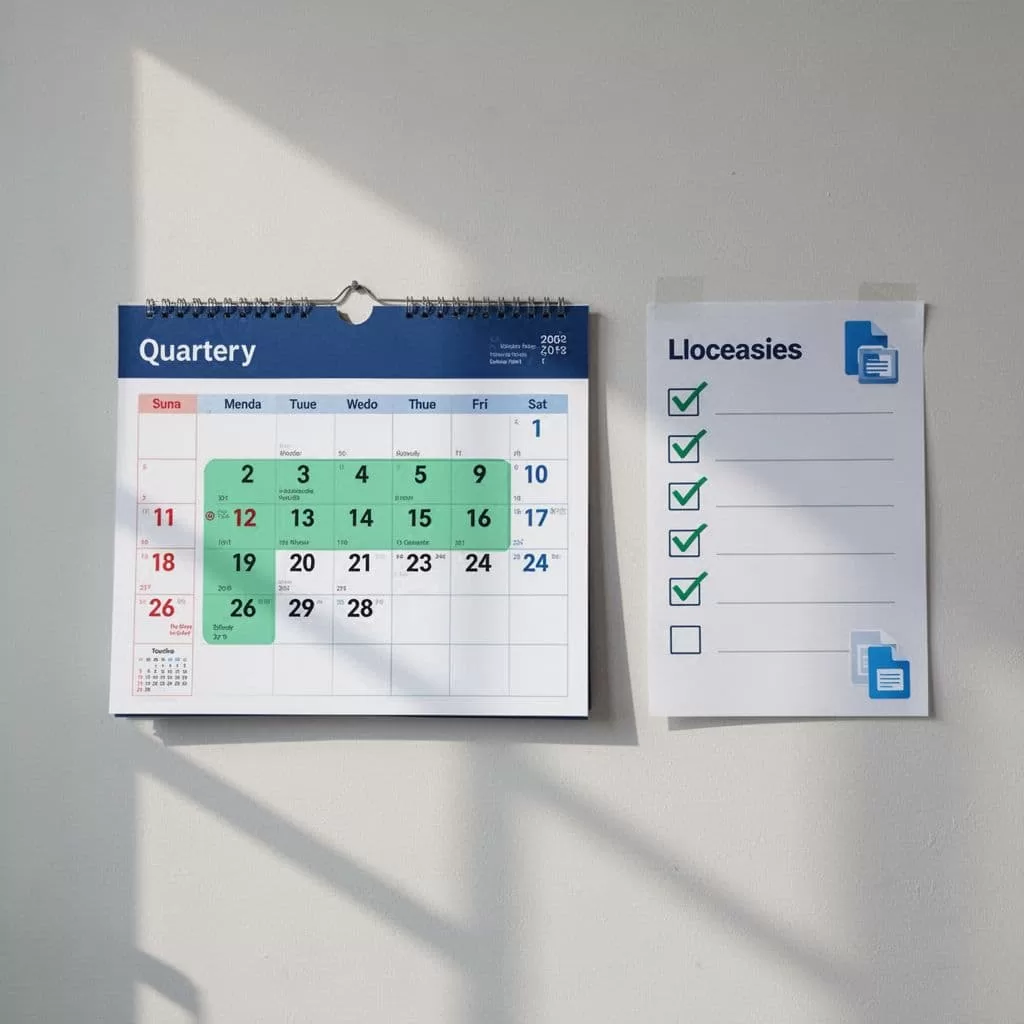
I set a cadence that matches the risk. Monthly works for HR and finance. Quarterly works for most team files. After a hire, transfer, or exit, I run an extra review right away.
I also keep file ownership simple. Team files belong in shared drives or team-owned workspaces, not inside one person’s private storage. That way, the review stays tied to the business, not to whoever created the file first.
Finally, I write down exceptions. If a vendor needs temporary access, I note the reason and the end date. If a folder needs broad access for one week, I set a reminder to reset it. That small habit keeps the next review fast.
The cleanest process is the one I can repeat without thinking too hard. When I keep the scope tight, use the right admin tools, and review the right folders first, shared files stay useful without turning into open doors.
