Build a Thumbnail Generation Bot With Twin.so
A thumbnail generation bot can remove one of the most repetitive tasks in a content workflow. Instead of opening a design tool for every article, video, or campaign, you send structured content to an automated process and receive a review-r...
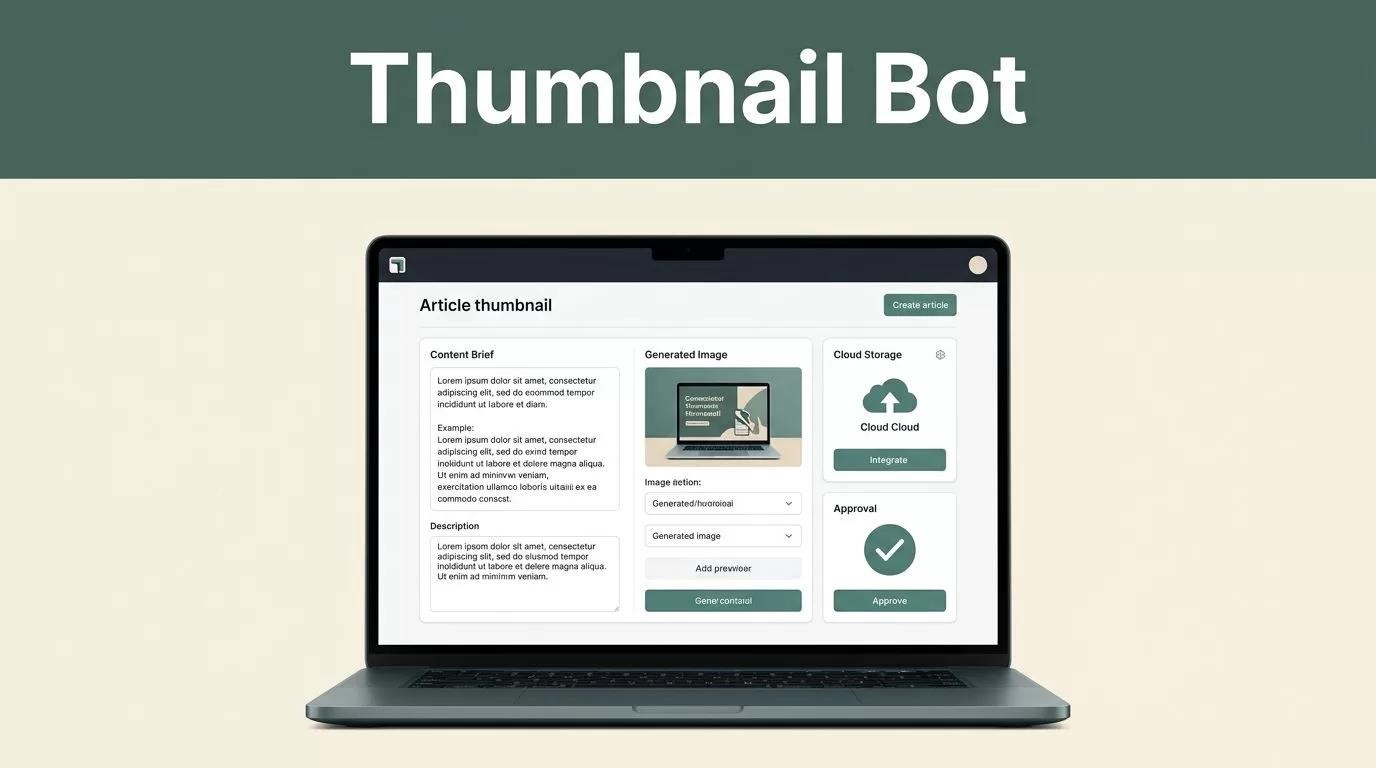
A thumbnail generation bot can remove one of the most repetitive tasks in a content workflow. Instead of opening a design tool for every article, video, or campaign, you send structured content to an automated process and receive a review-ready image.
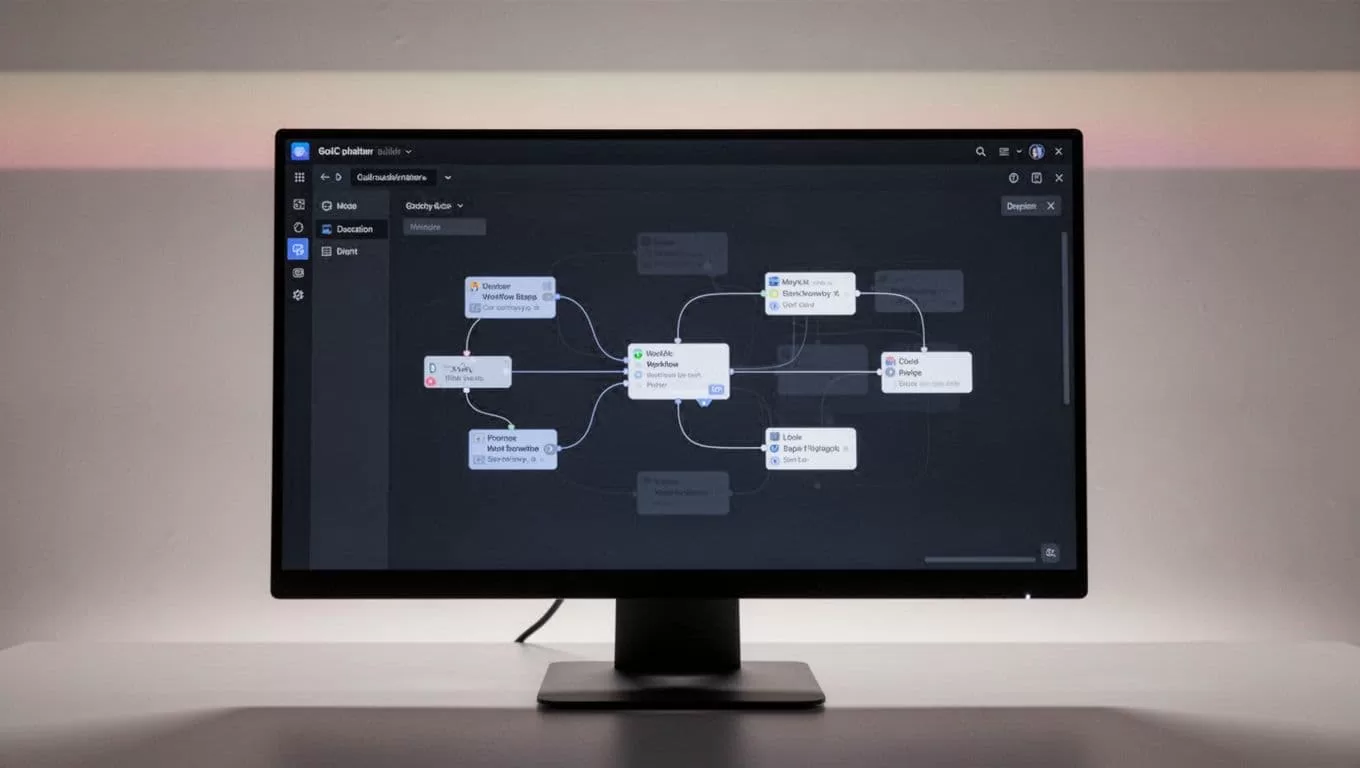
Twin.so can coordinate that process across your content database, browser tools, image generator, storage system, and notification channel. The important design choice is to treat Twin as the workflow operator, not assume it replaces every tool in the stack. Build the process around clear inputs, fixed brand rules, and a human approval step.
What a Twin.so Thumbnail Bot Should Do
A useful bot does more than send a title to an image model. It gathers the content brief, identifies the main idea, creates a controlled prompt, requests an image, saves the result, and routes it for review.
Twin.so is a no-code AI agent builder. You describe the desired outcome in plain language, then configure the agent to work through connected applications and websites. Twin supports API-based actions and browser automation, which matters when a tool doesn’t provide a usable API.
The workflow can start in several ways:
- A new content record appears in your planning database.
- A marketer submits a form with a title and campaign brief.
- A scheduled agent checks for content marked “thumbnail needed.”
- A webhook starts the process after an article or video draft reaches a defined status.
Twin’s official quickstart documentation covers scheduled agents, event-driven triggers, OAuth connections, and browser automation. Use those building blocks to create a process that runs in the background without turning every thumbnail into a manual task.
Twin can pass the content brief to an image-generation or design application. If that application supports an integration, use the connected action. If it doesn’t, configure browser automation to open the approved tool, enter the prompt, download the output, and continue the workflow.
Prepare the Inputs Before You Build
Automation quality depends on input quality. A vague content record produces a vague thumbnail, even when the agent performs every step correctly.
Create a standard content record with fields such as:
- The article, video, or campaign title.
- A one-sentence summary of the main promise.
- The target audience.
- The publishing channel.
- The required image dimensions.
- The visual subject or concept.
- The content status.
- The review owner.
For a YouTube workflow, set a 1280 x 720 output target. For other channels, store the required dimensions in the record instead of embedding one size into every prompt.
Create a separate brand brief that the bot can read on every run. Store the approved color values, typeface names, logo rules, preferred image style, contrast requirements, and prohibited elements. Include examples of accepted thumbnails if your image tool can access them.
Keep the brief operational. “Make it engaging” won’t help an agent make a consistent decision. “Use a dark green background, one focal subject, white geometric sans-serif headline, and no more than five words of text” gives the workflow usable constraints.
Organize assets in a predictable folder structure. Use folders for the brand, campaign, month, or content series. A consistent path makes it easier for Twin to save files, find previous versions, and notify the correct person.
Build the Thumbnail Generation Bot in Twin.so
Start with a narrow workflow. Generate one thumbnail for one content type before adding multiple brands, channels, or image providers. A small pilot exposes permission problems and weak prompts early.
1. Define the trigger
Create a trigger based on the way your team works. A status change such as “Ready for thumbnail” is usually better than checking every new draft. It gives the editor control over when the content is ready.
Tell Twin what counts as a valid trigger. The agent should ignore records without a title, summary, or assigned review owner. It should also stop when a thumbnail already exists unless the record includes a regeneration request.
2. Collect the content brief
The agent should retrieve the fields needed to create the image. Ask it to extract the single strongest idea rather than combining every detail from the article.
A good internal instruction looks like this:
Read the title and summary. Identify one clear visual subject. Remove secondary ideas, unsupported claims, and unnecessary detail. Return a short thumbnail concept, a headline of no more than five words, and the intended audience.
This step prevents the image prompt from becoming a compressed version of the entire article.
3. Build the image prompt
Next, instruct Twin to combine the content concept with the brand brief. Keep the prompt structure fixed:
- Subject.
- Setting.
- Composition.
- Lighting and visual style.
- Text rules.
- Output constraints.
Use this example for a technology article:
Create a landscape thumbnail about an automated content workflow. Show one laptop with a clean workflow interface and a single content card. Use a muted dark-green background, high contrast, bold geometric sans-serif typography, and one focal subject. Add the headline “Automated Content” near the top. Use no other text, no logos, no watermark, no extra devices, and no additional people. Keep the composition readable at small size.
The exact prompt will change with the content. The order should stay stable. Consistent prompt structure makes quality easier to compare across runs.
4. Generate and save the asset
Connect the agent to your approved image or design tool. Ask it to create the image, download the highest-quality output, and save it using a predictable filename.
A useful filename can include the content ID, channel, and version, such as article-184-youtube-v1. Avoid filenames based only on the headline. Headlines change, while content IDs usually remain stable.
Twin’s main platform page describes agents that can operate across applications and the web. Use the smallest set of permissions needed for this workflow. The bot needs to create and store an asset, not manage unrelated marketing systems.
5. Route the result for approval
The first version should go to a review queue. Send the image URL, content title, prompt summary, and asset version to the assigned reviewer.
Don’t publish generated thumbnails automatically during the first test. Review at least several outputs across different subjects. Record the reason for every rejection. Those reasons become better instructions for the next workflow version.
Keep Every Thumbnail Consistent With Your Brand
Brand consistency requires more than repeating a color name in the prompt. Your bot needs rules that control composition, typography, spacing, and text length.
Define a visual system with fixed decisions:
- Use one approved background palette.
- Limit each image to one main subject.
- Keep the headline in the same position.
- Use one font family or a close approved substitute.
- Set a maximum headline length.
- Reserve clear space around the text.
- Use the same aspect ratio for each channel.
- Prohibit random logos, decorative badges, and extra labels.
If your brand uses a rigid layout, describe it directly. For example, place a horizontal color band across the top 15 to 22 percent of the image. Put one short headline inside that band. Keep the main subject below it. This gives the generator a repeatable layout instead of a loose creative direction.
You should also separate brand rules from campaign rules. Brand rules stay fixed. Campaign rules change with the subject, such as the featured product, topic, or background setting.
A thumbnail generation bot works better when it receives both layers. The brand brief controls how the image looks. The campaign brief controls what the image communicates.
Review Generated Thumbnails and Fix Common Problems
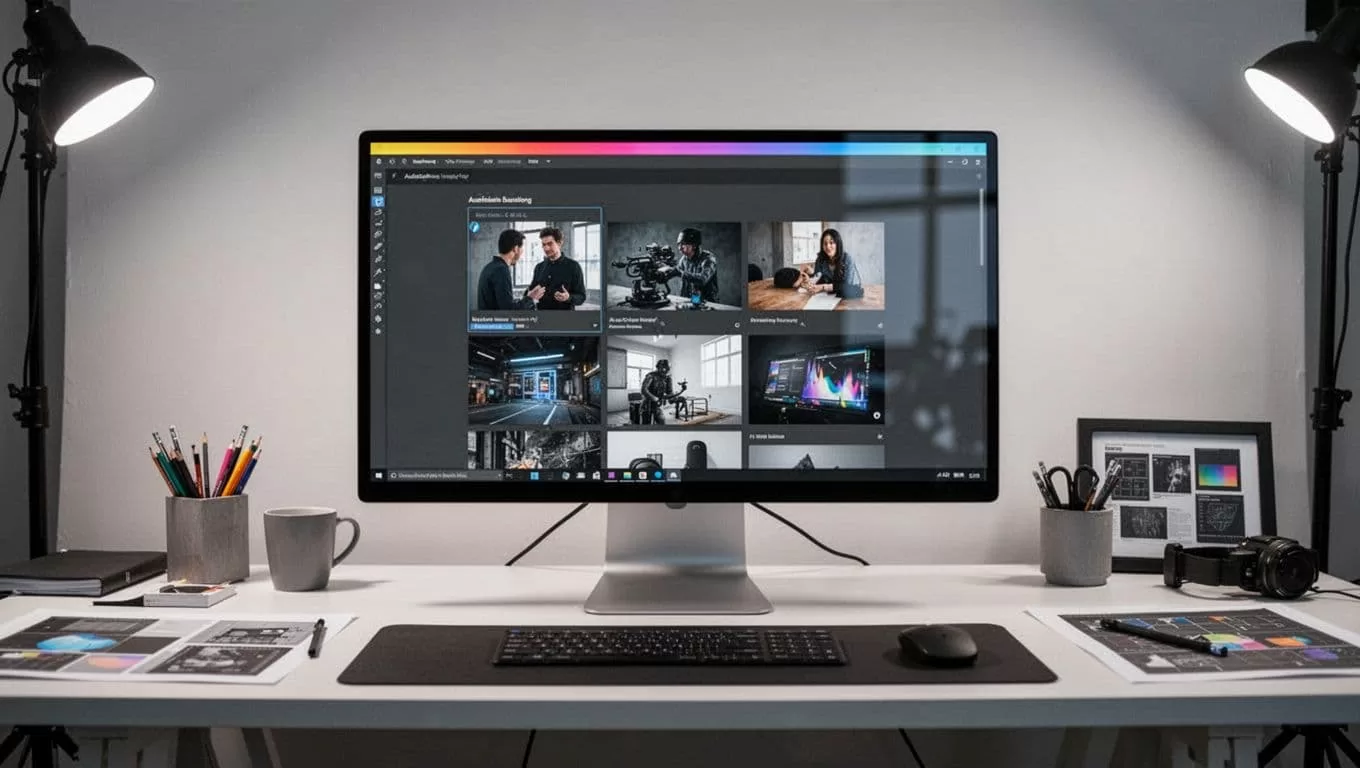
Automated review should check simple, repeatable conditions before a person sees the image. Ask Twin to inspect the asset for the correct file type, dimensions, headline length, missing output, and storage location.
Human review still matters. Image tools often create unreadable text, extra objects, weak contrast, or a subject that doesn’t match the title. A reviewer can catch those problems faster than a loose approval rule.
Use a short review decision:
- Approve the image when the subject, headline, layout, and brand treatment are correct.
- Request a revision when one clear issue can be fixed through a new prompt.
- Reject the image when the concept is wrong or the tool produces repeated errors.
Common issues need direct corrections:
Unreadable text: Reduce the headline length and ask for larger, high-contrast type. If the generator repeatedly distorts letters, create the background image without text and add the headline in a design tool.
Crowded composition: Limit the prompt to one subject and remove secondary objects. Ask for open space around the headline.
Weak brand match: Reapply the brand brief in every generation request. Don’t rely on the model to remember earlier images.
Wrong proportions: Store channel dimensions as a required input. Reject files that don’t match the target ratio.
Unwanted logos or labels: Add a negative constraint that prohibits logos, watermarks, badges, icons, and extra words.
Generic visuals: Make the subject concrete. Replace “show productivity” with “show one laptop displaying a three-step content workflow.”
Set a maximum retry count. Three attempts are enough for most automated runs. After that, send the job to a person with the failed prompts and output links attached. Twin’s GitHub project describes an agent architecture built around orchestration and execution, which fits this split between automatic work and exception review.
A Practical End-to-End Workflow
Use this sequence for a first deployment:
- A content record changes to “Ready for thumbnail.”
- Twin checks the title, summary, channel, and review owner.
- The agent loads the brand brief and extracts one visual concept.
- Twin creates a structured image prompt with fixed text and layout rules.
- The connected image tool generates the thumbnail.
- The agent checks dimensions, file presence, and text length.
- Twin saves the asset in the correct folder with a versioned filename.
- The reviewer receives the image and the source content link.
- An approval updates the content record to “Thumbnail approved.”
- A rejection starts a revision with the reviewer’s reason.
Test the complete path with one content record. Confirm the trigger, permissions, generated prompt, saved file, notification, and approval update. Then test a missing summary, a duplicate request, and a failed image-generation step.
Conclusion
A thumbnail workflow becomes reliable when you treat it as a controlled production system. Twin.so can manage the trigger, content extraction, prompt creation, browser or API actions, file storage, and review routing.
Start with one channel and one brand brief. Add strict layout rules, review every early output, and convert recurring failures into prompt constraints. A well-configured thumbnail generation bot reduces repetitive design work without removing the quality checks that protect your brand.
