How I Integrate Web Apps in Twin.so Without Friction
When a workflow breaks across three apps, the cost shows up in lost time and messy handoffs. I use Twin.so to keep those pieces moving together, especially when one app has an API and another only works in a browser. The setup feels simple...
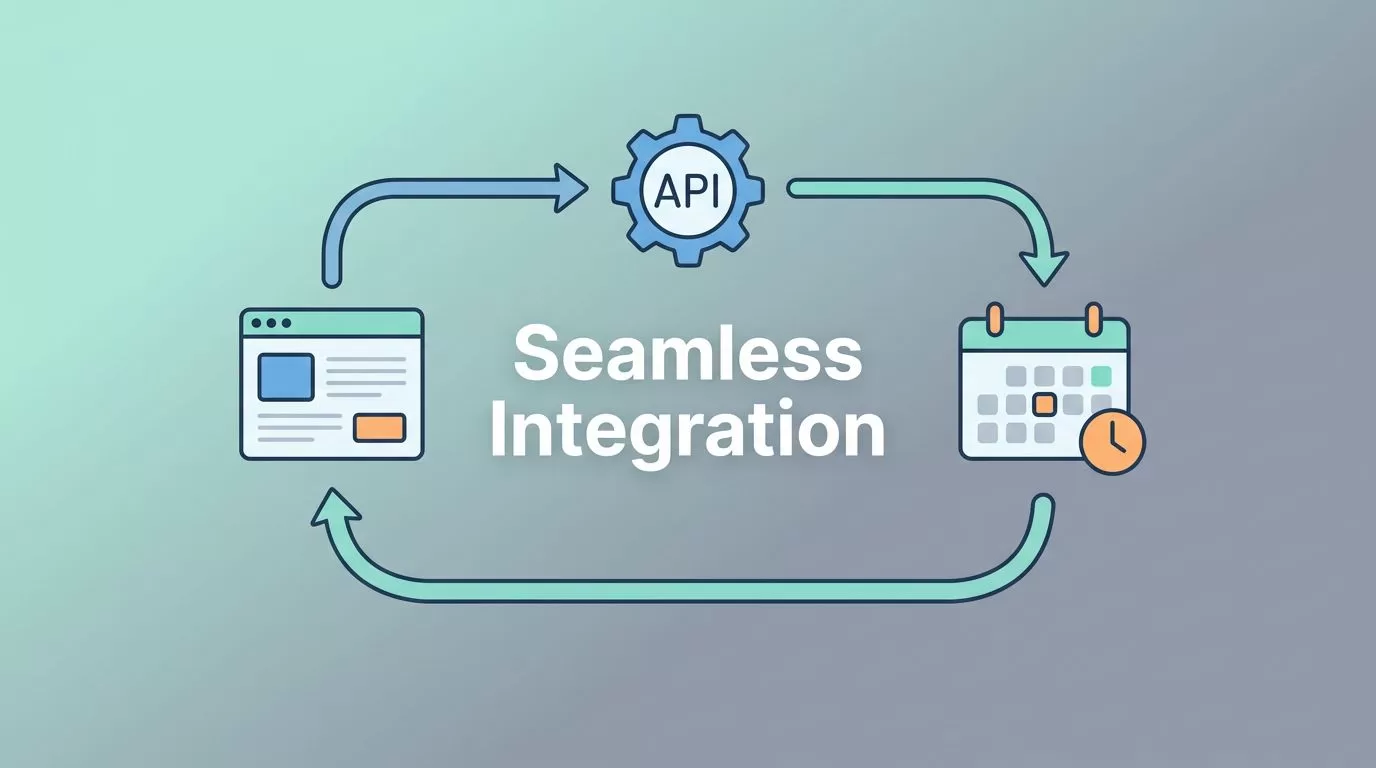
When a workflow breaks across three apps, the cost shows up in lost time and messy handoffs. I use Twin.so to keep those pieces moving together, especially when one app has an API and another only works in a browser.
The setup feels simple once I treat each app as a task, not a separate project. Twin.so’s own product page explains that it can connect to APIs, automate browsers, and run on a schedule.
If I want the connection to hold, I map the work before I build it. That keeps the agent useful on day one, not after a week of patching.
Connecting Your Digital Stack
I start by naming the exact job I want Twin.so to handle. A vague goal like “sync my tools” turns into a half-built mess. A clear task like “copy qualified leads from this form into my CRM, then alert Slack” gives me a clean path.
That matters because web apps do different kinds of work. Some expose clean endpoints. Others hide the same action behind buttons, menus, and forms. Twin.so can work with both, so I decide which side of the fence each app sits on before I connect anything.

I get the cleanest result when I know the input, the action, and the destination before I open the builder.
I also keep permissions tight. If the agent only needs read access, I don’t give it write access. If it only needs one project or one workspace, I don’t point it at the whole account. That small habit saves me from ugly surprises later.
The best integrations feel like a relay race. One app hands off the baton, Twin.so moves it, then the next app catches it. When the handoff is clear, the workflow feels calm and predictable.
How I Set Up My First Agent
I keep the first build boring. One task, one trigger, one destination. That gives me a clean test before I ask Twin.so to do more.

Here is the process I follow every time.
- Pick one job. I choose a task that repeats often and wastes time. Lead capture, report handoff, and status updates are good starters.
- Choose the trigger. I decide whether the agent starts on a schedule, a webhook, an email, or another event. Scheduled runs work well for routine checks, while webhooks fit live events.
- Connect the app. I sign in, approve access, and confirm the agent can reach the data it needs. If the app supports an API, I use that path first.
- Run a tiny test. I send one record through the flow, not fifty. I want to see the exact path before I scale it.
- Set a fallback. If the agent fails, I want a clear error, a retry path, or a manual review step.
That first run tells me almost everything. If the login stalls, I know access is the issue. If the record lands in the wrong place, the mapping is off. If the step takes too long, the browser flow needs a lighter touch.
I also like to keep a short note beside each agent. A one-line purpose statement helps me remember why I built it. Six weeks later, that note saves time.
When the task is small, I can tune it fast. When it works, I expand the same pattern to the next app.
Choosing API Connections or Browser Automation
Twin.so works best when I match the connection type to the app’s shape. Some apps give me an API and a clean data path. Others lock the useful action inside the browser. I use both, but I don’t treat them the same.
| Path | Best when | My rule of thumb |
|---|---|---|
| API connection | The app has stable endpoints and clear auth | I use it for repeat jobs and clean data exchange |
| Browser automation | The app has no API or the task lives in the UI | I use it for clicks, form fills, downloads, and screen-based steps |
| Hybrid setup | One tool has an API, another does not | I connect the stable piece through API and let Twin.so handle the rest |
The table makes the choice plain. APIs give me less friction over time. Browser automation gives me reach when the app team never exposed an endpoint. Hybrid setups are common in real work, because most companies do not run on one neat system.
A useful third-party summary on Tallyfy’s Twin.so vendor page lays out the browser-driven side in simple terms. That matches what I see in practice. When a workflow depends on what appears on the screen, Twin.so can follow the same clicks I would make myself.
I still prefer APIs when I can get them. The connection is easier to test, easier to support, and less likely to break after a layout change. Still, browser automation is a strong fallback, and sometimes it’s the only path that gets the job done.
The point is not to force every app into one method. The point is to choose the path that matches the app’s design.
Real Workflows I Use Every Week
The best place to start is usually where I already waste time. Lead enrichment is a good example. I pull a company list, verify contact data, and send it into outreach without copying the same details three times. When I want that chain to stay clean, I pair Twin.so with my Hunter.io workflow automation guide, because lead research and follow-up belong in the same flow.
Reporting is another strong use case. I like to keep experiment data and conversion data in one place, so I can read the story without switching tabs. For that, I use connecting Mida to GA4 when I want test results to move into analytics with less manual work. It keeps the numbers close to the action.
I also use Twin.so for back-office work that nobody enjoys doing twice. Invoice checks, support handoffs, and internal status updates fit well when the task is repetitive and the inputs are predictable. The agent reads the record, takes the next step, then moves on.
Security-sensitive teams can use the same approach. I keep the access narrow, add human approval where needed, and avoid giving the agent more reach than the job calls for. That matters more than speed.
The pattern stays the same across sales, ops, and finance. I start with one repeatable task, then let the workflow grow only after the first version proves itself.
When a Connection Fails, I Check This First
Most integration problems are dull. A session expires, a field name changes, or a page loads slower than usual. I check the simple stuff first, because the simple stuff causes most failures.
A broken workflow often comes down to one stale login or one changed button.
- Re-authenticate the app if the run fails without reaching the action step.
- Check permissions if the agent can read data but can’t write it back.
- Retry with one record so I can see the exact point of failure.
- Increase wait time when the page loads slowly or a modal appears late.
- Rebuild the browser step if the page layout changed since the last run.
- Use a dedicated account for unattended workflows, especially when MFA or approval prompts interrupt the session.
I also look for brittle targets. Hidden buttons, unstable filters, and pop-ups create noisy failures. If I can replace one screen step with an API call, I do it.
Sometimes the fix is outside Twin.so. The app itself may limit sessions, block automation, or change its UI without warning. When that happens, I keep the workflow small and add a manual checkpoint. That keeps the process moving while I decide whether to adjust the app, the trigger, or the method.
A good test run saves me from a bad batch. I would rather find the issue with one record than after a hundred.
The Connections That Keep Working
The best Twin.so integrations are the ones I can trust on a busy day. I get there by keeping each workflow narrow, picking the right connection type, and testing with a small task first.
Once I know where the data starts, where it should go, and what action sits in the middle, the setup feels steady. That is the real advantage of Twin.so web app integration, because the workflow stops feeling improvised and starts acting like part of the stack.
When I keep the scope tight, the automation feels like a quiet assistant instead of another tool to babysit.
