Twitch stream monitoring with Twin.so: A practical build
Missed go-live events cost more than a notification. They can delay sponsor updates, community posts, moderation coverage, and internal reporting. Twitch stream monitoring gives you a reliable way to detect channel activity and start the ri...
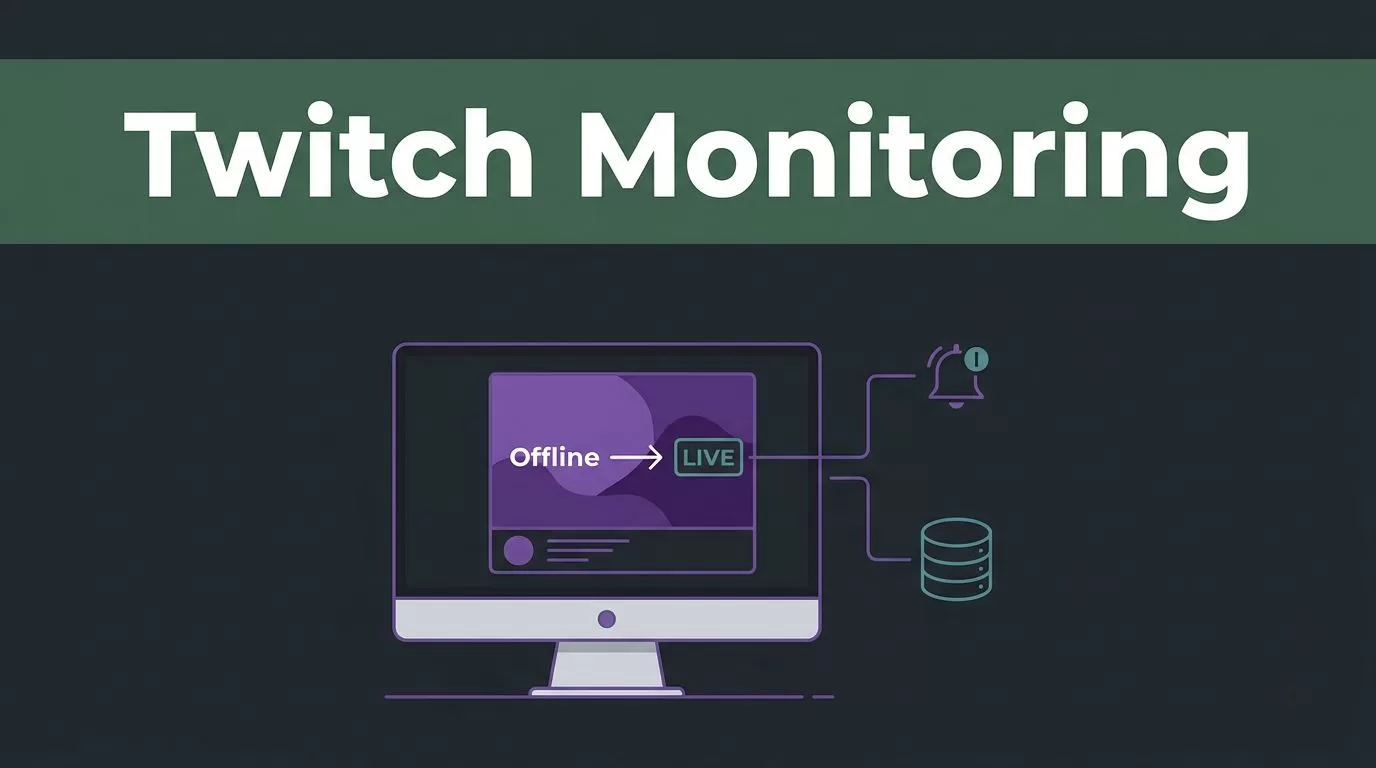
Missed go-live events cost more than a notification. They can delay sponsor updates, community posts, moderation coverage, and internal reporting. Twitch stream monitoring gives you a reliable way to detect channel activity and start the right workflow without keeping a browser tab open all day.
Twin.so can act as the workflow layer. It can check Twitch data, compare the current state with the previous state, record the result, and trigger downstream actions. The setup works best when you define the event fields and decision rules before connecting alerts.
Why Twitch stream monitoring needs a workflow layer
Manual channel checks are difficult to scale. A community manager may watch five channels without much effort. A developer or agency tracking dozens of broadcasters needs a system that records events consistently.
The workflow should answer four questions:
- Which Twitch channels need monitoring?
- What counts as a meaningful state change?
- Where should each event be recorded?
- Which action should run after the event?
A live status alone isn’t enough. You may also need the channel login, broadcaster ID, stream title, category, tags, viewer count, and event timestamp. These fields support better alerts and give your team useful history after the stream ends.
Twin.so should not be treated as a simple page watcher. Build it around a clear sequence: retrieve a Twitch result, normalize the data, compare it with the previous record, and call an action only when the rule matches.

The first decision is whether you need recurring status checks, event-driven notifications, or both.
Choose the Twitch signal before configuring Twin.so
Twitch gives you two practical ways to detect stream activity.
| Signal | Best use | Main limitation |
|---|---|---|
| Helix Get Streams | Scheduled checks and data snapshots | You need to manage polling frequency and state changes |
| EventSub | Immediate online and offline events | You need a callback and subscription setup |
Polling with the Get Streams endpoint
Twitch Helix’s Get Streams endpoint is GET https://api.twitch.tv/helix/streams. It returns active live streams and can include fields such as game_name, type, title, tags, and viewer_count. Review the current Twitch Helix API reference before configuring authentication and request handling.
You can filter results with user_id, user_login, game_id, and language. For a known set of broadcasters, use user_id or user_login instead of downloading every active stream on Twitch.
The endpoint returns 20 streams by default and supports up to 100 per page. It also supports cursor-based pagination. Results are ordered by current viewer count, not by your preferred channel order. Twitch also warns that streams can appear or disappear while you move between pages.
That makes broad pagination less reliable for a fixed monitoring list. Keep an approved channel list and query only the broadcasters you need. Send the Client-ID in the request header. Don’t add it to the URL as a query parameter.
EventSub for online and offline changes
EventSub is better when your main requirement is an immediate alert. The stream.online event can start a go-live workflow. The stream.offline event can close the workflow and record the end of the session.
EventSub requires a callback that receives and verifies Twitch requests. Twitch sends a challenge during callback verification. Follow the current EventSub webhook handling guidance when you create this endpoint.
If Twin.so can receive webhook requests in your workspace, send the verified event directly into the workflow. If it can’t, use a small relay service or use scheduled Helix checks instead. Don’t assume a native Twitch connector exists without confirming the available actions in your Twin.so account.
Build Twitch stream monitoring with Twin.so
Use a narrow implementation plan. A large instruction that tries to discover channels, interpret content, send alerts, and update several systems is harder to test.
- Create the channel source list. Store the broadcaster login and Twitch user ID for every channel. Use the ID as the stable identifier when the workflow supports it. Keep the list in one controlled location so a channel isn’t added in one workflow and forgotten in another.
- Define a consistent event record. Use fields such as
event_type,broadcaster_user_id,broadcaster_user_login,status,observed_at,started_at,title,game_name,tags,viewer_count, andsource. Leave unavailable fields blank. Don’t infer values that Twitch didn’t return. - Add state comparison. Store the last known status for each broadcaster. A live result after an offline result creates a go-live event. An offline result after a live result creates an end event. The workflow should ignore repeated live checks.
- Connect the action. Send a notification, call a webhook, create a task, or update a database record. The exact destination depends on the services connected to Twin.so. Keep the action separate from the detection step so you can replace Slack, email, or a database without rebuilding the monitor.
- Log every meaningful result. Record the event, timestamp, response status, and action result. A log helps you investigate missed alerts and measure whether the workflow is running on schedule.
A narrow Twin.so instruction can follow this pattern:
Check the approved Twitch channel list. Return one normalized record per channel. Compare each record with its previous status. Trigger the live alert only when a channel changes from offline to live. Log the event and action result.
If Twin.so supports structured exports in your workspace, map these fields directly into spreadsheet or database columns. If the output is plain text, apply one cleanup step before storing it. Consistent field names matter more than a long instruction.

Three Twitch monitoring workflows worth deploying first
Alert when a channel goes live
Use EventSub’s stream.online event when immediate notification matters. Filter the event against your approved broadcaster list, then send a message with the channel name, title, category, start time, and link destination.
A useful alert tells the recipient what happened and what to do next. For example, a community team may need to publish a launch message. A moderator may need to open the coverage schedule. A marketing analyst may need to start a campaign report.
If you use polling, compare the current result with the last stored status. Don’t send an alert on every successful check. Send it only when the state changes.
Alert when a channel goes offline
Use stream.offline to close an active monitoring record. Store the end timestamp and calculate the session duration only when you have a trusted start time.
Polling requires a grace period. A temporary API failure, timeout, or delayed response shouldn’t create a false offline alert. If you check every five minutes, requiring two failed checks adds a possible ten-minute delay but reduces unnecessary notifications. Set the rule based on the business cost of a false alert.
Log events and trigger follow-up work
A stream event can update a dashboard, create a review task, notify a sponsor contact, or start a reporting workflow. Send the normalized event to a webhook when another service needs to receive it. A webhook can pass the record to Zapier, Make, or a custom application, similar to the webhook integration pattern.
You can also log periodic snapshots when you need viewer-count or category history. Avoid logging every field at every short interval unless you need that level of detail. Store changes and scheduled summaries to control database growth.
Make the workflow reliable before expanding it
Start with one channel. Test a live event, an offline event, a repeated status check, a failed request, and a duplicate webhook. Confirm that each case creates the expected record and action.
Use an idempotency key for each event. For EventSub, combine the broadcaster ID, event type, and Twitch event identifier when available. For polling, use the broadcaster ID, detected state, and transition time. The action should be safe to retry without sending the same notification repeatedly.
Keep credentials in the secret storage available to your workspace. Never place client credentials in a prompt, public URL, spreadsheet shared with external users, or notification message. Verify webhook requests according to Twitch’s current requirements before processing the payload.
Track operational fields that reveal failures:
- The last successful check time.
- The Twitch response status.
- The number of channels checked.
- The last event received for each channel.
- The downstream action result.
- The retry count for failed actions.
Use blank values when Twitch omits a field. Keep a stable schema across records. This makes later filtering and reporting easier than cleaning inconsistent output after several weeks.
Polling and EventSub can work together. Use EventSub for immediate live and offline alerts. Use scheduled Helix checks to reconcile missed events and capture periodic stream details. This hybrid model gives you faster alerts without treating a single webhook delivery as the only source of truth.
Conclusion
Twitch stream monitoring becomes practical when you separate detection, state comparison, logging, and actions. Twitch Helix works well for scheduled checks. EventSub works well for online and offline events. Twin.so can coordinate either path when your workspace exposes the required HTTP and workflow actions.
Start with one broadcaster and one alert. Record every state transition, reject duplicates, and add downstream automations only after the core event log is accurate. Reliable automation begins with a small workflow that you can inspect and trust.
