Wise Batch Payments: How to Send Multiple Transfers
Bulk payments let a business send many separate payments through one batch, file, or payout workflow. Providers also call them batch payments or mass payments, though the terms and features are not identical everywhere. A Wise batch file gr...
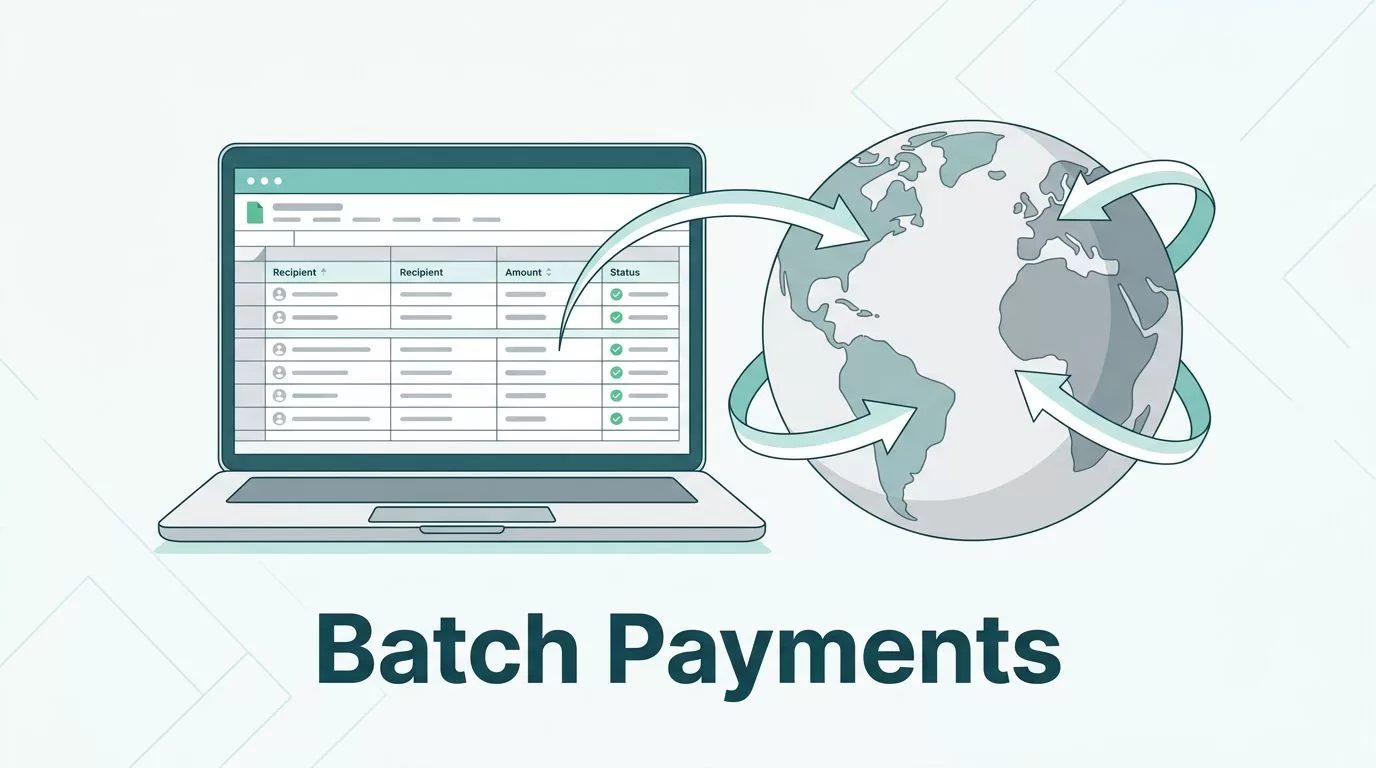
Bulk payments let a business send many separate payments through one batch, file, or payout workflow. Providers also call them batch payments or mass payments, though the terms and features are not identical everywhere. A Wise batch file groups your payment instructions for review. Uploading it does not mean every transfer is funded, approved, or complete.
Wise Business offers a file-based way to prepare multiple transfers together. It can suit contractor invoices, supplier bills, payroll, refunds, and recurring partner payouts. This guide explains how to decide whether batching is useful, prepare and review a file, compare payout providers, and reconcile results without assuming every route or account works the same way.
What Are Bulk Payments?
A bulk payment is a group of individual payments submitted in one process. A batch may use a spreadsheet upload, a provider dashboard, an accounting connection, or an API. The provider then checks and processes each payment. Some may succeed while others need correction or further review.
Bulk, mass, and batch payments often mean roughly the same thing in marketing. In practice, one provider may mean a CSV upload, while another means selecting saved recipients, sending wallet payouts, or using an API. Check what each product actually sends, which recipients can receive it, and how it handles failures.
When Is a Batch Payment System Worth Using?
Batching can reduce repeated data entry when you pay many people or businesses on a regular schedule. Typical uses include monthly payroll, contractor invoices, supplier payments, customer refunds, affiliate commissions, marketplace payouts, and employee or research-participant rewards.
It may not be worth setting up for a few occasional transfers. A batch process takes time to configure, protect, review, fund, and reconcile. If you send only two or three payments, individual transfers may be easier. Consider batching when the repeated work and error risk outweigh the setup and control effort.
Wise Batch Payments: What the File Does and Does Not Do
Wise says its Business batch tool can handle up to 1,000 transfers in a batch. You use a Wise-provided CSV or XLSX template, add one payment instruction per row, upload it, review the transfers, and then fund the batch. The interface and available routes can vary by account and location, so follow the current instructions shown in your Wise account and its official batch-payment guide.
The spreadsheet is not a payment itself. Wise must validate the recipient details and payment instructions. You still need to review the amounts and fees, complete any approval steps, and provide the required funds. After funding, follow each transfer’s status. A rejected row does not become complete just because the rest of the file was accepted.
Wise requires a verified Wise Business account for its business batch workflow. Features, supported currencies, recipient details, and eligibility can change by route and country. Do not rely on a general currency or country count for your own payment run. Check the live account flow and Wise’s current eligibility information before promising recipients a payment date.
How to Prepare and Send a Wise Batch Safely
Use this controlled workflow rather than treating upload as the final step. Current Wise menu labels may differ, so use its live in-account prompts and help pages rather than relying on a fixed screen path.
1. Prepare an approved payment list
Build the payment list from approved invoices, payroll records, refund cases, or another source your business trusts. Record the recipient, amount, currency, purpose or reference, due date, and approver. Keep a separate record of who prepared and approved the run.
2. Verify recipient information and changes
Confirm each recipient’s legal or account name and the bank details needed for that destination. Requirements vary by payment route. Use a secure, verified channel to confirm new or changed bank details, especially when a message asks you to replace existing account information. Do not accept a change based only on an unexpected email or chat message.
3. Download the current template and protect its structure
Download the appropriate file from Wise. Its template options and required fields can depend on the recipient and currency combination. Common information may include the recipient’s name or saved recipient ID, source currency, target currency, amount, amount currency, payment reference, and route-specific bank details. These are examples, not a universal list.
Keep the template’s column headers unchanged. Do not guess missing bank details or add unsupported fields. Check Wise’s batch template instructions for the current format. A formatting problem or missing required detail can cause an upload error or hold.
4. Choose who bears the conversion cost
For a payment that converts currency, decide whether your instruction sets the amount you send or the amount the recipient must receive. If the recipient needs a fixed amount, use Wise’s fixed target payment option where it is available. Wise’s exact-amount instructions explain how to set a target-currency amount. Review the displayed sender cost and recipient amount before approving. Do not assume the recipient should absorb an unexpected fee deduction.
5. Check duplicates, totals, and unusual changes
Compare the new file with the approved payment list and the previous run. Look for duplicate recipients, duplicate invoice numbers, repeated amounts, wrong decimal places, mismatched currencies, and payments outside normal limits. Have a second person check large or unusual changes when possible. A quick spreadsheet sort or duplicate check can catch mistakes before funding.
6. Upload, review, approve, and fund
Upload the file and review Wise’s payment preview row by row. Confirm names, amount sent, target amount, currency, reference, fees, exchange rate, and total funding required. Resolve flagged rows before proceeding. If the account supports team roles, use named users with limited permissions and separate preparation from approval where practical.
Wise’s current batch-payment guidance describes funding options that can include a Wise balance or a local bank transfer, depending on the account and flow. Follow the payment instructions shown for your batch. Do not assume that a card, connected bank account, or international wire is supported for every batch. See Wise’s page on paying for a batch before arranging funds.
7. Track outcomes and reconcile the run
Keep separate records for completed, pending, failed, cancelled, and refunded transfers. Match Wise’s confirmed results against the approved payment list and the account debit. Mark an item complete only when Wise confirms the transfer result, not when a file is exported, uploaded, or submitted. Follow up on rejected rows individually, correct the cause, and get approval again before resending.
For month-end accounting, retain the original approved list, the uploaded file, the batch receipt or confirmation, fee details, and the final transfer statuses. If your accounting software is involved, describe the exact workflow accurately: an export or import of payment data is not automatically a native Wise batch integration. Confirm any integration’s current features with both providers.
Fees, Exchange Rates, and Delivery Times
A batch can save repetitive work, but it does not make every transfer free. Fees may apply to individual transfers, currency conversion, the payment route, or the way the batch is funded. Wise’s price depends on the currencies and route, the amount, the live exchange rate, and the funding method. Avoid relying on a single percentage as a universal fee. Review the fee and recipient amount Wise displays for each transfer before you approve the batch.
International payments also need accurate destination details. Depending on the route, the recipient may need local bank information, an IBAN, a routing number, or SWIFT details. Intermediary banks or local banks can affect the route, timing, and amount received. Confirm the current requirements for that currency and destination rather than copying one country’s fields into every row.
There is no single delivery time for every batch. The estimate depends on the currencies, payment method, funding arrival, verification checks, receiving bank, and whether weekends or public holidays intervene. A status marked sent may still need processing by the recipient’s bank. Check the estimate shown for each transfer and share that estimate, not a guarantee, with recipients. Wise explains how to check transfer status.
Wise vs. PayPal, Revolut Business, and Tremendous
These services do not all solve the same problem. Wise and Revolut Business focus on business transfers, PayPal Payouts provides a mass-disbursement workflow, and Tremendous specializes in rewards and payout choices. Availability and pricing depend on the business’s country, recipients, and payment route. Use this table as a starting point, then check each provider’s current terms and price before choosing.
| Provider | Useful for | How batches work | What to check |
|---|---|---|---|
| Wise Business | Supplier, contractor, employee, and other bank-transfer payouts | CSV or XLSX template upload; Wise states up to 1,000 transfers per batch | Business eligibility, supported routes, fees and exchange rate per transfer, funding method, and delivery estimate |
| PayPal Payouts | Businesses paying recipients who can receive through PayPal-supported payout channels | PayPal describes web, API, and SFTP file workflows | Access is not automatic; request Payouts access and confirm recipient coverage, current fees, and account requirements |
| Revolut Business | Businesses paying saved recipients through supported bank routes | Bulk payments can use a CSV file, or multiple existing recipients can be selected; UK BACS files are also described | File fields depend on destination and currency; plan allowances and transfer or FX charges vary |
| Tremendous | Employee rewards, incentives, research rewards, and flexible recipient payouts | CSV upload, API, or integrations; sender can enable payout options for recipients to choose from | Available options depend on country; check current pricing for monetary payouts and funding method |
PayPal says Payouts access requires a business account and a request for the feature. It offers web, API, and SFTP options, but fees and recipient availability must be checked for your business and country. See PayPal’s mass-payments information.
Revolut Business says its bulk-payment workflow can accept CSV files, and BACS files for local UK payments. The help page says a file can contain up to 1,000 entries, with columns that depend on the payment destination and currency. It also notes that payments remain individual transactions. Check Revolut’s bulk-payment guidance and your plan’s current transfer allowances.
Tremendous is designed for rewards and payouts, not only supplier invoices. Depending on the recipient’s country and the options a business enables, recipients may choose from gift cards, prepaid cards, donations, or monetary payout methods. It supports CSV uploads and API or integration workflows. Its public pricing page describes platform access and some reward types differently from monetary payouts, so check the current Tremendous pricing and payout options for the exact program.
Before comparing providers, ask: Do recipients need a bank deposit, wallet, card, or choice of reward? Can you pay the countries and currencies you need? Is CSV enough, or do you need an API or accounting connection? Are fees charged per transfer, by plan, for currency conversion, or by funding method? What onboarding, approval, and support requirements apply? Compare the total cost and recipient experience, not only the advertised batch limit.
Security and Approval Controls
Payment files contain sensitive names and bank details. Store them in an approved, access-controlled business location. Limit access to people who need it, use named user accounts, and avoid sharing login credentials. Do not send bank details or completed payment files through group email or chat when a secure system is available.
Use separate preparer and approver roles where your tools and team size allow. Set clear approval limits for routine and high-value payments. Verify new or changed bank details through a second, trusted channel. Test the workflow with a small, approved run before using it for payroll or a large supplier batch. Keep a record of the approver and any edits made after the first review.
Pre-Send Checklist
- Recipient identities and bank details match verified records.
- New or changed details were checked through a trusted second channel.
- Amounts, currencies, references, and recipient-amount settings are correct.
- Duplicate invoices, recipients, or payment rows have been removed.
- Wise accepted the file and flagged rows have been resolved.
- Fees, exchange rates, total funding, and estimated delivery dates were reviewed.
- The required balance or bank funding is available.
- A second person approved the batch if your controls require it.
- The file is stored securely, and the final results will be reconciled.
Frequently Asked Questions
How many transfers can I put in a Wise batch?
Wise’s current help guidance says up to 1,000 transfers in a batch. Check the limit and template options displayed in your own account before preparing a large payment run, since access and route requirements can vary.
Does uploading the file send every payment?
No. Uploading provides payment instructions for validation and review. You still need to correct errors, approve the batch where required, and fund it. Track the individual transfer statuses afterward.
How long do Wise batch payments take?
Timing varies by route, funding method, verification, receiving bank, and calendar. Check each transfer’s estimate in Wise. Weekends and public holidays can affect delivery, and a sent status does not always mean the recipient’s bank has finished processing it.
What happens if some transfers are rejected?
Do not assume a batch has one all-or-nothing result. Separate failed or pending rows from completed transfers. Check the reason, confirm or correct the recipient information, get approval for any changes, then follow the provider’s instructions for resubmission. Reconcile any refund or returned payment separately.
Can I make sure the recipient gets an exact amount?
For supported Wise routes, choose the fixed target payment option and enter the amount in the recipient’s currency. Review the sender’s total cost before approving. This is useful when an invoice or contract specifies the amount the recipient must receive.
Are batch payments cheaper than separate transfers?
Not necessarily. A batch can save staff time, but transfer, conversion, plan, or funding fees may still apply to individual payments. Compare the final fee and recipient amount for each route. Provider prices and plan allowances change, so use current in-account quotes and official pricing pages.
How should I reconcile a partially successful batch?
Match the approved list against the provider’s final status for each transfer and the actual account debit. Record completed, pending, failed, cancelled, and refunded items separately. Investigate any difference between the batch total and the account statement before closing the run.
Bottom Line
Wise batch payments can make recurring multi-recipient transfers easier to prepare, but they do not remove the need for review, funding, security, or follow-up. Start with an approved list, use the current template, verify each route and recipient amount, review fees and estimates, then track and reconcile every result. If your recipients need wallets or rewards rather than bank transfers, compare PayPal, Revolut Business, Tremendous, and other options against your specific countries, payout methods, and controls.
Provider features, fees, eligibility, and supported payment routes may change. Confirm the latest details in your account and on the linked provider pages before sending money.
