Set Up Wix A/B Testing Fast With Mida.so
A small change on a Wix page can affect sales, bookings, or sign-ups. Guessing which version works leaves that decision to opinion. Wix A/B testing gives you a cleaner process. You show different visitors different page versions, then compa...
A small change on a Wix page can affect sales, bookings, or sign-ups. Guessing which version works leaves that decision to opinion.
Wix A/B testing gives you a cleaner process. You show different visitors different page versions, then compare one conversion goal. Mida.so helps you launch that test without building a custom testing system.
The setup is quick when you choose one page, one change, and one measurable action. Start with the page and goal before touching the editor.
Key Takeaways
- Install the Mida tracking code through Wix Custom Code on your published site.
- Test one high-impact element, such as a headline, button, or form layout.
- Choose one primary conversion goal before sending traffic to the experiment.
- Keep the original and test version identical except for the planned change.
- Wait for enough comparable data before declaring a winner.
Choose the Right Wix Page and Test Idea
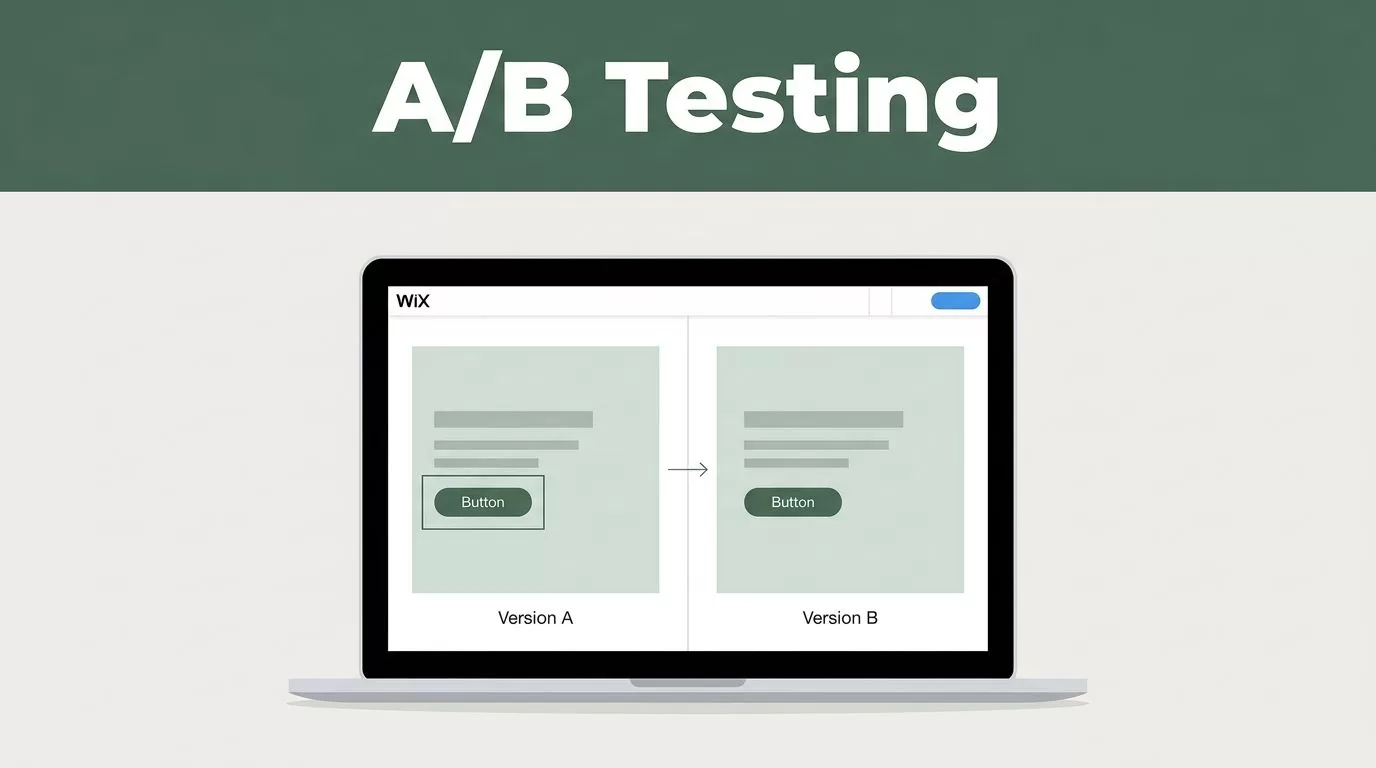
A/B testing compares two versions of the same page. Version A is the current page. Version B changes one selected element.
The test doesn’t tell you whether a page is “good” in general. It tells you which version produces more of the chosen action under the same conditions.
Start with a page that already receives traffic. A homepage, service page, landing page, booking page, or product page can work. A page with almost no visitors won’t produce useful results quickly.
Review your Wix analytics first. Look for pages with traffic and a clear business action. Wix Analytics can help you identify visits and activity before you create an experiment.
Choose one high-impact element. Good starting points include:
- The main headline and supporting message
- The primary call-to-action button
- The number of fields in a lead form
- The position of a booking or purchase section
- A product image or service offer
- The wording near a pricing section
Don’t change the headline, button color, form length, and page layout in the same test. If the result improves, you won’t know which change caused it.
Write the test idea in one sentence:
Changing the booking button text from “Learn More” to “Book a Call” will increase completed booking requests.
The statement gives you a page, a single change, and a measurable outcome. It also prevents the test from expanding while you build it.
Select the primary conversion goal before launch. Depending on your setup, this might be a form completion, booking confirmation, purchase, destination-page visit, or tracked button click. Use one main goal for the decision. Secondary actions can provide context, but they shouldn’t decide the winner.
Install Mida.so on Your Wix Site
Mida needs to receive visitor and conversion data from the site. Wix provides a Custom Code area for adding scripts without editing the site’s underlying files.
Your site must be published. Wix also limits custom-code access based on the site’s setup, including domain connection and plan requirements. If the option isn’t available, check Wix’s current custom code instructions before changing your plan.
Use the current tracking snippet and setup instructions shown inside your Mida workspace. Product labels can change, so don’t copy an old snippet from another tutorial.
- Sign in to Mida.so and create or open the project for your Wix site.
- Find the tracking or installation area for that project.
- Copy the complete Mida tracking code. Don’t remove part of the script.
- Open your Wix dashboard and go to the area for Custom Code. In some Wix interfaces, this is under Settings and Advanced Settings.
- Add a new custom-code entry and paste the Mida snippet.
- Apply it to all pages unless Mida’s instructions tell you to use a narrower scope.
- Place it in the site-wide head area when Mida specifies that location.
- Save the entry and publish the Wix site.
The exact Wix labels can differ between the Wix Editor and Wix Studio. Look for the site-wide custom-code controls rather than page-specific embed blocks. An HTML embed element is not the same as site-wide tracking code.
Check the live site after publishing. Wix preview mode may not execute the code in the same way as the published domain. Open the live page in a private browser window and return to Mida to confirm that the project receives activity.
Don’t test the editor preview and assume the live experiment is working. Publish first, then verify the real URL.
If Mida doesn’t show a visit, check the code placement, project selection, domain, and publishing status. Browser privacy tools can also block analytics scripts. Test with a clean browser session, then compare the result with Mida’s installation status.
Build Your First Mida A/B Test
Once tracking works, create the experiment in Mida. The names may appear as Experiment, A/B Test, Goal, Audience, or similar terms. Use the controls available in your current account.
- Open the experiment area in Mida and create a new test.
- Enter the live Wix page URL you want to test.
- Select the page element or variation method offered by Mida.
- Create the second version with one planned change.
- Set the traffic split between the original and variation.
- Select the primary conversion goal.
- Review the test and publish it when the setup is complete.
A visual editor may let you select a headline, button, image, or other page element. If the editor can’t select a Wix section, don’t make random code changes. Wix pages can contain app elements and dynamic content that don’t behave like standard text blocks. Follow the current Mida guidance for that element or choose a simpler test.
Keep the control version unchanged. The control is your comparison point. If you edit it after launch, the test no longer compares the same page.
Use a balanced traffic split when both versions can handle similar visitor volume. A 50/50 split is a practical starting point for many first tests, but choose from the allocation options Mida provides. Don’t send traffic to an unfinished variation.
Set the goal around the action that matters to the business. A button click can be useful, but a completed form or confirmed booking usually gives a stronger business signal when Mida can measure it. A visitor who clicks “Get Started” but abandons the form hasn’t completed the outcome.
Check the URL and audience settings before publishing. A test aimed at the wrong page can collect clean data that answers the wrong question.
Launch Without Contaminating the Data
Run one main test on the page at a time. Multiple experiments can be valid, but they make results harder to read when the same visitors qualify for different changes.
Avoid changing ads, page copy, pricing, email campaigns, or traffic sources during the test. Large traffic changes can affect visitor intent. Record any campaign or site change in your test notes.
Keep the test active long enough to collect meaningful observations from both versions. Don’t stop after a few conversions because one version has a large early lead. Early results can shift when more visitors arrive.
The right stopping point depends on traffic, conversion volume, traffic quality, and the size of the difference. Mida may show a confidence or decision indicator, but don’t treat a small sample as proof. You need enough comparable visitors and conversions to make the result useful.
Review the primary goal first. Then inspect secondary behavior, such as visits to the next page or engagement with another section. Secondary metrics can explain a result, but they shouldn’t replace the goal you selected before launch.
A winner is useful only when the test measured a stable page, a clear goal, and enough comparable traffic.
When one version performs better, record the result before making changes. Note the tested element, dates, traffic split, goal, and result. This creates a simple testing history and prevents your team from repeating the same question later.
Fix Common Wix and Mida Setup Problems
A few setup errors appear often during a first test.
No Mida activity appears: Confirm that the tracking code is installed on the live site, not only in Wix preview. Check that the correct Mida project is connected and that the site was published after the code was added.
The variation doesn’t appear: Open the live URL in a private window and check that the page matches the URL entered in Mida. Clear old test sessions only when Mida’s instructions call for it.
Conversions stay at zero: Confirm that the selected goal matches the action visitors complete. A test can record visits while missing a goal that was never configured or cannot be tracked in the selected setup.
The page looks broken: Pause the experiment if the variation affects layout or mobile display. Check desktop and mobile views on the live Wix page before sending more traffic.
The result changes sharply: Review recent edits, campaigns, traffic sources, and test allocation. Don’t declare a winner until you understand the change.
Conclusion
Mida.so makes a first Wix A/B test manageable when the setup stays narrow. Install the tracking code on the published site, test one page element, and measure one primary conversion goal.
Don’t treat the first result as a verdict after a small traffic spike. Let both versions collect comparable data, then apply the winning change only when the evidence supports it. That turns a quick Wix experiment into a repeatable conversion process.
