How I Use Text to Speech on Busy Email Days
Busy inbox days don’t fail because the messages are hard. They fail because everything wants attention at once. When my day gets crowded, I switch part of the job from reading to listening. Email text to speech helps me clear routine...

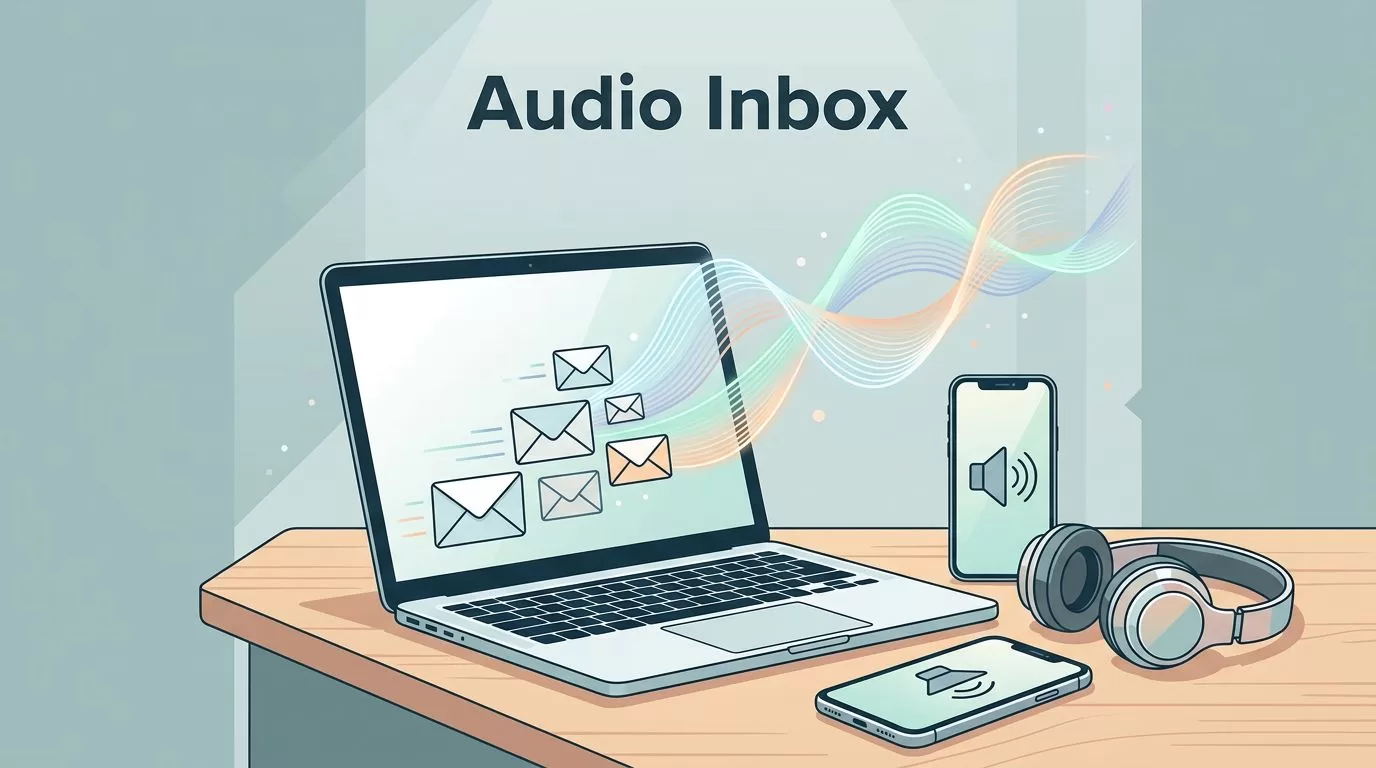
Busy inbox days don’t fail because the messages are hard. They fail because everything wants attention at once.
When my day gets crowded, I switch part of the job from reading to listening. Email text to speech helps me clear routine notes, catch urgent items, and keep moving without staring at the screen all morning.
I don’t use it for every message. I use it like a metal detector on a beach, quick, focused, and good at finding what matters first.
Start with the inbox I actually need to hear
I start with the tools already on my phone or laptop. They cost nothing, open fast, and fit the way I already work.
| Option | Best use | Trade-off |
|---|---|---|
| Built-in phone and computer speech tools | Quick checks and daily triage | Fewer inbox controls and plain voices |
| Dedicated inbox readers | Summaries, voice replies, and custom workflows | Cost, setup, and privacy review |
On iPhone, Speak Screen handles long messages well. On Android, Select to Speak works when I want one message at a time. On Mac and Windows, I test the speech options already inside my mail app before I install anything new.
For me, the built-in route is the cleanest first step. If I only need a quick scan during coffee, I don’t want a new subscription in the middle.


That setup works best when I already know which messages deserve my ears first, not the whole inbox.
My 15-minute audio triage routine
Once the feature is on, I follow the same route every time. That keeps me from bouncing around like a pinball.
- I sort by sender first, then subject. Priority mail rises fast, and newsletters sink lower.
- I set playback to 1.25x. It feels quick, but I can still catch tone and context.
- I use headphones in shared spaces. That keeps my inbox private and stops distractions around me.
- I pause on names, dates, dollar amounts, and attachment notes. Those details deserve a second pass.
- I decide right away. I archive, flag, or reply before the next message starts.
This rhythm turns email into a queue, not a pile. I’m not trying to read every line with the same level of care. I’m trying to move the right messages forward.
When a thread looks messy, I stop the audio and open the message. That small pause saves me from bad replies later.
The tools and settings I reach for
When built-in speech feels too plain, I test a dedicated inbox app. I like tools that summarize long threads, handle voice replies, and keep the controls simple.
For a focused setup, I’ve used Speechify Email Reader for saving hours as a reference point for what a dedicated inbox listener should feel like. Other tools take a different path. Lumin reads Gmail aloud and lets me sort with my voice, while MailVox leans into on-device privacy and voice control.
When I compare options, I look for a short list of things that matter in a real workday:
- Speed control, because 1.25x works for normal mail and 1.5x works for newsletters.
- A clean transcript or summary, because I still want a visual check on names and numbers.
- Simple commands, like archive, skip, flag, or reply.
- Privacy settings, because work email shouldn’t feel like casual reading.
If the day also includes outbound mail, I keep the list clean with Hunter.io list cleaning process 2026, because fewer bad sends mean fewer messages to sort later.

That kind of setup helps most on commute days, between meetings, or when I need to keep my hands free for other work.
The mistakes I watch for, plus privacy and access
I trust audio for triage, not for contracts, invoices, or anything with a deadline.
That rule saves me from sloppy mistakes. Audio can smooth over small details, so I slow down for names, order numbers, and dates. I also open the message when a thread has a lot of back-and-forth, because tone can flatten in speech.
Attachments need extra care too. If someone says a file is attached, I check for the file myself. If the message mentions a change in time, amount, or approval, I verify it before I act.
Privacy matters just as much. Before I send work email through a voice tool, I check whether it stores transcripts, uses cloud processing, or keeps data on-device. For sensitive mail, I prefer tools that spell out those rules clearly. I also keep MailVox in mind when on-device handling matters.
Accessibility is part of the story too. Text to speech gives my eyes a break after long screen sessions. It also helps when I’m commuting, walking between meetings, or fighting off that late-afternoon blur.
That’s why I treat audio as a second lane, not a replacement for reading. It speeds up the inbox, but it doesn’t remove the need for judgment.
Busy email days still happen. I don’t try to read faster anymore, I let audio do the first pass.
That simple shift helps me find urgent mail sooner, cut down on screen fatigue, and keep the rest of the day open for real work. When the inbox turns loud, listening first keeps me steady.

