How I Set Up Google Workspace Admin Alerts for Suspicious Logins
A stolen password can look harmless until it appears in a city I never use. When I want to catch that early, I turn on Google Workspace admin alerts for suspicious logins and watch the Alert Center instead of waiting for a user to complain....

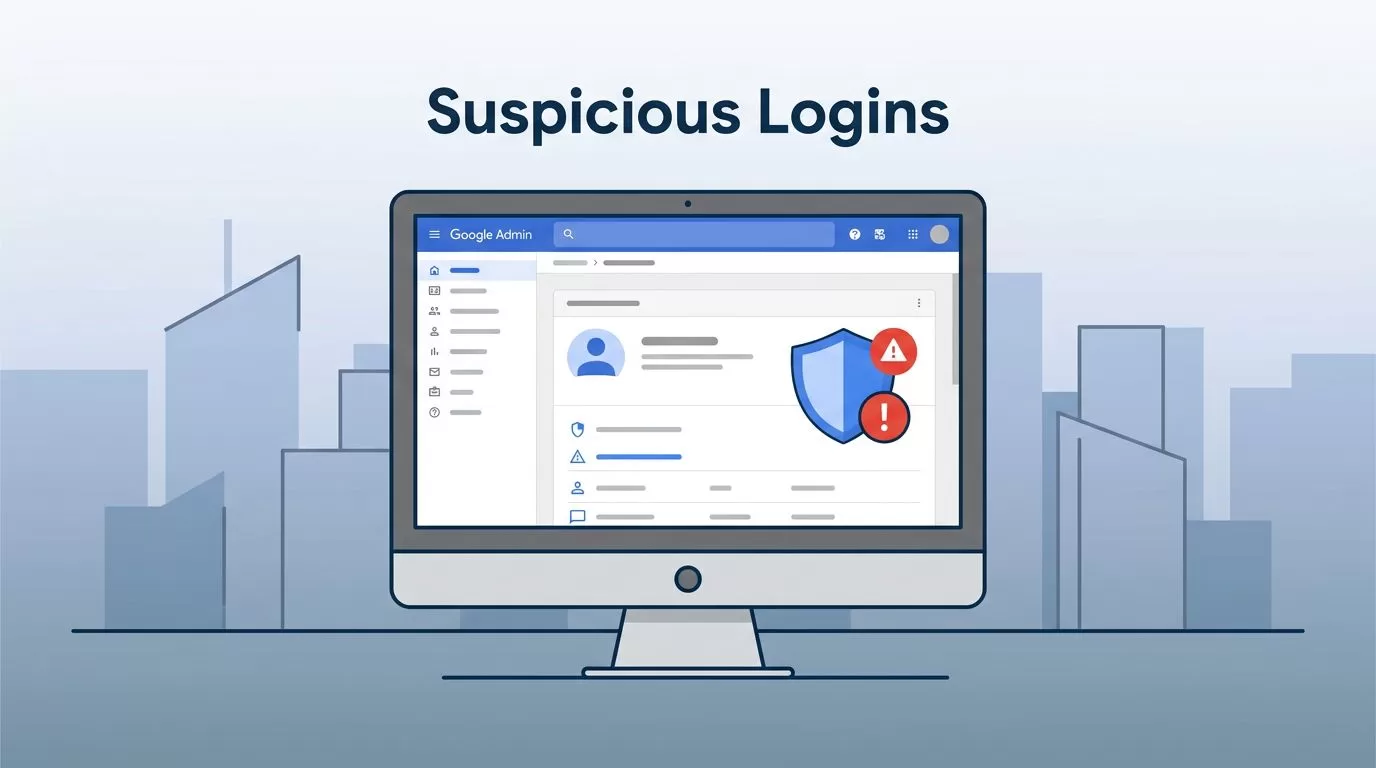
A stolen password can look harmless until it appears in a city I never use. When I want to catch that early, I turn on Google Workspace admin alerts for suspicious logins and watch the Alert Center instead of waiting for a user to complain.
In April 2026, the menu labels can shift a little, but the path still feels familiar once I know where to look. I set it up the same way every time, I find the built-in rule, turn on notifications, and pair it with 2-step verification so the alert has real value.
Table of contents
- Where I start in the Admin console
- How I turn on Google Workspace admin alerts for suspicious logins
- What I do when an alert lands
- How I keep the signal clean
- FAQs
- The part I never skip
Where I start in the Admin console
I sign in as a super admin, then I go to the Security or Reports area, depending on how my tenant is labeled that day. I search for the built-in suspicious sign-in rule instead of clicking around blindly.
Google’s suspicious login alert guide explains the trigger well. It fires when sign-in behavior looks off, such as a new location, a failed challenge, a suspended account, or a leaked password. That matters because I do not want alerts for normal life, only for odd behavior.

I keep three places in mind at once, the rule, the Alert Center, and the user login attempts report. That way, I can move from a single alert to the wider pattern without losing time.
How I turn on Google Workspace admin alerts for suspicious logins
I open the suspicious login rule and switch admin notifications on. If my console offers email plus Alert Center delivery, I keep both active. Email gives me the nudge, and the Alert Center keeps the history tidy.
Google’s system-defined rules page makes one thing clear, these rules are built in. I do not build them from scratch. I only choose how I want the alert delivered and how loud I want it to be.
The setup is short and practical:
- Open the suspicious login rule.
- Turn on admin email alerts.
- Keep Alert Center notifications active.
- Save the change.
- Watch the first few alerts closely.
I like to test the flow with one account I trust. If the alert reaches me, I know the route works. If it doesn’t, I fix delivery before I trust the setup.

If I need custom logic later, I move into activity rules. I do that only after the built-in alert is working, because simple is easier to trust.
What I do when an alert lands
An alert is a smoke alarm, not a verdict. I read the details first, then I decide whether it’s routine or risky.
I treat a suspicious login alert as a clue, not proof.
| Alert detail | What I check | My next move |
|---|---|---|
| Unusual country or IP | Travel, VPN use, remote work | Ask the user, then review sessions |
| Repeated failed sign-ins | Typing mistakes, bot activity, phishing | Watch for a wider attack |
| Leaked password alert | Recent breach, password reuse | Reset the password and revoke sessions |
| Suspended account sign-in | Account status, admin error | Verify the account should stay suspended |
When I need the pattern, I open the user login attempts report. It shows failed, successful, and suspicious logins in one place, so I can tell one odd event from a real spike.
If the sign-in looks shady, I reset the password, sign the user out of other sessions, and check recovery details. I do not wait for a second alert if the first one already looks wrong.

How I keep the signal clean
The best way to cut noise is to raise the floor. I pair the alert setup with Google Workspace 2-Step Verification setup guide, because 2-step verification stops a lot of weak sign-ins before they become alerts.
I also review admin recovery paths and keep at least two super admins in place. That matters more than it sounds. One locked-out admin can turn a small problem into a long one. If I’m tightening the rest of the stack, I also review Admin controls for Workspace email security, because account risk rarely stays in one place for long.
A few habits help me keep the alert list useful:
- I require 2-step verification for admins first.
- I review alerts weekly, not only during incidents.
- I check the login attempts report for spikes.
- I ask about travel before I panic over a strange location.
That last part matters. A login from an airport lounge can look suspicious on paper and harmless in real life.
FAQs
How fast do suspicious login alerts arrive?
Usually fast. I treat them as near real-time, but I still confirm the details before I act.
Can I turn the alerts off later?
Yes, but I rarely do. If I disable them, I usually have a test reason, not a long-term one.
Do suspicious login alerts replace 2-step verification?
No. They work better together. Alerts tell me something looks wrong, while 2-step verification helps stop the bad sign-in in the first place.
What if I get too many alerts?
I check whether users travel often, whether VPNs are common, and whether 2-step verification is fully rolled out. Then I review the login attempts report for patterns.
The part I never skip
Once I set up the alert, I stop treating suspicious logins like a hidden problem. I can see them, check them, and act before a bad sign-in turns into a bigger mess.
The simplest win is still the one I started with, turn on the alert, then back it up with 2-step verification and a steady review habit.

