How I Monitor Client Submission Tracking in Recruit CRM
When a client goes quiet, I don’t want a black hole. With Recruit CRM submission tracking, I can see which candidates were sent, where they sit in the workflow, and when a follow-up is due. That matters because silence can hide differ...


When a client goes quiet, I don’t want a black hole. With Recruit CRM submission tracking, I can see which candidates were sent, where they sit in the workflow, and when a follow-up is due.
That matters because silence can hide different problems. Sometimes the submission never left the system. Sometimes the client opened it and stalled. Sometimes the status moved, but nobody logged the next step.
I use a simple routine inside Recruit CRM so I can spot each one fast. The path starts with the submission record, then moves through status labels, activity logs, and follow-up tasks.
Where I Check Submission Progress First
When I want the clearest read, I open the job or candidate profile first. If I need a cleaner setup before I track anything, I use my Recruit CRM setup guide to make sure the pipeline stages and fields line up.


From there, I move through the same steps every time:
- I open the candidate or job record tied to the submission.
- I use the Candidates Pipeline tab or the submit flow to confirm the profile went out.
- I check whether the client is using the portal or replying by email.
- I review the activity log for notes, calls, and tasks.
The submission path is easier to trust when the records stay tied together. When Recruit CRM is set up well, I can move between the candidate profile, job record, and client record without losing the thread. That keeps me from searching through email later.
The submitting candidates to contacts guide is useful when I want to confirm the send flow and the preview before I share a list.
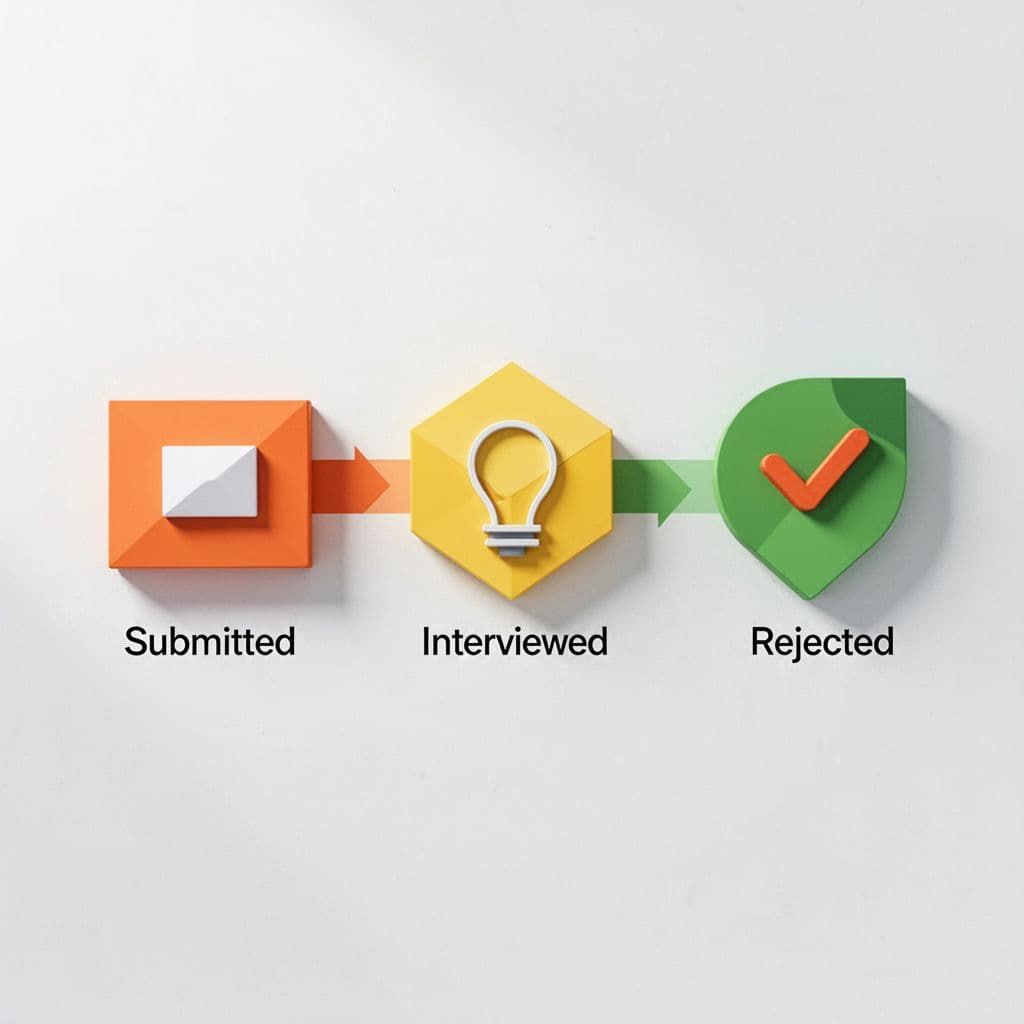
How I Read Submission Statuses in Recruit CRM
Status names can vary a little by pipeline setup. Still, the pattern is usually the same. I look for movement, not decoration.
| Status | What it usually tells me | My next move |
|---|---|---|
| Submitted | The candidate went to the client, but feedback may still be open | I wait briefly, then plan a follow-up |
| Viewed or Opened | The client has seen the profile | I check for comments or a task update |
| Interview Scheduled | The client liked the fit enough to keep going | I confirm the date and prep the candidate |
| Rejected | The client passed on the profile | I log the reason and adjust the search |
| Placed | The hire is complete and should be tracked as a placement | I verify the placement record and close the loop |
A status is a clue, not the whole story. If a card sits in “Submitted” too long, I don’t assume the candidate missed the mark. I check whether the client opened the profile, whether feedback landed in the portal, and whether anyone attached a note.
A submission that looks stuck often has one missing follow-up, not one bad candidate.
The tracking placed candidates guide is handy here because it shows how Recruit CRM filters placements by candidate, contact, job, and created date. That makes it easier to separate true movement from a record that only looks active.

What I Watch in Reports and Activity Logs
The dashboard tells me more than a single profile does. I look at submission volume by client, open jobs with no response, and jobs that need attention before they cool off.
A weekly glance at submissions by client also shows which accounts need a softer touch and which ones reply only after a second prompt. That helps me plan my day instead of reacting to every slow thread.
The activity log gives me the paper trail. I can see emails, calls, notes, and tasks tied to the submission. If the client says they never saw a profile, I can check the send history before I start guessing.
I also watch for patterns that repeat. For example, one client may approve fast but reject a certain skill set. Another may take three days to reply unless I send the profile through the portal. Recruit CRM’s client portal and yes/no decision flow helps me spot those habits without sorting through a dozen email threads.
When a submission starts slowing down, I ask three simple questions:
- Did the client see it?
- Did they reply in the portal or by email?
- Did I log the next step?
Those three answers usually tell me where the delay sits.
How I Follow Up Without Losing Momentum
I keep follow-up tied to the submission itself. That way, I don’t rely on memory.
The moment I send a candidate, I create a task on the job or contact. If the client hasn’t replied after a day or two, I nudge them with a short note that asks for a clear yes or no. If I want the reminder to happen on its own, Recruit CRM workflow automation helps me set that rule once and reuse it.

My follow-up note stays short. I mention the candidate name, the job, and the one action I need. That keeps the thread clean and makes it easier for the client to answer fast.
This is the rhythm I trust:
- If the client opened the submission, I ask for feedback.
- If they replied with questions, I answer those first.
- If they stayed silent, I resend the key profile and a brief prompt.
- If the role changed, I update the pipeline before I follow up again.
I also keep a short note on the tone the client prefers. Some want a brief summary. Others want a side-by-side comparison of two candidates. That little detail saves time later.
The goal is simple. I want each submission to leave a visible trail and a clear next step.
Conclusion
When I monitor client submissions inside Recruit CRM, I spend less time chasing missing details. I know where each candidate sits, what the status means, and which client needs attention.
That kind of control matters because submissions move faster when the record is clean. With the right view, the right status checks, and a tight follow-up rhythm, Recruit CRM submission tracking becomes easy to trust.

