Restaurant automation tools built by Twin.so
Restaurant operators lose time in the gaps between systems. An order enters one platform, a manager checks another, and a team member handles the follow-up manually. The right restaurant automation tools connect those steps without forcing...
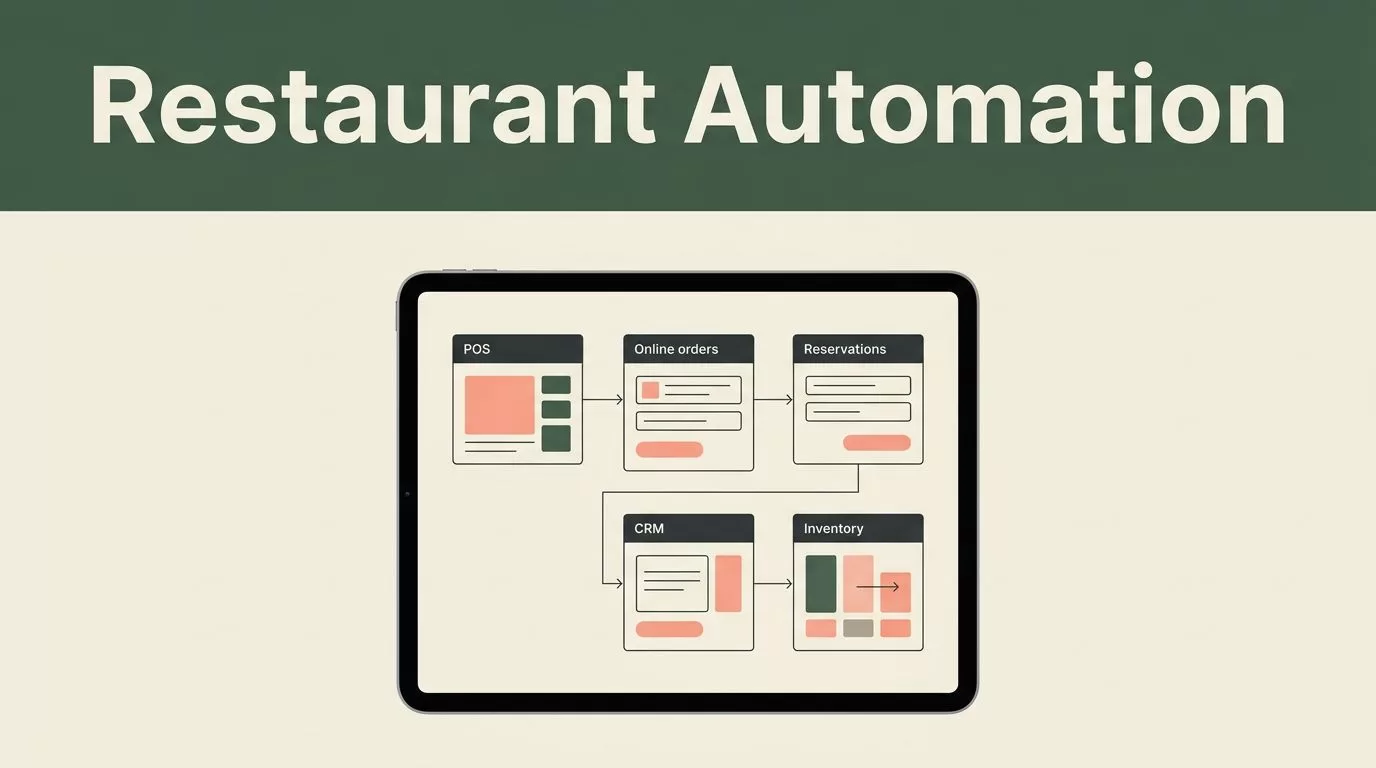
Restaurant operators lose time in the gaps between systems. An order enters one platform, a manager checks another, and a team member handles the follow-up manually. The right restaurant automation tools connect those steps without forcing you to replace the software already running your business.
Twin.so can help you build custom workflows around your POS, online ordering platform, reservation system, CRM, inventory tools, and internal communication channels. The practical goal is simple: move routine work to automation while keeping approvals and customer-sensitive decisions with your team.
Why custom restaurant automation tools start with workflow design
Most restaurants already have software for core transactions. Your POS records payments and menu items. Your ordering system receives digital orders. Your reservation platform manages tables. Your CRM stores guest information.
The problem often appears after the record is created.
A canceled item may require a manager message, a menu update, and a customer response. A large reservation may need a confirmation call and a kitchen note. A low-stock ingredient may sit unnoticed until service begins.
These are workflow problems. Adding another general-purpose application won’t always fix them.
Restaurant365’s list of automatable restaurant functions includes areas such as ordering, inventory, payroll, and scheduling. The useful takeaway is that automation applies to both front-of-house and back-office work.
Map every workflow as a trigger, decision, and action
Start with one repeated process. Write down what starts it, what information the system needs, and what should happen next.
For example:
- An online order contains an unavailable item.
- The workflow checks the item status and store location.
- The customer receives an approved substitution message, while the shift manager gets an exception alert.
This structure gives Twin.so a clear build target. It also prevents vague requests such as “automate order management.” Your team can review each step before anything reaches a customer.
Use Twin.so as an orchestration layer
The strongest use case for Twin.so is coordinating systems that already work well independently. The POS remains the source for transaction data. The reservation system remains responsible for table availability. Twin.so handles the movement of information and tasks between them.
Your implementation team should confirm each system’s available API, webhook, export, and permission options. Build only with the data the connected platforms expose. Give the workflow the minimum access it needs.
Restaurant automation tools to build with Twin.so
Custom automation becomes useful when it targets work your employees repeat every day. The examples below fit common restaurant operations and can be adjusted for one location or a multi-unit group.
Automate ordering exceptions and customer service
Order processing doesn’t end when the POS accepts a ticket. Staff still handle failed payments, missing modifiers, unavailable items, delivery delays, and duplicate orders.
A Twin.so workflow can monitor incoming order events and route exceptions to the correct person. A payment issue can go to the manager. A kitchen delay can go to the service team. An unavailable ingredient can trigger a task for the employee responsible for menu availability.
Customer messages follow a similar pattern. The workflow can classify an inquiry, retrieve order information from the approved system, and prepare a response for staff review. Routine questions can receive a standard answer. Refunds, complaints, and compensation requests should remain approval-based.
This approach gives employees a prepared next step without allowing automation to make an unapproved promise.
Connect reservations with guest follow-up
Reservation data often remains isolated from the rest of the customer experience. A booking may contain useful information about party size, visit frequency, dietary requests, or special occasions.
With the right permissions, Twin.so can trigger actions when a reservation is created, changed, or canceled. Possible workflows include:
- Creating or updating a customer record in the CRM.
- Sending a confirmation request when required information is missing.
- Creating a service note for a large party or dietary request.
- Assigning a follow-up task after a no-show or cancellation.
- Routing private dining inquiries to the correct manager.
The reservation platform still controls availability. The automation adds follow-up work around the booking.
Reduce repetitive manager and back-office tasks
Managers spend time compiling information that already exists in separate systems. A custom workflow can collect selected data and deliver a daily operating summary through the communication channel your team already uses.
The summary might include sales totals, open order exceptions, canceled reservations, low-stock alerts, and unresolved service tickets. Limit the summary to decisions managers need to make. More data doesn’t automatically create better decisions.
Other useful workflows include invoice intake, end-of-day checklists, maintenance requests, and employee task reminders. A message with an attached invoice can be routed to the right folder or accounting queue. A missed closing task can create a reminder for the assigned employee.
Restaurant workflow automation examples show how connected triggers can support operations and customer service without putting every task inside one application.

How Twin.so complements your existing restaurant systems
Custom automation should add coordination, not create a second source of truth. Define the responsibility of every system before building the workflow.
| Existing system | Keep it responsible for | Twin.so can help with |
|---|---|---|
| POS | Payments, sales records, menu items, and transaction status | Routing alerts and creating follow-up tasks |
| Ordering platform | Digital order capture and customer order details | Exception handling and internal notifications |
| Reservation system | Availability, bookings, table assignments, and changes | CRM updates and pre- or post-visit tasks |
| CRM | Guest profiles, consent records, and communication history | Adding approved context and triggering follow-up |
| Inventory platform | Stock records, purchase data, and item status | Low-stock alerts and manager approvals |
| Accounting system | Bills, payments, and financial records | Routing documents for review and entry |
Use read access whenever the workflow only needs to inspect information. Request write access only when the action is clear, reversible, and tested.
For example, a low-stock workflow can notify a manager without changing the menu automatically. A reservation workflow can add a guest note without changing table availability. A customer service workflow can draft a reply without issuing a refund.
Common integration patterns include APIs, webhooks, scheduled file transfers, and email-based intake. The right option depends on vendor support, data quality, and the speed the workflow requires.
A basic workflow map should show the starting event, process steps, responsible roles, and completion condition. A restaurant workflow planning framework can help teams document those details before development begins.
A practical implementation plan for Twin.so automation
Don’t automate every department at once. Start with one process that has a clear owner and a measurable manual burden.
1. Select one repeatable workflow
Choose a process such as order exceptions, reservation follow-up, low-stock alerts, or daily reporting. Avoid a broad project such as “automate operations.”
Record the current steps. Note how many systems employees open, where delays occur, and which decisions require manager approval. Useful measures include response time, unresolved tasks, duplicate entries, and manual handoffs.
2. Define the data and permissions
List every field the workflow needs. An order exception may require the location, order number, item, customer contact method, and current order status.
Then define access by role. A customer service employee may view order status but not payment details. A manager may approve refunds. An accounting user may access invoice records without seeing unrelated guest data.
3. Build the normal path and exception path
The normal path describes what should happen when the data is complete. The exception path covers missing information, duplicate events, unavailable systems, and low-confidence results.
For an unavailable item, the workflow should check whether an approved substitute exists. If it doesn’t, send the issue to a manager. Don’t allow an automated message to invent a replacement or promise a delivery time.
4. Test with controlled records
Use sample data or a sandbox where available. Test duplicate orders, canceled reservations, missing phone numbers, incorrect item codes, and system timeouts.
Ask employees to review every notification. A technically correct workflow can still fail if it sends too many alerts or uses language staff cannot act on.
5. Pilot before expanding
Run the workflow at one location, during one shift, or for one order channel. Keep the existing manual process available during the pilot.
Review the logs each week. Remove unnecessary steps, adjust routing rules, and update approval thresholds. Expand only after the workflow performs consistently under normal operating conditions.
Controls that keep restaurant automation safe
Restaurant automation tools should fail safely. A system outage shouldn’t create silent customer issues or duplicate work.
Set clear rules before launch:
- Require human approval for refunds, discounts, menu changes, and customer compensation.
- Log each trigger, data lookup, action, approval, and failure.
- Prevent duplicate processing when the same order or reservation event arrives twice.
- Set a fallback owner for every alert.
- Limit customer messages to information confirmed by the source system.
- Review access permissions when employees change roles or leave.
- Create an outage process for POS, ordering, reservation, and communication failures.
Keep customer data inside approved systems. Avoid copying full payment details or unnecessary personal information into messages and task records.
Write notifications for action. “Order 1842 needs manager review because item 12 is unavailable” is useful. “There is an order issue” creates another investigation.
Conclusion
The best restaurant automation tools don’t ask your team to abandon its POS, ordering platform, reservation system, or CRM. They connect the work that happens between those systems.
Twin.so is most useful when you give it a defined workflow, approved data access, clear decision rules, and a human fallback. Start with one repeated process, measure the manual steps, and expand only after the workflow works reliably.
Automation should remove avoidable coordination work. Your staff should spend less time moving information and more time acting on it.
