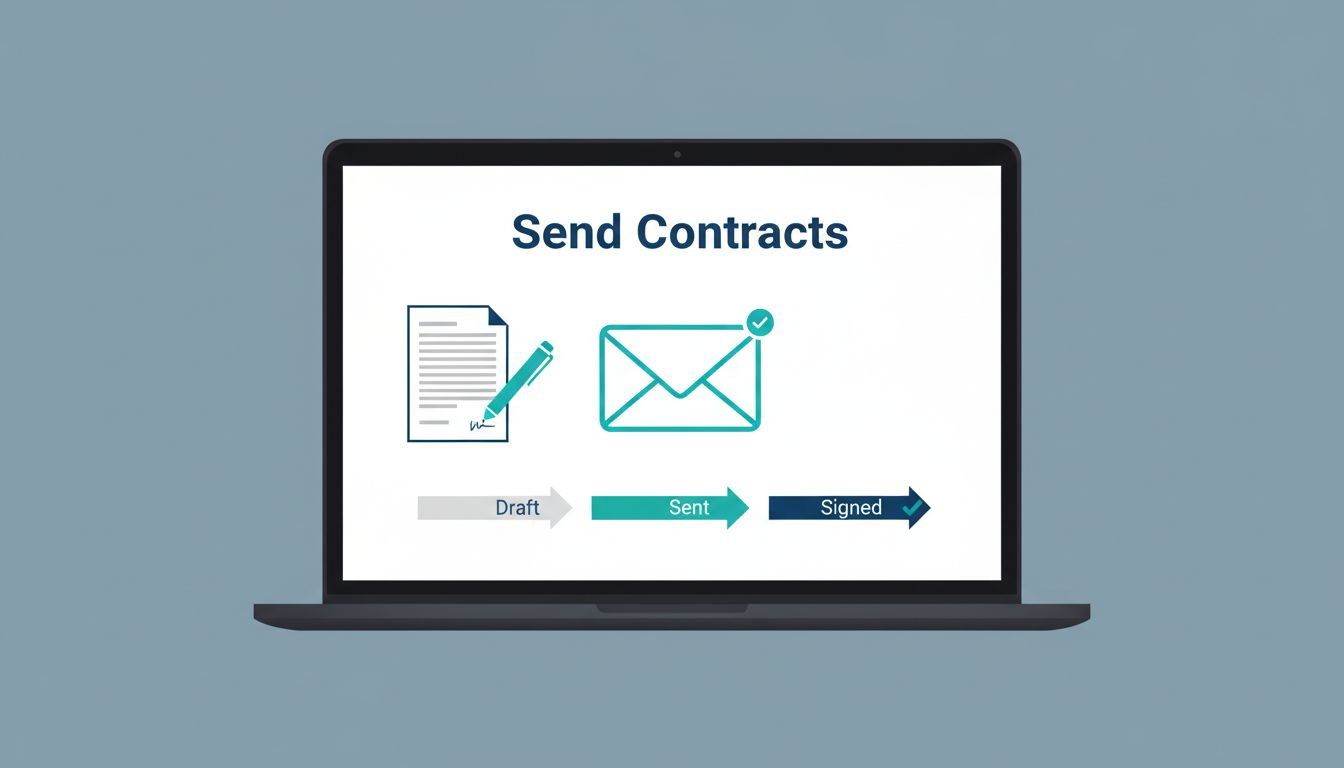
A contract should take minutes to send, not a morning to untangle. When I use DocuSign, I turn a final PDF into a tracked envelope, then I can watch it move from sent to completed.
The process is simple once I know the order. Still, one missed field or wrong signer can slow everything down. Menu labels can vary a little by plan or recent updates, so I focus on the workflow instead of the exact button names.
Start with the right file and signer list
I always clean up the document before I upload anything. That means I use the final version, check every name, and confirm who actually needs to sign. If someone only needs a copy, I add them as a CC contact, not a signer.
I also think about signing order early. For a two-party contract, I usually decide whether one person signs first or whether both can sign in any order. That choice matters, because it affects the pace of the whole envelope.
For a quick official reference, I keep Docusign’s step-by-step guide open while I work. It matches the basic flow I use in the web app, and it helps when I want to double-check the field setup.
Send the contract in the DocuSign web app


Once I’m in DocuSign, I click Start and choose Get Signatures. Then I upload the contract from my computer, or from a connected storage app if my account supports it. Recent updates in the web app have also made larger uploads easier, which helps when a contract includes exhibits or attachments.
Here’s the flow I follow:
- I sign in and start a new envelope.
- I choose Get Signatures.
- I upload the document.
- I add each recipient’s name and email address.
- I set the signing order if needed.
- I place the required fields, then send the envelope.
That’s the core of how I send contract DocuSign requests without extra noise. I keep the wording simple and I move step by step, because one rushed click can send the file to the wrong person.
If I want a broader feature overview, I also use Docusign’s quick-start page as a sanity check before I send anything to a client.
Place signature fields so the contract does not stall
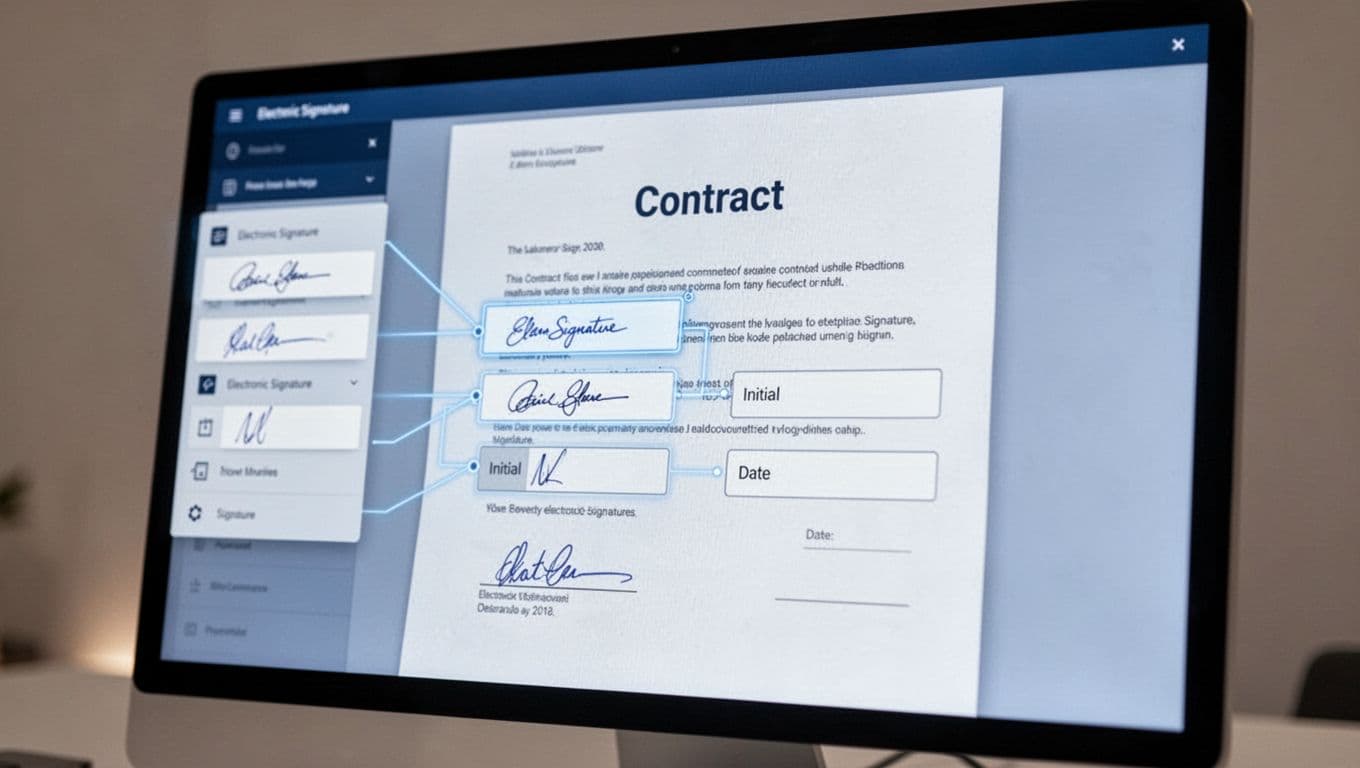
This is where many first-time users get stuck. I open the document editor and drag the right fields onto the page. For most contracts, I add at least a signature field, a date signed field, and sometimes initials or text boxes for extra notes.
I assign each field to the correct recipient. That part matters more than people think. If I place a signature box on the page but assign it to the wrong signer, the envelope looks ready and still goes nowhere.
A contract can look finished and still fail if one signer has no field assigned.
For multi-page agreements, I scroll through the entire file. I look for every signature line, every initials spot, and every place that needs a date. If a clause needs a typed name instead of a signature, I add that too.
I like the official How to Use Docusign guide for this part, because it explains the same basic setup in plain language.
Track the envelope, send reminders, and fix common snags
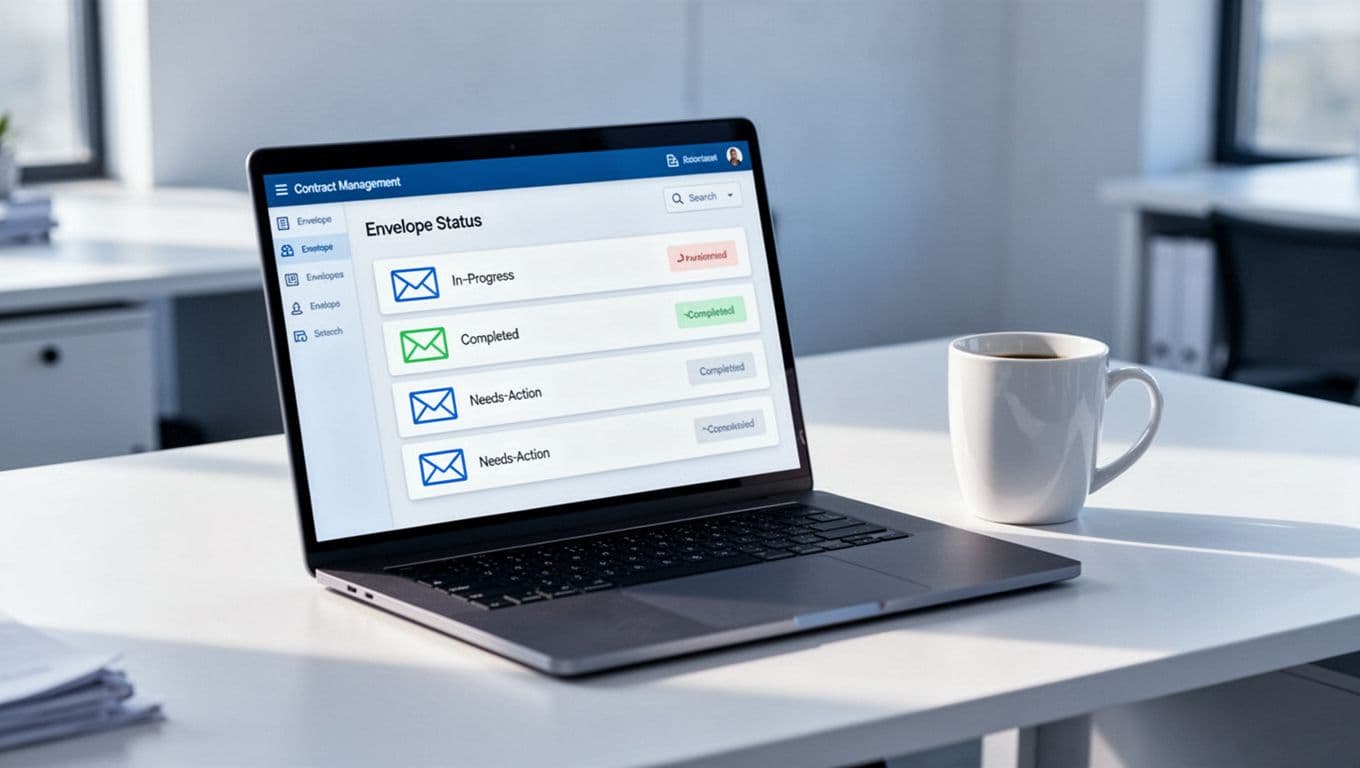
After I send the contract, I watch the envelope status. I want to see whether it is sent, delivered, viewed, or completed. That status view saves me from endless email guesswork.
When something gets stuck, I check a few things first:
- Recipient order: If the wrong person is first, I usually correct the envelope or send a new one, depending on the current status.
- Missing signature fields: If a signer cannot finish, I reopen the draft and make sure every required field is assigned.
- Authentication: If my account uses SMS or access code verification, I confirm the phone number or code entry matches exactly.
- Reminders and resend options: I look for reminder or resend actions in the envelope menu, since labels can vary by account.
- Spam folders: If a recipient says they never got the email, I ask them to check junk or search for DocuSign messages.
When a signed agreement feeds a bigger workflow, I keep the next steps organized in my Recruit CRM setup for agencies, so the contract result does not disappear into my inbox.
What I do on mobile
I use the DocuSign mobile app when I need to review status or sign something on the move. It works well for quick approvals, but I still prefer the desktop web app for building the envelope and placing fields.
Mobile is handy for a short contract and a simple signer list. Desktop is better when I need routing, multiple fields, or a longer agreement with attachments. That split keeps me from making mistakes on a small screen.
Keep the send process clean every time
I send contracts faster when I treat the setup like a checklist, not a race. The file has to be final, the signer list has to be correct, and every signature field has to match the right person.
Once I do that, DocuSign feels less like software and more like a clear path from draft to signed agreement. That’s the part I care about most, because the send button is easy. The setup is what makes the envelope finish on time.