Deploy Spa Automation Tools With Twin.so
A spa can lose hours each week to appointment reminders, intake forms, follow-ups, membership updates, and staff messages. Spa automation tools reduce that manual workload when they connect the right systems and follow clear rules. Twin.so...
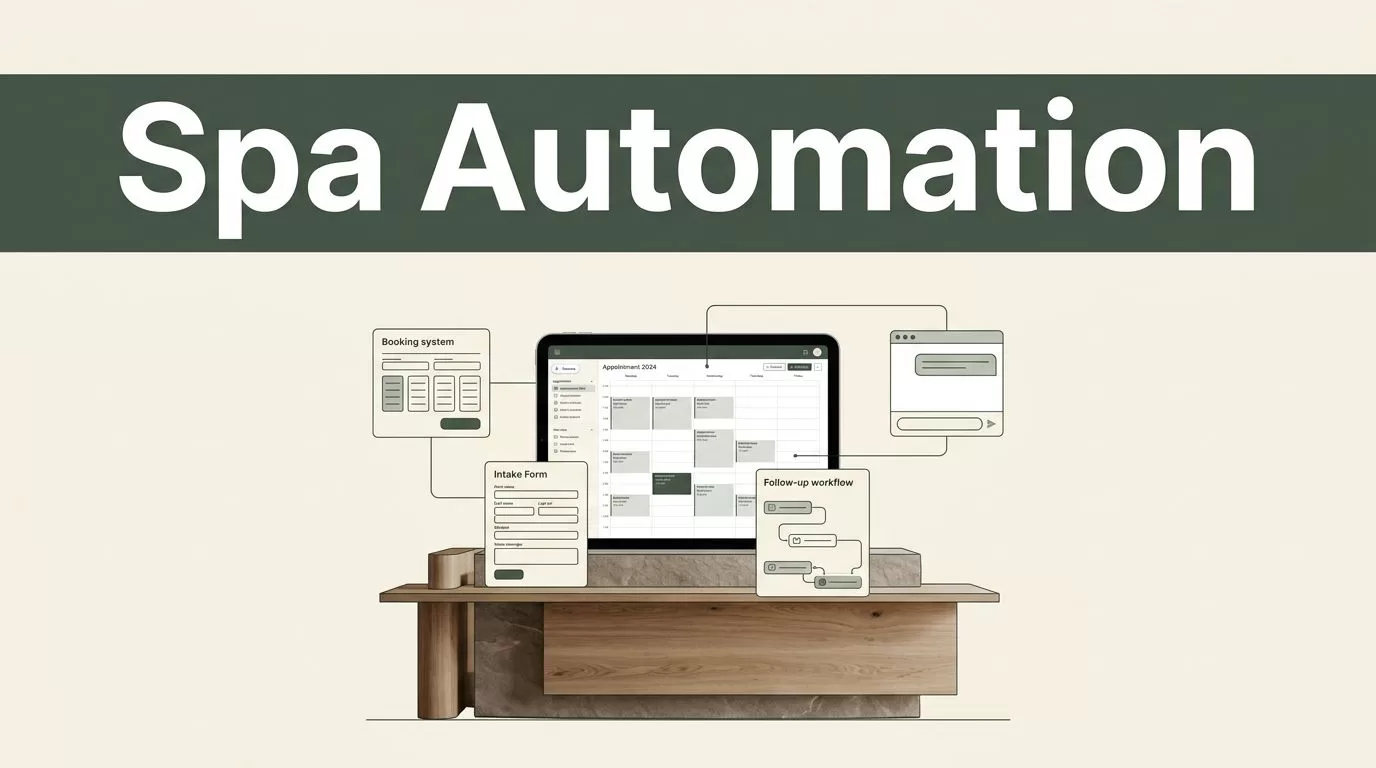
A spa can lose hours each week to appointment reminders, intake forms, follow-ups, membership updates, and staff messages. Spa automation tools reduce that manual workload when they connect the right systems and follow clear rules.
Twin.so takes an agent-based approach. You describe the result, connect approved apps or browser workflows, and configure the trigger, actions, and review points. The quality of the deployment depends on your workflow map, data controls, and testing process.
Start with one repeatable process. Then expand only after the first automation runs reliably.
What Twin.so Adds to Spa Automation Tools
Twin.so is an AI workflow automation and agent-building platform. Its published materials describe agents that can run manually, on a schedule, or through event-based triggers. The platform also combines API connections with browser automation when a system doesn’t offer a usable API.
That model can help a spa connect separate tools. Your booking platform may hold appointment data. A payment processor may manage memberships. An email or SMS provider may handle reminders. Staff may use Microsoft 365, Outlook, Slack, or another internal communication system.
Twin’s listed integration examples include tools such as Twilio, Outlook, Microsoft 365, Odoo, Dialpad, and Supabase. Treat these as examples, not guaranteed spa integrations. Confirm the current integration catalog, authentication method, permissions, pricing, usage limits, and supported actions before selecting the platform.
A browser-capable agent can also operate a web-based booking portal. That can help when the vendor lacks an API. It creates another control requirement, however. Browser automation must use stable selectors, restricted credentials, and a clear failure path.
Review this spa workflow map before building. Packages, rooms, deposits, therapist availability, and cancellation rules all affect the workflow.
Use Twin.so to coordinate approved actions. Don’t give an agent broad authority over refunds, customer records, or appointment changes without review controls.
Map the Spa Workflow Before You Build
Automation starts with a process map, not a prompt. Write down what happens now and identify every system involved.
For an appointment reminder, document these fields:
- The trigger, such as a confirmed appointment 48 hours before the start time.
- The data required, including the client’s name, service, date, time, location, and contact preference.
- The action, such as sending an SMS with a confirmation or rescheduling link.
- The exception, such as a canceled appointment, missing phone number, or failed message.
- The final record, such as updating the appointment status or notifying the front desk.
This structure prevents vague instructions such as “remind clients about appointments.” The agent needs a precise event, a permitted action, and a condition for stopping.
Create a workflow inventory before deployment. Include appointment reminders, intake forms, post-treatment follow-ups, membership management, rebooking, payment alerts, cancellation handling, and staff notifications.
Separate low-risk tasks from high-risk tasks. Sending a reminder is usually easier to approve than changing a recurring payment. Updating a contact preference may require less oversight than editing treatment notes.
Your booking system should remain the source of truth for appointment status. Your payment processor should remain the source of truth for charges and refunds. Twin.so should move information between systems according to those rules.
How to Deploy Spa Automation Tools Through Twin.so
1. Choose one workflow with a measurable outcome
Start with appointment reminders. The process is common, easy to measure, and visible to both clients and staff.
Set a narrow target. For example, the agent sends a reminder 48 hours before confirmed appointments, excludes canceled bookings, and records delivery status. Don’t combine reminders, intake collection, membership billing, and review requests in the first build.
Track three results:
- The percentage of eligible appointments that receive a message.
- The number of failed or unanswered reminders.
- The number of client replies that require staff action.
A narrow workflow gives you a clean baseline. It also makes troubleshooting easier.
2. List the systems and permissions
Identify the booking platform, CRM, payment system, email provider, SMS provider, form tool, and staff notification channel.
For each system, record the exact action Twin.so needs. The agent may need read-only booking access, message-sending access, or permission to update a status field. It shouldn’t receive permissions that the workflow doesn’t require.
Use a service account where the platform supports one. Store credentials through the approved connection method. Avoid placing passwords, API keys, or private client data inside plain-text prompts.
Confirm whether each connection uses an API, OAuth, or browser automation. Browser access can be useful, but it needs extra testing after the booking vendor changes its page layout.
3. Write the workflow instructions in plain language
Describe the process as a sequence of decisions.
A reminder workflow could use this instruction:
- Find appointments scheduled 48 hours from now.
- Keep only appointments marked confirmed.
- Exclude canceled, completed, and already-contacted appointments.
- Read the client’s approved contact channel and appointment details.
- Send the approved reminder template.
- Record the message timestamp and delivery result.
- Notify the front desk when delivery fails or the client requests help.
Keep message wording outside the agent’s decision-making logic when possible. Store approved templates in the communication system or a controlled document. The agent can insert the client’s name, service, date, and time without inventing policy language.
Don’t let the agent provide medical advice. Treatment instructions, contraindications, refunds, and complaint responses should use approved content or require human review.
4. Add intake forms after booking
The intake workflow starts after a client confirms an appointment. Twin.so can send a secure form link through an approved channel, then check whether the form is complete.
A useful process looks like this:
- Detect a new confirmed appointment.
- Send the correct intake form based on the selected service.
- Wait for the form system to report completion.
- Record completion status without copying sensitive answers into the agent log.
- Notify the front desk when the form remains incomplete 24 hours before the appointment.
Use separate forms for different services. A massage appointment may require different information than a facial or body treatment.
Review your privacy obligations before connecting intake data. Confirm data retention, access controls, encryption, regional storage, and any regulatory requirements with the relevant vendors. Don’t assume Twin.so or another automation platform meets your compliance needs by default.
5. Test with a controlled data set
Create test appointments with internal email addresses and phone numbers. Test confirmed, canceled, rescheduled, missing-contact, and duplicate records.
Check every result. Did the agent select the right appointment? Did it use the right template? Did it avoid sending twice? Did the staff notification include enough context without exposing unnecessary client data?
Run the workflow in review mode if Twin.so supports that option. Approve actions manually until the output matches your rules. Then move to limited production use with a small service group or one location.
Automate Follow-Ups, Memberships, and Rebooking
Once reminders and intake forms work, add post-appointment workflows. These processes need timing rules and message controls.
A follow-up workflow can begin when the booking system marks an appointment completed. After a defined delay, the agent can send an approved aftercare message, a feedback request, or a link to contact the spa. The message should match the service and avoid unsupported treatment claims.
Rebooking is more useful when it uses actual service history. After a completed appointment, the agent can check whether the client has a future booking. If not, it can send a rebooking link after the interval your team approves. Staff should be able to pause messages for clients who opted out or asked not to be contacted.
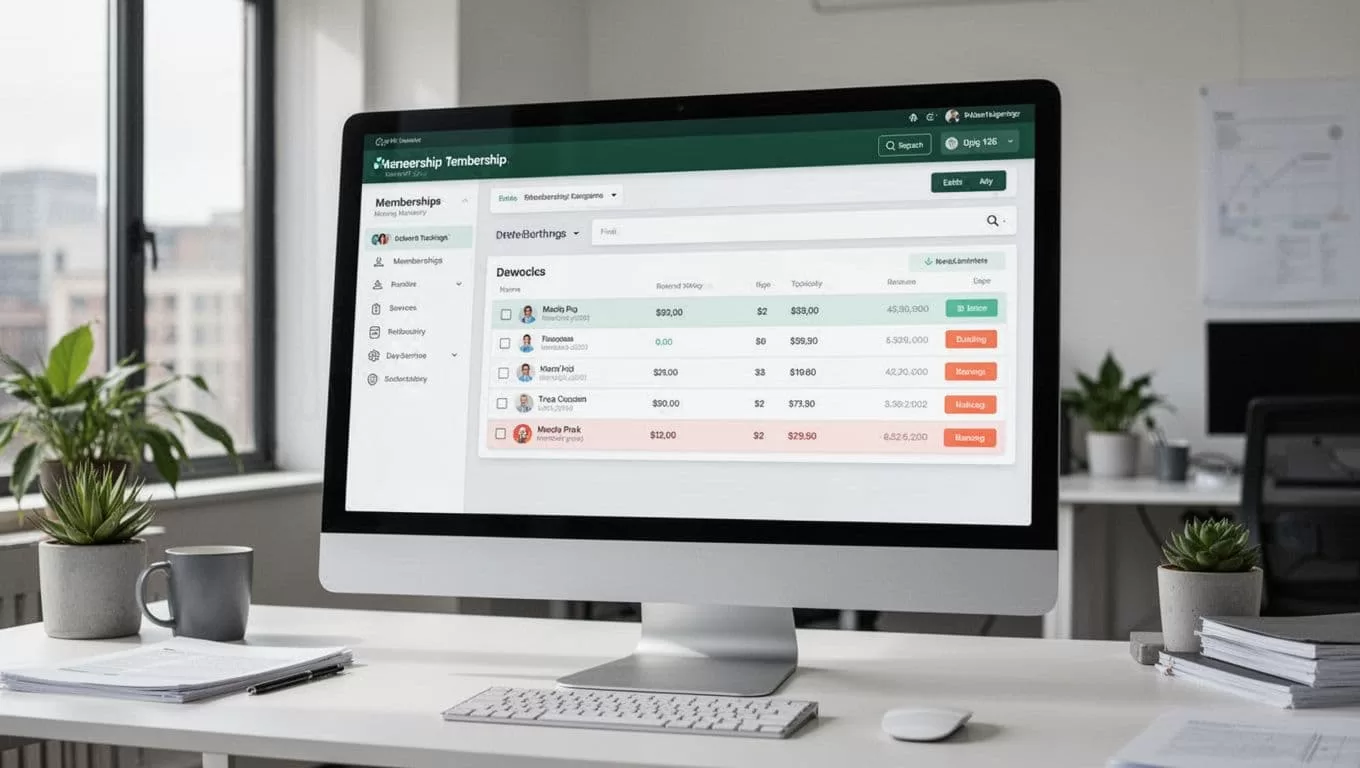
Membership management needs stricter controls. A safe first workflow can monitor recurring payment events, identify failed payments, and notify the membership team. It can send an approved payment-update message. It shouldn’t cancel a membership, remove benefits, or issue a refund without a clear approval step.
Use the same rule for gift cards, packages, and prepaid services. The automation can identify an approaching expiration or unused balance. A staff member should review policy-sensitive actions before the system changes account status.
This spa management software guide covers common platform areas such as scheduling, client profiles, payments, and reporting. Use those areas as a checklist when deciding which system should own each data field.
Add Staff Notifications and Operational Controls
Client messages are only one part of spa operations. Staff need timely notifications when an automated process needs attention.
Create separate alerts for different events:
- A new appointment contains missing or conflicting information.
- An intake form is incomplete before the appointment.
- A reminder fails to deliver.
- A client requests a change that requires staff approval.
- A payment fails or a membership needs review.
- A browser workflow cannot find the expected page element.
Send each alert to the right team. Front-desk issues belong in the front-desk channel. Payment issues belong with the membership or finance team. Technical failures belong with the system owner.
Keep alerts short. Include the client record ID, appointment time, issue, and recommended next step. Don’t include full intake answers or payment details in a general staff channel.
Set a failure policy before launch. If Twin.so cannot verify the booking status, it should stop rather than guess. If a message fails, it should record the error and notify a person. If a browser page changes, the workflow should not continue with uncertain clicks.
Use spa software feature guidance to compare scheduling, reporting, guest profiles, and point-of-sale requirements during your system review.
Measure the Deployment Before Expanding It
Review the automation every week during the first month. Compare the number of eligible events with the number of successful actions. Check duplicates, missed events, incorrect templates, and staff overrides.
Track operational measures that affect revenue and service quality:
- Reminder delivery rate.
- Intake completion before arrival.
- Rebooking response rate.
- Membership payment recovery.
- Staff time spent handling exceptions.
- Client complaints linked to automated messages.
Keep a change log. Record when you update a prompt, permission, template, trigger, or connected system. This helps you identify the cause when results change.
Re-test after changes to your booking platform, payment provider, form tool, or browser portal. Integration behavior can change even when your Twin.so instructions remain the same.
Review current Twin.so documentation before production deployment. Confirm supported integrations, browser automation limits, scheduled and event-based triggers, pricing, usage charges, data handling, retention, and compliance terms. Also confirm whether your spa software permits automated browser access.
Conclusion
Spa automation tools work best when they follow a defined process and respect system ownership. Use Twin.so to connect approved systems, trigger repeatable tasks, and route exceptions to staff.
Start with appointment reminders. Add intake forms, follow-ups, rebooking, membership alerts, and staff notifications after the first workflow passes controlled tests.
The goal isn’t to automate every decision. The goal is to remove repeatable admin work while keeping sensitive, financial, and client-impacting actions under proper control.
