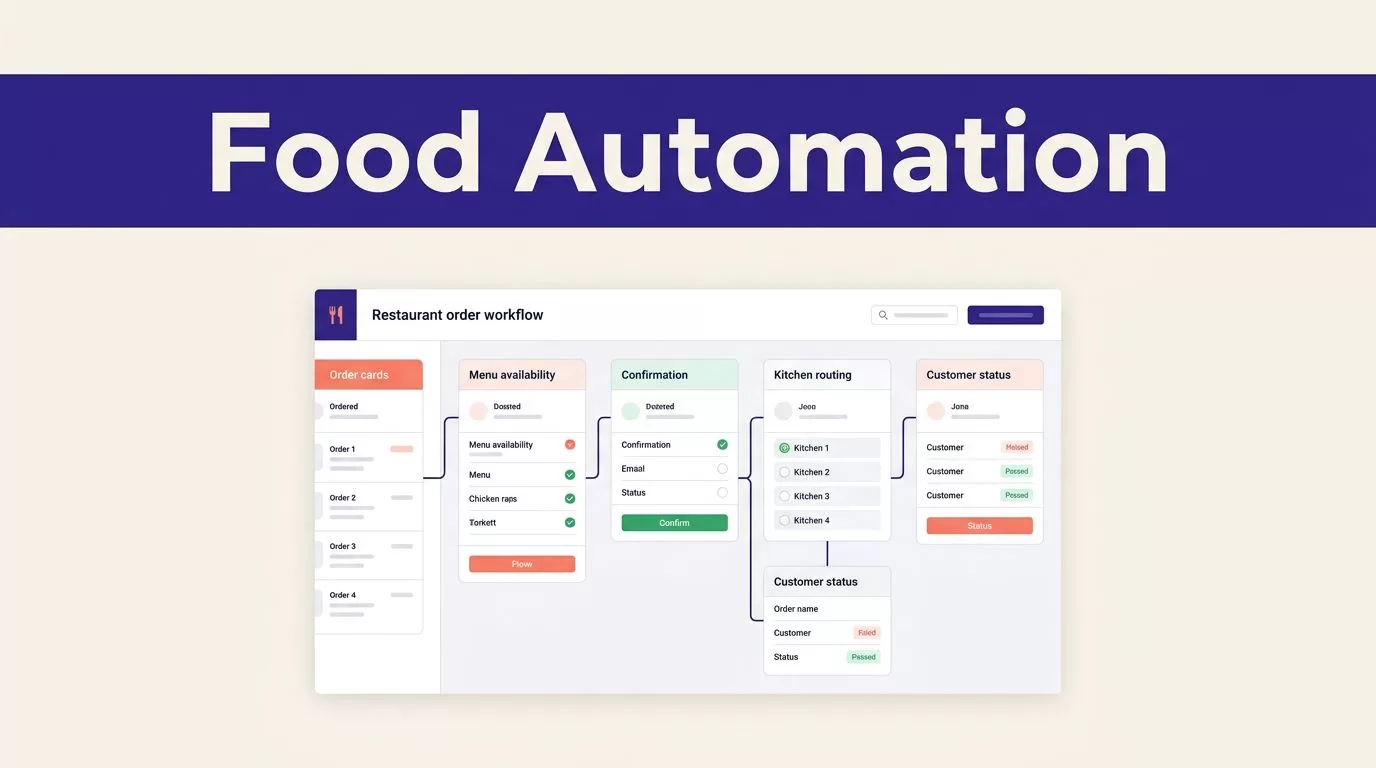
Restaurant teams lose time when orders move between forms, email, menus, payment pages, and kitchen systems. Food ordering automation in Twin.so can handle much of that repetitive work, but only when the workflow has clear limits.
Use it to capture orders, check item availability, confirm details, route approved requests, and update customers. Keep payment approval, unusual requests, and uncertain data under human control. Start with the order map before you connect any system.
What Food Ordering Automation Should Handle
Automation should remove repeated data entry without hiding mistakes. A useful workflow creates a structured order record, checks required fields, and returns a clear status.
Capture the order as structured data
Start with one approved order source. This could be a restaurant form, shared inbox, marketplace portal, or another system that your team is allowed to automate.
The workflow should capture the order ID, customer details, items, quantities, modifiers, delivery method, address, requested time, payment status, and customer notes. Keep allergy information and special instructions in separate fields. Don’t bury them inside a long description.
Twin’s quickstart documentation describes scheduled agents, event-driven triggers, OAuth connections, and browser automation. In a restaurant workflow, an incoming event could start the process. The exact trigger depends on the source and the connection available in your workspace.
Check availability before promising anything
The workflow should compare each requested item with an approved menu or inventory source. It should identify unavailable items, invalid modifiers, missing quantities, and delivery addresses outside the service area.
Return a simple status:
- Ready for confirmation
- Missing information
- Item unavailable
- Needs human review
Don’t let the workflow promise a replacement automatically unless your menu rules explicitly allow it. A customer who orders a vegetarian item shouldn’t receive an unapproved substitution because the original item was unavailable.
Map the Order Before You Build
A good Twin.so workflow starts with a defined input, a defined output, and clear failure rules. Broad instructions such as “process incoming food orders” leave too many decisions to the agent.
Define fields, statuses, and evidence
Create the order schema before writing instructions. A practical record can include:
- Order ID and source URL
- Received time and requested delivery or pickup time
- Customer name, phone number, and address
- Item name, quantity, size, modifier, and price
- Allergy notes and special instructions
- Availability result and validation notes
- Payment status and confirmation reference
- Destination system and routing status
- Customer notification status
- Human reviewer, decision, and timestamp
Keep the original customer request beside the normalized order. If a customer writes “no onions, extra spicy,” preserve those words. Store the structured interpretation in separate fields.
This gives a reviewer something to compare when the workflow interprets an unclear request. It also prevents a later run from overwriting the evidence used during an earlier decision.
Use APIs before browser automation
Connect to a direct API or approved app integration when it can perform the required action. APIs usually provide more stable fields and clearer error responses.
Use browser automation when the required action exists only inside an authorized website or portal. Twin describes browser agents that can navigate pages, fill forms, log in, and extract information when a suitable API isn’t available. Its no-API browser automation guide explains this use case.
Browser steps can help with a delivery marketplace or supplier portal. They also create more points of failure. A login screen can change. A button can move. A session can expire. Twin’s browser-versus-API guidance supports using API operations first where possible.
The availability of a specific POS, marketplace, payment, or delivery connector depends on your tools and Twin.so configuration. Don’t assume that a website can be written to because a browser agent can view it.
Create the Workflow in Twin.so
Build the process in small stages. Each stage should produce a result that the next stage can verify.
Set the trigger and validation gate
Use an event trigger when the source supports one. Use a schedule when the source only supports periodic checks. A scheduled run might check a shared inbox every five minutes, while an event-driven workflow might begin when a form submits a new order.
The first steps should:
- Read the new order.
- Assign or confirm the order ID.
- Extract the required fields.
- Check for duplicate orders.
- Compare items with the approved menu or inventory source.
- Return an exception when required data is missing.
A duplicate check matters when a customer submits a form twice or a retry reads the same message again. Use the source order ID when available. If there isn’t one, combine several fields such as customer, timestamp, total, and item set.
Separate draft, approval, and final write
Keep collection separate from publishing. The workflow can first create a draft order in a staging table or review queue. After validation, it can route the approved order to the configured destination.
A normal order may follow this path:
Capture -> normalize -> check availability -> confirm details -> route -> update the customer
If the POS connection supports order creation, Twin may be able to write the approved record there. If the destination only supports browser access, the workflow may use an authorized browser session. If neither route is configured, it should create a structured task for staff instead of pretending the order was placed.
Send a customer confirmation only after the order reaches the required status. A message that says “Your order is confirmed” should not be sent when the workflow has only created a draft.
For customer updates, use separate messages for confirmed, delayed, unavailable, and review-required orders. This prevents a temporary system failure from looking like a kitchen delay.
Protect Accuracy, Privacy, and Payment Safety
Restaurants handle personal information, addresses, phone numbers, order history, and payment details. The workflow needs access only to the data and actions required for its job.
Restrict permissions and stored data
Give the workflow read access to the menu and write access to a staging table when that is enough. It shouldn’t receive permission to delete menu items, change prices, edit customer accounts, or modify payment settings.
Use separate development, test, and production credentials. Keep passwords, API keys, session tokens, and one-time codes out of instructions, generated messages, and run logs. Twin materials describe optional credential storage and workspace-based access controls, but the exact protections depend on your account and configuration.
Limit the data sent to each connected system. The kitchen may need items, modifiers, timing, and allergy notes. It may not need the customer’s full payment profile.
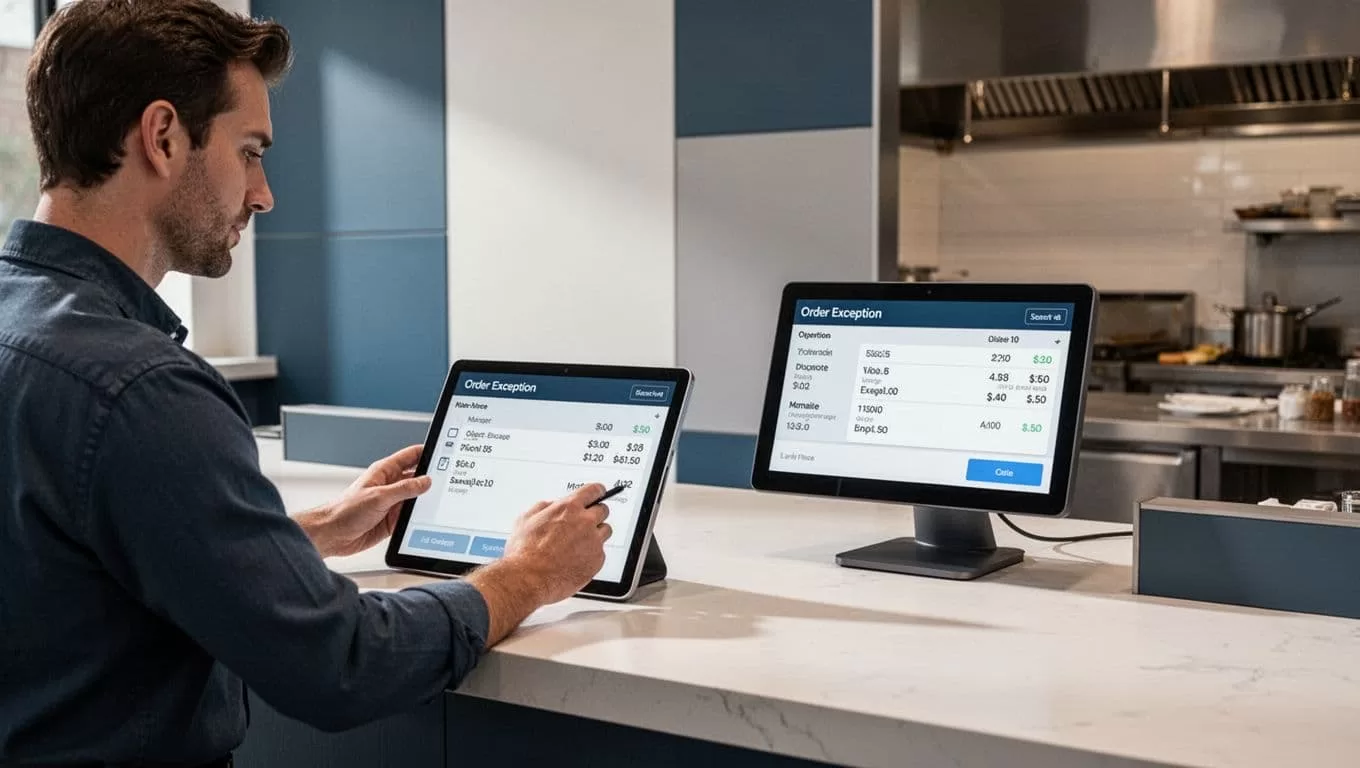
Put high-impact actions behind human approval
Require review before the workflow:
- Accepts an unclear allergy or dietary request
- Approves an unlisted substitution
- Processes a refund or discount
- Sends a high-value catering order
- Overrides delivery limits
- Submits a payment
- Changes a customer address after confirmation
The approval request should show the proposed action, source order, validation results, affected system, and next step. The reviewer should be able to approve, reject, or return the order for correction.
Keep payment separate from order preparation. A workflow can prepare the order and verify that payment information is present. It shouldn’t submit a charge unless the payment provider, authorization model, and approval process have been reviewed.
Don’t put card numbers into Twin instructions or plain-text logs. Use the payment provider’s approved token or checkout flow when available. Whether Twin can complete a payment-related action depends on the connected tool and the permissions you grant.

Test, Measure, and Scale Carefully
A workflow can finish without showing an error and still miss an order, duplicate a record, or send the wrong status. Test the result, not only the run status.
Test failure paths before launch
Use a small approved sample first. Include normal orders and difficult cases:
- Missing phone number or delivery address
- Out-of-stock item
- Invalid modifier
- Duplicate submission
- Conflicting menu prices
- Expired login session
- Marketplace timeout
- Changed page layout
- Partial order data
- Customer request that needs interpretation
Use bounded retries with a delay for temporary network failures. Don’t retry a permission failure or changed page structure indefinitely. Save progress by order ID where possible so a failed run doesn’t restart the entire queue.
Create a manual fallback before production release. State who retrieves the order, where they record it, and how they identify the last trusted result.
Stop the write step when the source is unavailable, the schema changes, two sources conflict, or the workflow returns incomplete data. An empty result should never replace the last valid menu or order batch.
Measure accepted orders and total cost
Track the output your team accepts, not the number of browser actions completed. Useful measures include:
- Accepted orders per run
- Missing and duplicate records
- Failed runs and retry counts
- Human review minutes
- Correction time
- Customer update errors
- Cost per accepted order
Twin uses credits, and usage varies by task complexity. These planning ranges are useful for early forecasting:
| Workflow type | Approximate planning range |
|---|---|
| Simple automation | 15 to 30 credits |
| 100-item collection job | 20 to 70 credits |
| Browser session of about 20 steps | 100 to 200 credits |
These aren’t fixed quotes for a restaurant workflow. Actual usage depends on browser actions, API calls, retries, source complexity, and output size. Benchmark a small run and calculate credits per accepted order.
A workflow that saves ten minutes but creates thirty minutes of correction work isn’t saving time. Include monitoring, review, integration costs, and rework when you calculate the real benefit.
Where Twin.so Fits in a Restaurant Stack
Twin.so fits best around repeatable coordination work. Good candidates include order intake, menu checks, delivery routing, customer status updates, daily exception reports, and syncing approved records between systems.
It isn’t a replacement for a POS, inventory platform, payment processor, kitchen display system, or restaurant manager. Those systems remain the authoritative source for their own records.
The strongest food ordering automation uses Twin.so as an orchestration layer. It collects information, applies defined rules, moves approved data, and stops when a person needs to decide.
If your workflow spans a POS, delivery marketplace, customer database, and payment system, Book A Call to map permissions, approval points, and fallback procedures before a wider rollout.
Conclusion
Food ordering automation in Twin.so works when the workflow has a narrow purpose and measurable boundaries. Capture the order, preserve the original request, check availability, validate the result, and route only approved data.
Use APIs before browser steps. Restrict permissions. Keep payment actions behind review. Test missing data, duplicates, portal failures, and unusual customer requests before scheduling production runs.
The useful result isn’t an automated click. It’s an accurate order that reaches the right system, with a clear record of what happened when the workflow needed help.