How I Set Up a Client Document Approval Workflow in Google Drive
Email threads can bury a clean draft under five wrong versions and one half-finished thought. I used to lose time hunting for the file everyone meant, not the one they had open. Now I run a document approval workflow in Google Drive that ke...

Email threads can bury a clean draft under five wrong versions and one half-finished thought. I used to lose time hunting for the file everyone meant, not the one they had open.
Now I run a document approval workflow in Google Drive that keeps drafts, feedback, and final sign-off in one path. It’s simple enough for clients to follow and strict enough to stop version chaos.
I start with folders, ownership, and a clear file path
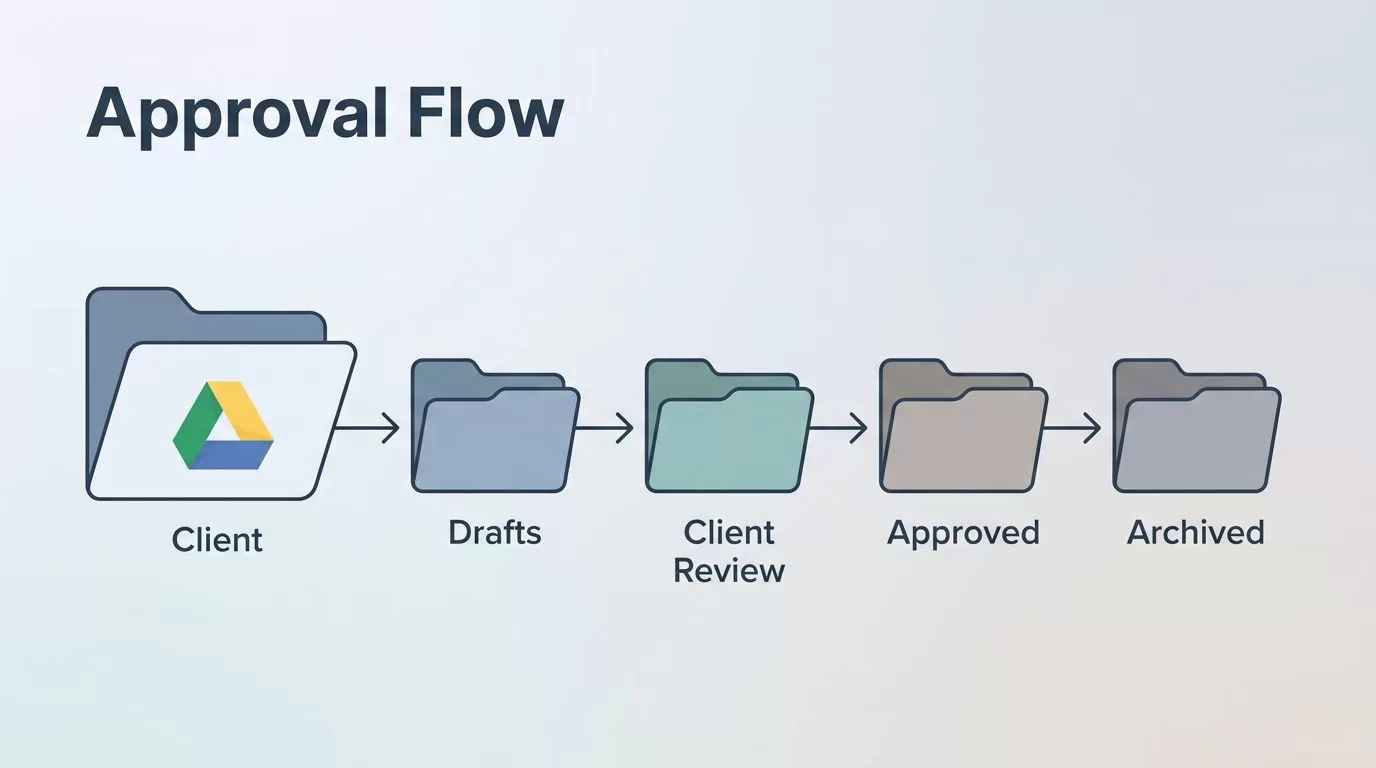
I keep one client folder at the top, then four subfolders: Drafts, Client Review, Approved Versions, and Archived. That structure gives every file a home, and it tells me where the next step belongs.
For work my team owns, I prefer a Shared Drive instead of My Drive. Shared ownership matters because the business keeps control when staff changes. I wrote more about setting up Shared Drives for small teams and Google Drive ownership and access best practices. Both help when client files need a stable home, not a personal inbox in disguise.
I also name drafts with a date and version number, such as Proposal-Atlas-v03-2026-04-17. That small habit saves me from guessing which edit is current.


The folder tree does more than tidy things up. It gives me a visible path from rough draft to approved file.
The sharing rules I set before review begins
Before I invite a client, I set the file to Restricted and share only with named people. If a vendor or client needs access, I use their exact email address and nothing broader. For sensitive work, I follow the same lock-down habits I use in locking down Workspace file permissions.
Google’s approval tools also have plan limits, so I check the Google Workspace approval settings before I promise a built-in approval flow. That avoids awkward surprises when a client expects a feature my plan doesn’t include.
I never let a client review the same file in three different ways. One file, one owner, one decision path.
When someone can’t open a document, I check the email first, then the Shared Drive role, then the file-level permission. That order solves most access problems fast. It also keeps me from blaming the wrong setting.
Comments and suggestions keep feedback clean
Once the file is shared, I ask clients to use comments for notes and Suggesting mode for line edits. That keeps the draft readable while feedback piles up in one place.
I also set a review window. One pass is usually enough. If a client sends feedback in email, I move it into the doc so the record stays together. Screenshots and side messages only create confusion later.

That review stage matters because comments show the difference between a draft and a decision. I ask one person on the client side to collect feedback if a team is involved. Otherwise, I end up with three people editing the same thought in three styles.
When a round is done, I resolve comments one by one. If a change needs more work, I create a fresh draft instead of reopening the approved copy. That keeps the record clean.
I use Google Drive approvals for the final sign-off
For the last step, I use Google Drive’s built-in approval feature when the account supports it. Google explains the process in its Google Drive file approvals help page, and the admin side is covered in Google Workspace approval settings. That saves me from copying signatures into email threads.
My reusable approval template
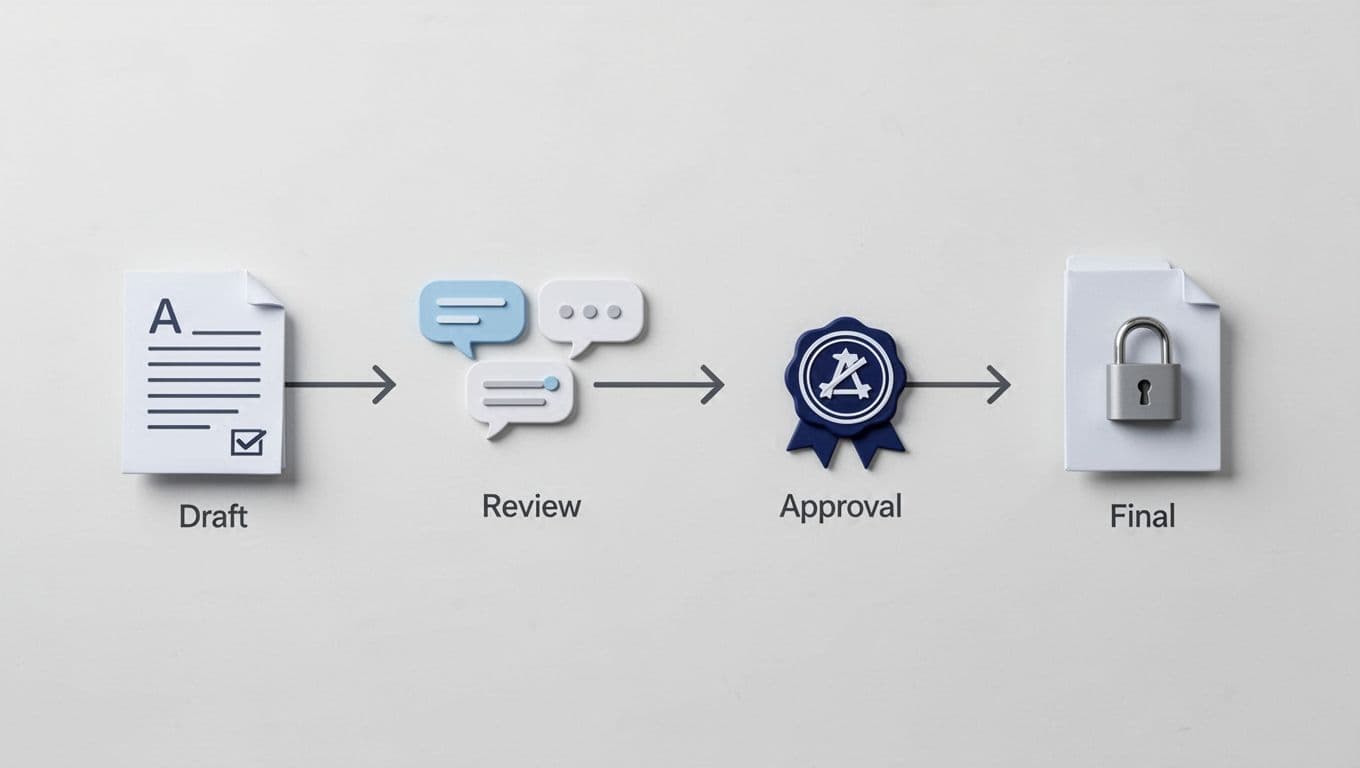
My workflow template stays almost the same on every project. I change the folder name, the reviewer name, and the deadline. Everything else stays steady.
- I move the draft into the Client Review folder.
- I request approval from the named client contact.
- I lock the file while approval is pending.
- I save the approved copy in Approved Versions.
- I archive the older draft, so nobody mistakes it for the final file.
That sequence works because it separates review from final record keeping. It also prevents the classic mistake where a client approves one version, then someone edits it without telling anyone.
The setup I keep coming back to
My workflow stays calm because each step has one job. Drafts are for work. Review is for feedback. Approval is for the final yes. Archive is for everything that should stay out of the way but still exist.
When I set things up this way, the file tells its own story. That simple order keeps clients informed and keeps me out of version confusion.

