Drive Event Ticketing Automation With Twin.so
Event teams lose hours copying order data, answering routine attendee questions, and checking whether payment records match registrations. These tasks repeat across every event, but they rarely need a person for every step. The right event...
Event teams lose hours copying order data, answering routine attendee questions, and checking whether payment records match registrations. These tasks repeat across every event, but they rarely need a person for every step.
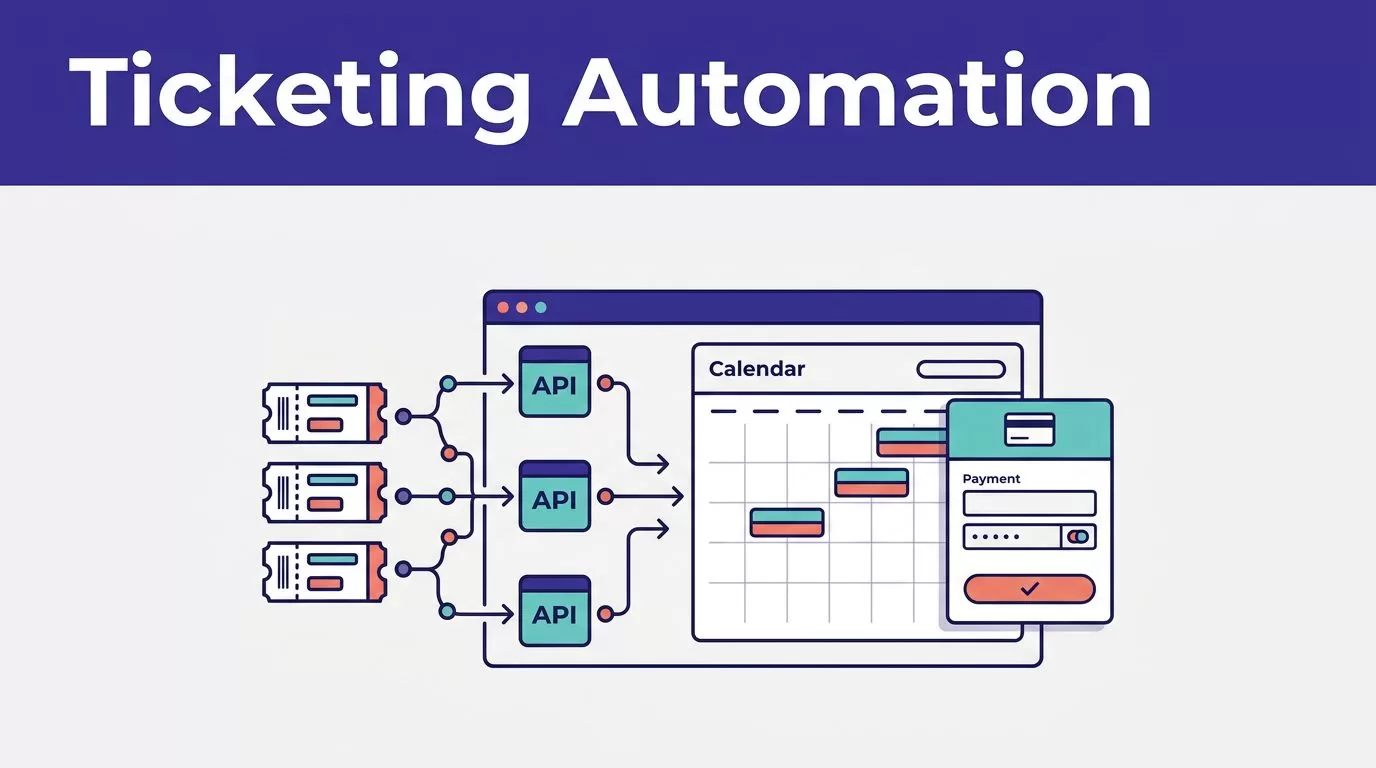
The right event ticketing automation workflow handles predictable work and sends uncertain cases to a human. Twin.so can support that model through API connections, scheduled agents, event-driven triggers, and browser automation when a ticketing portal lacks the required API access.
The decision is not whether to automate everything. The decision is which actions Twin should perform, which system remains authoritative, and where approval is required.
What event ticketing automation should handle
Ticketing automation works best when each task has a clear input, rule, and output. It should read an order event, validate the record, update an approved destination, and report the result.
Start with repeatable work
Good starting points include:
- Copying paid order data into a CRM or event database.
- Checking missing names, email addresses, ticket types, or consent fields.
- Sending registration instructions after payment is confirmed.
- Routing refund, transfer, and duplicate-order requests.
- Preparing post-event attendance and revenue reports.
These tasks have defined conditions. A paid order can trigger one message. A missing attendee email can create an exception. A duplicate order can move to a review queue.
Avoid automating decisions that depend on unclear policy. Refund approval, attendee identity changes, complimentary tickets, and payment disputes need rules and ownership before an agent takes action.
Keep the ticketing platform as the source of truth
Twin.so should not replace Eventbrite, Cvent, Ticketmaster, or another ticketing system. The ticketing platform should remain authoritative for ticket status, order state, payment confirmation, inventory, and check-in data.
Store the source order ID in every downstream record. Keep the original event timestamp and status. This prevents a later workflow run from overwriting evidence used during an earlier decision.
If a CRM says an attendee is paid but the ticketing platform shows a pending payment, stop the write step. Route the conflict to a named operator.
How event ticketing automation fits with Twin.so
Twin.so is an automation layer. It connects systems, processes information, performs browser tasks, and runs workflows on schedules or triggers. Its quickstart documentation describes scheduled agents, event-driven triggers, OAuth connections, and browser-based tasks.
Twin’s public materials do not currently document native integrations for Eventbrite, Ticketmaster, SeatGeek, or Cvent. Do not assume a ready-made connector exists because a platform is popular. Confirm the supported connection method before committing to a build.
Use APIs and webhooks first
API-based workflows are easier to test, monitor, and scale than browser workflows. They also reduce the chance that a small page change breaks the process.
If your ticketing platform exposes order or attendee endpoints, use those endpoints for structured data. Eventbrite, for example, documents webhooks for changes involving events, orders, and attendees in its webhook documentation.
A practical design sends the event notification to a supported trigger or intermediary service. Twin then validates the payload, enriches the record, and updates the approved destination. Use an idempotency key, usually the order or attendee ID, so the same event doesn’t create duplicate records.
Use browser automation only for missing actions
Browser automation is useful when a portal has no usable API, the API lacks a required scope, or an action exists only in the web interface. Twin describes this pattern in its guide to no-API browser automation.
This method requires more control. Browser tasks are less reliable and more expensive than API execution. They can also fail when a page layout, login flow, or permission setting changes.
Use browser automation for narrow tasks such as downloading a daily attendee report or checking a portal field that the API does not expose. Don’t use it for every order when a stable API is available.
Build around a trusted event record
Start with the record your team wants to create or update. Then define how the workflow receives data and what happens when a required field is missing.
Define the trigger and output
Choose one trigger for the first release. It could be a paid order, a new registration, an attendee update, or a scheduled report request.
Define the output schema before connecting Twin. Useful fields include:
- Event ID and order ID.
- Attendee name and email.
- Ticket type and quantity.
- Payment and registration status.
- Consent status.
- Check-in status.
- Source timestamp and workflow timestamp.
- Message status and exception reason.
Keep raw source values separate from normalized values. If a ticket type arrives as “VIP Pass” and your database uses “vip”, store both. The raw value helps a reviewer investigate a mismatch.
Make runs repeatable and safe
The workflow should be safe to run twice. Check whether the order ID already exists before creating a record. Update only approved fields. Never replace a known value with a blank value from a weaker source.
Use bounded retries for temporary failures. Save progress by order ID or page when the workflow processes a large report. A failed page should not force the team to restart the entire event export.
Before production, run the workflow against a small test event. Compare the result with the ticketing platform. Check row counts, missing fields, duplicate records, and message recipients.
Practical workflows that produce measurable savings
Event ticketing automation creates value when it removes manual copying and reduces the time between an event and the next correct action.
Automate the post-purchase handoff
When a payment reaches the confirmed state, Twin can validate the attendee record and send approved data to a CRM, spreadsheet, database, or email workflow.
The process should check the email address, ticket quantity, event ID, and consent status before sending a confirmation. If payment is pending, don’t issue access instructions. If the order is duplicated, hold it for review.
A useful confirmation workflow also writes a status back to the operations record. The team can see whether the message was sent, failed, or held because of missing information.
Route attendee questions and changes
Attendee support often includes predictable requests about ticket delivery, venue details, registration links, invoice copies, and event schedules. Twin can classify incoming requests and return approved information from the connected event record.
Keep exceptions visible. A request to change the attendee name, transfer a ticket, or issue a refund should create a review task instead of an automatic update. The reviewer needs the order ID, current ticket status, requested change, and policy result in one place.
This reduces first-response time without allowing the agent to make an unsupported promise.
Reconcile sales, attendance, and follow-up
After the event, compare orders, attendee records, check-ins, and payment totals. Flag missing attendees, duplicate records, unmatched ticket types, and unusual changes.
Twin can prepare a report and route follow-up actions to the right owner. It can also identify attendees who registered but did not check in, provided the source systems contain the required data and the follow-up rules are approved.
Add controls before production
Automation reduces repetitive work. It doesn’t remove accountability.

Gate high-impact actions
Give Twin the smallest permission set needed for the workflow. A data collection task may need read access to a ticketing portal and write access to a staging table. It may not need permission to issue refunds or change ticket inventory.
Add human approval before actions that affect money, access, identity, or attendee communications. The approval request should show:
- The proposed action.
- The source record and current status.
- The validation checks completed.
- The affected attendee or order.
- The next action after approval.
Store the proposed result separately from the final reviewer decision. This creates an audit trail and prevents a later run from hiding the original evidence.
Stop when the data is unsafe
The workflow should stop when the source is unavailable, the schema changes, two systems conflict, or required fields are incomplete. A clean-looking report can still be wrong if the source returned only part of the data.
Create a manual fallback before launch. Name the person who retrieves the data, the location where they record it, and the last trusted result. Add an incident record when a run fails.
Review browser tasks after portal changes. Twin’s API-first operations guidance supports using APIs before browser automation and treating browser execution as a separate operational risk.
Measure the workflow before expanding it
Track accepted outcomes, not only completed browser actions or successful run messages.
| Metric | What to compare |
|---|---|
| Manual minutes per 100 orders | Baseline versus automated process |
| Response time | Order confirmation to attendee notification |
| Data quality | Missing, duplicate, and rejected records |
| Review effort | Human minutes per run |
| Reliability | Failed runs and retry counts |
| Unit cost | Credits per accepted attendee record |
The target is lower manual work and faster attendee response times without increasing correction work. A workflow that saves ten minutes but creates thirty minutes of cleanup is not saving time.
Measure a small approved sample first. Compare the results with the old process. Expand only when accuracy, review effort, and cost per accepted record remain acceptable.
Pricing and implementation decisions
Twin uses a credit-based model. Its public pricing documentation lists a starting monthly tier of 2,000 credits for $20, with larger tiers for higher usage. The public trial information lists 1,000 initial credits and additional daily credits during the 14-day trial period.
Treat the published usage examples as planning ranges, not fixed quotes. Simple automations may use around 15 to 30 credits. A browser session with about 20 steps may use around 100 to 200 credits. Actual usage depends on task length, retries, browsing, data volume, and output size.
API-first designs usually provide better cost control. Browser-heavy workflows need a larger testing budget and stronger monitoring.
Start with one event and one workflow. Choose a process such as paid-order synchronization or attendee question routing. Define the fields, permissions, fallback, approval gate, and success metrics before adding more actions.
If the workflow spans several systems and needs clear exception rules, use Book A Call to map the process before deployment.
Conclusion
Twin.so can support event ticketing automation when you treat it as an orchestration layer rather than a ticketing platform. Use APIs and webhooks first. Use browser automation for limited gaps. Keep the ticketing system authoritative and route high-impact actions to a human.
The strongest implementation starts with one repeatable workflow, measures accepted results, and stops when data is incomplete or systems disagree. That approach reduces manual work, improves attendee response times, and keeps operational errors visible.
