How To Turn Research Notes Into Audio Without Losing Meaning
Research notes get messy fast. One page turns into a tangle of fragments, arrows, and half-finished thoughts. When I turn research notes to audio, I don’t want a robotic dump of text. I want something I can listen to, follow, and trus...


Research notes get messy fast. One page turns into a tangle of fragments, arrows, and half-finished thoughts. When I turn research notes to audio, I don’t want a robotic dump of text. I want something I can listen to, follow, and trust.
That matters for students, researchers, writers, and busy professionals. Audio helps when I’m walking, commuting, or trying to review a lot of material without staring at a screen all day.
Start by shaping notes for the ear, not the page


Before I use any tool, I clean the notes. Audio punishes clutter, so I cut anything I wouldn’t say out loud.
I group ideas by theme, turn fragments into full sentences, and remove duplicate lines. If a note says “budget issue, follow up, maybe Friday,” I rewrite it as one short sentence. That small change makes the audio sound human instead of choppy.
I also add simple signposts. Words like first, next, and finally help the listener follow my thinking. For dense research, I keep one main point per paragraph. I also trim long citations and park links at the end.
If I wouldn’t say it out loud, I don’t leave it in the notes.
A good structure usually looks like this:
- Main idea
- Supporting detail
- Why it matters
- Next step
That format works well whether I’m studying for class or shaping a client brief.
Pick the method that fits the job
Different tools solve different problems. I use the method that matches the note type, the time I have, and how polished I need the audio to feel.
| Method | Best for | Strengths | Trade-offs |
|---|---|---|---|
| Built-in device read-aloud | Quick review | Already on my phone or laptop, fast setup, low cost | Voices can sound plain, formatting may be rough |
| Note apps with audio support | Meeting notes, long docs | Syncs across devices, highlights text, easy playback | Some features sit behind paid plans |
| AI voice generators | Polished summaries, shareable audio | Natural voices, clean delivery, good for longer sessions | Needs cleaner notes and more setup |
| Spoken summaries I record myself | Personal study, memory | Fast, flexible, sounds natural | Less polished, harder to edit later |
My rule is simple. If I need speed, I use built-in tools. If I need polish, I use AI audio. If I need memory help, I record my own voice.
Use built-in device features for a quick listen
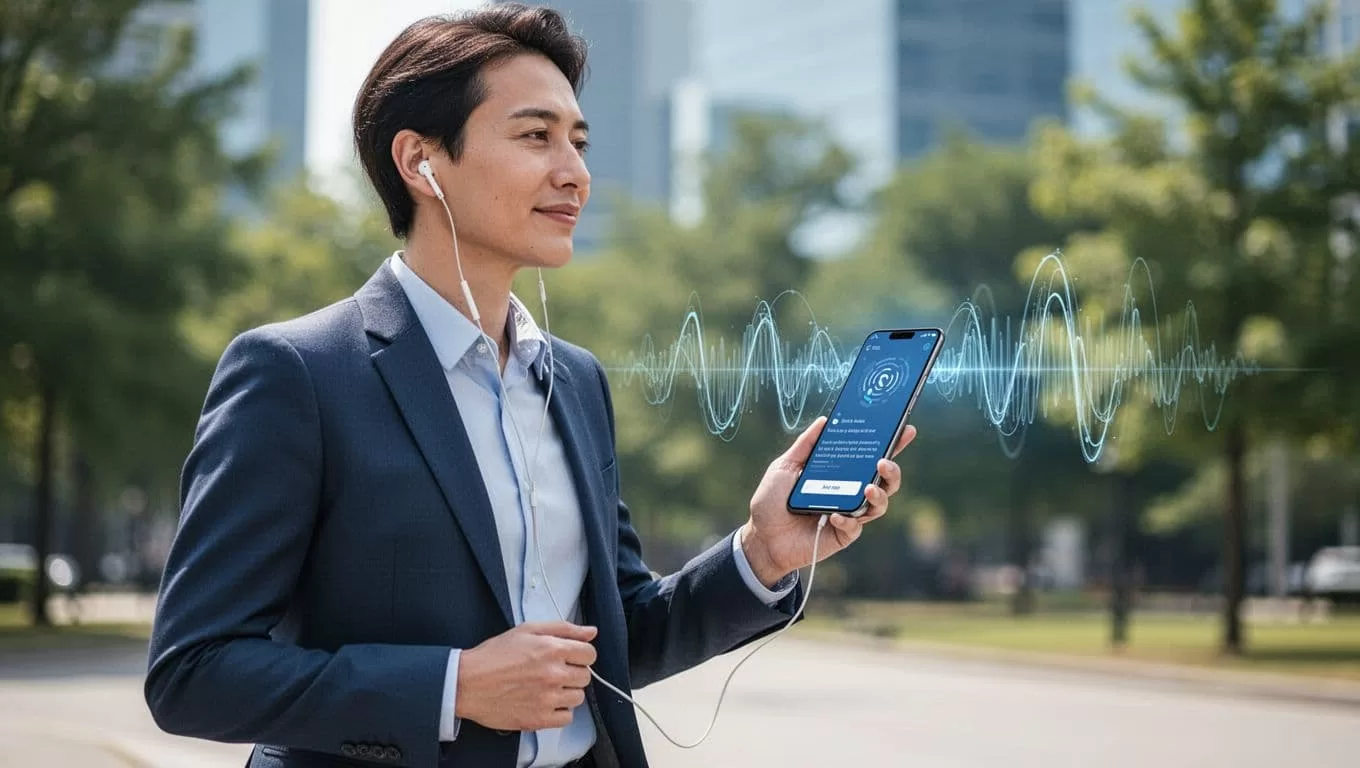
Built-in accessibility features are my fastest option. I use them when I want a rough audio pass, not a polished file.
On iPhone, I use Speak Screen or text selection with speak controls. On Android, Select to Speak does the same kind of job. Windows and Mac both have read-aloud tools too. The exact path changes by device, but the flow stays the same, open the notes, select the text, and start playback.
I like this method because it costs nothing and needs no account. It’s also useful for accessibility. People who deal with visual strain, dyslexia, or ADHD often benefit from hearing the text while following along.
The downside is control. Built-in voices may sound flat, and they don’t always handle messy formatting well. Still, for a quick review before class or a meeting, they’re hard to beat.
If I’m reading longer pages in a browser, I sometimes pair this approach with a tool like the web page reader app I use for long articles.
Try note apps and AI voice generators when you want cleaner audio
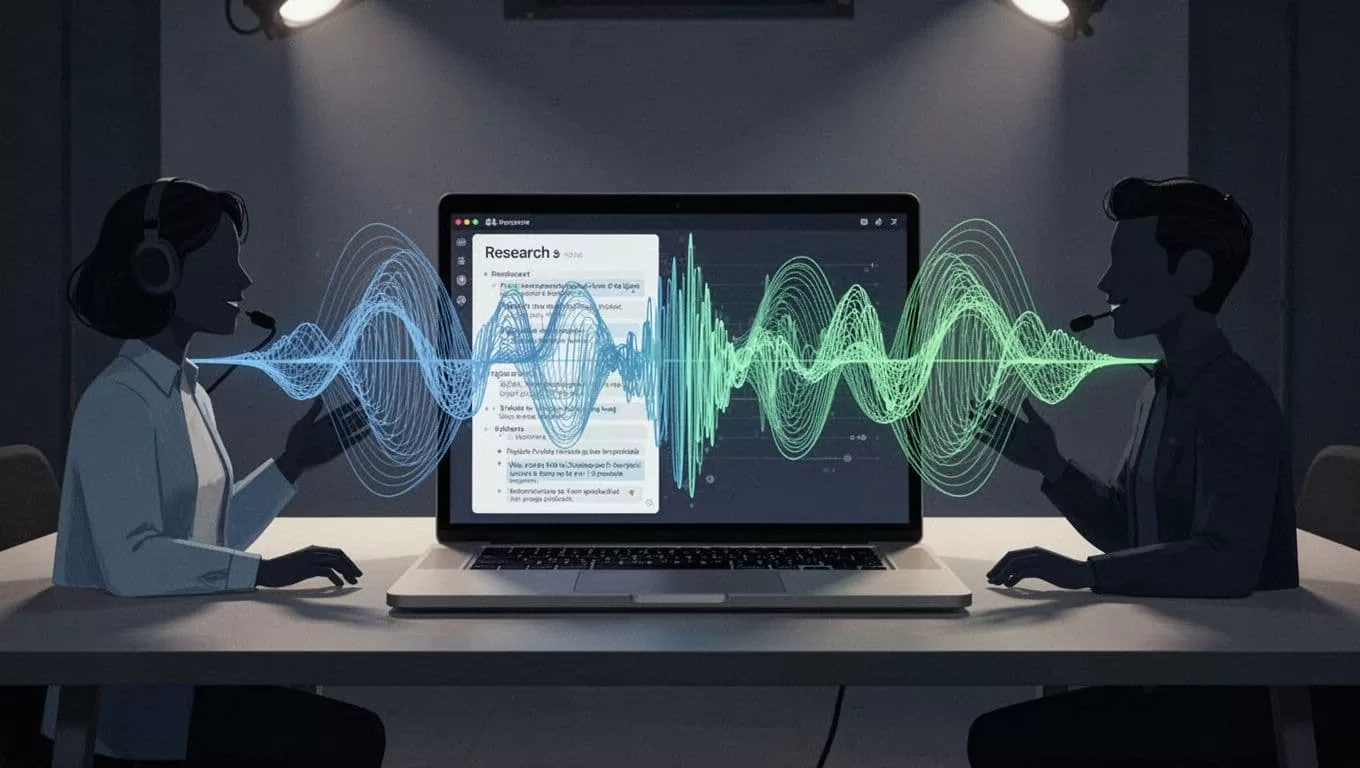
This is where the process gets smarter. In 2026, tools like Otter, Fireflies, Descript, and Sonix make it easier to move from transcript to listenable audio. I like them when my notes come from meetings, interviews, or rough voice memos.
Google’s NotebookLM is another strong option when my notes sit inside PDFs, docs, or saved web sources. It can turn source material into an audio-style summary that feels more like a guided discussion than plain text. If I want a deeper walkthrough, I also check a NotebookLM audio overview guide.
The workflow is simple:
- Upload or paste clean notes.
- Fix names, dates, and jargon.
- Choose a voice or summary style.
- Listen once, then edit the text.
- Export the audio if I need it offline.
This method gives me the best balance of speed and quality. I can also use browser-based tools like text-to-voice online with Speechify when I want quick playback without building a full production workflow.
The main drawback is cleanup. AI voices still sound awkward if the notes are messy. Short sentences and clear headings help a lot.
Record your own spoken summary when memory matters
Sometimes I skip tools and record myself. I open a voice memo app, glance at my cleaned notes, and talk through the key points in my own words.
This works well when I need to remember ideas, not just hear them. Saying the material out loud forces me to slow down. It also reveals gaps. If I stumble, I know the note needs more work.
I keep these recordings short. Two to five minutes is enough for most topics. I usually start with the main claim, then add one example, then end with the next action. That rhythm sounds natural and stays easy to revisit.
The biggest win here is tone. My own voice keeps the context intact, which helps with class notes, project planning, and research reviews.
Know when audio helps most
Audio shines in a few clear moments. I use it for review before an exam, for memorizing key points, and for commuting. It also helps when my eyes are tired or when I need to stay off a screen.
For accessibility, audio can be the difference between skipping notes and using them. For busy work, it turns dead time into listening time.
A simple habit that makes notes easier to hear
If I want good audio, I start with good notes. Clear structure, short lines, and plain language make every method work better.
That’s the real trick. Audio doesn’t fix weak notes, it rewards strong ones. When I treat my notes like something I’ll say aloud later, the whole process gets easier.

