How I Set Up Secure Contractor Access to Shared Files
When I give a contractor access to shared files, I assume the link could spread. That mindset keeps me careful. I want work to move fast, but I don’t want one short project to leave a long security mess. So I use secure contractor acc...

When I give a contractor access to shared files, I assume the link could spread. That mindset keeps me careful.
I want work to move fast, but I don’t want one short project to leave a long security mess. So I use secure contractor access as a set of habits, not a single setting. I separate contractor files, limit roles, and cut access off on a clock.
I Start with a Short Access Policy
Before I touch folders, I write the rules. That keeps me from making rushed choices when a project starts late on a Friday.
I use role-based access because it matches real work. IBM’s RBAC implementation guide describes the same idea in clear terms, and I like that it maps permissions to tasks. For contractors, that means I decide what they need, then I stop there.
I treat every contractor folder like a temporary guest pass, not a spare key.
My rule is simple. If a contractor only needs to review, I don’t give edit rights. If they need to edit one folder, I don’t open the rest of the company drive. Openforce’s contractor cybersecurity guidance reinforces this same point, because outside workers often use their own devices and networks.
I Separate Contractor Work from Company Files
I never mix contractor work with core company files. That setup invites mistakes. Instead, I create a dedicated contractor folder or a separate shared drive, then I keep sensitive material out of reach.
When I use Google Workspace, I follow my shared drives setup guide so the business owns the files, not one person. The same structure works in Microsoft 365 or any file system that supports shared folders. The point is ownership and control.

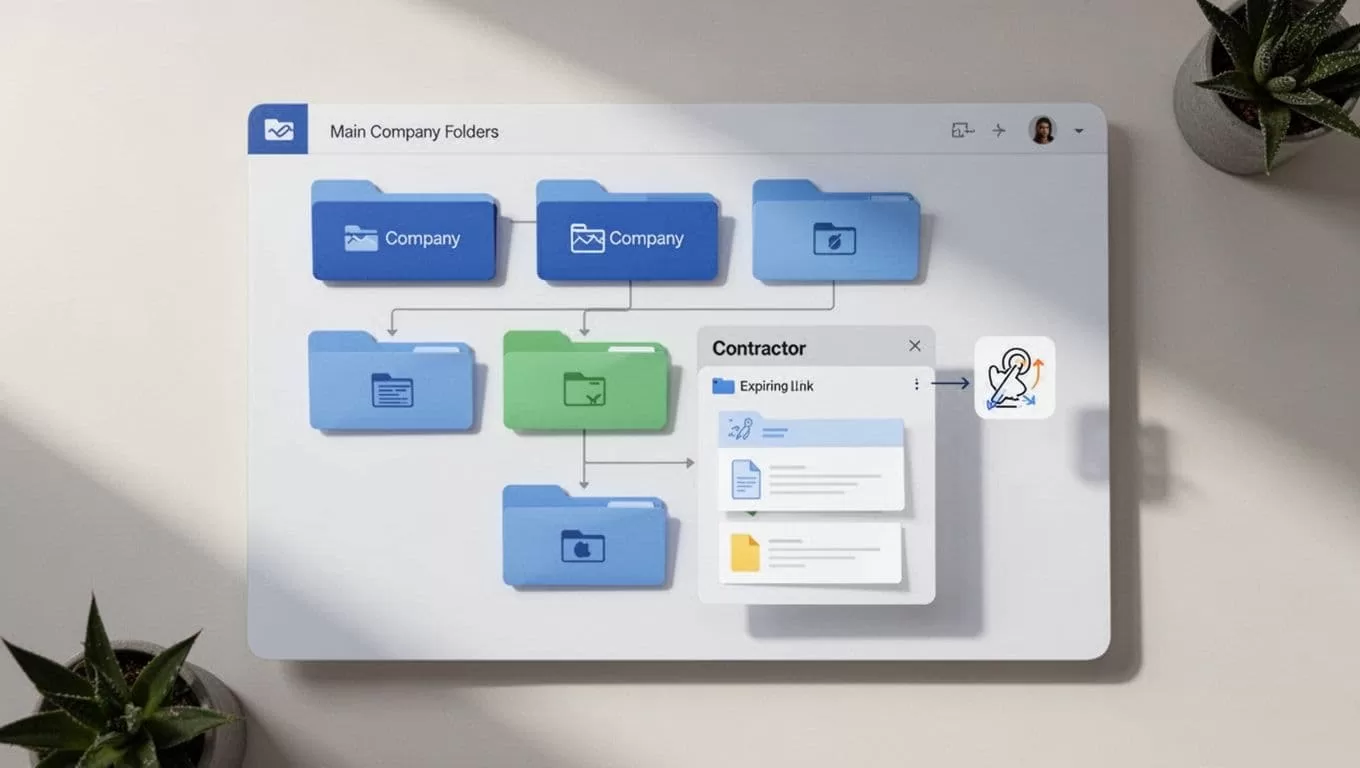
I also keep the folder names plain. “Client X Contractor Files” works better than something vague like “Shared Docs.” Clear names save time during audits and offboarding.
A secure file sharing guide made me more disciplined here. The lesson was simple: the safest folder is the one with the smallest audience.
I Give the Smallest Useful Permission
Once the folder is ready, I assign the lightest permission that still gets the job done. In most cases, that starts with view or comment access.
Here is the permission pattern I use most often:
| Contractor task | Access I give | What I block |
|---|---|---|
| Review a draft | Viewer or commenter | Editing and resharing |
| Add notes to files | Commenter | Downloads if the file is sensitive |
| Update one working folder | Contributor or editor | Access to other team folders |
| Handle final delivery | Editor on one folder only | Delete and move rights outside scope |
| Review private material | Viewer with watermarking | Copy, print, and broad link sharing |
That table keeps me honest. I don’t give edit rights because someone asks for them. I give them because the task needs them.
In tools that support it, I also turn on view/download restrictions for sensitive files. If the file is a draft, contract, or internal report, I prefer read-only access and, when possible, watermarking. That makes casual sharing less useful without breaking the work flow.
For third-party handoffs, I like the logic in third-party file transfer security strategies. The medium changes, but the rule stays the same. I only expose the file the contractor needs.
I Add MFA, Expiring Links, and Approval Steps
Access control gets much better when I add a second layer. I require MFA for every contractor account I can manage. If a password leaks, the second factor still blocks a quick break-in.
I also use approval workflows. A manager requests access, the file owner confirms the scope, and I document the end date. That extra step takes a minute, but it stops the “can you just open everything?” habit before it starts.
For account protection, I keep my Google Workspace 2-step verification setup handy because the same rule applies across most systems. If the platform offers expiring links, I set them. If it offers separate guest accounts, I use them. If it allows audit logs, I check them.
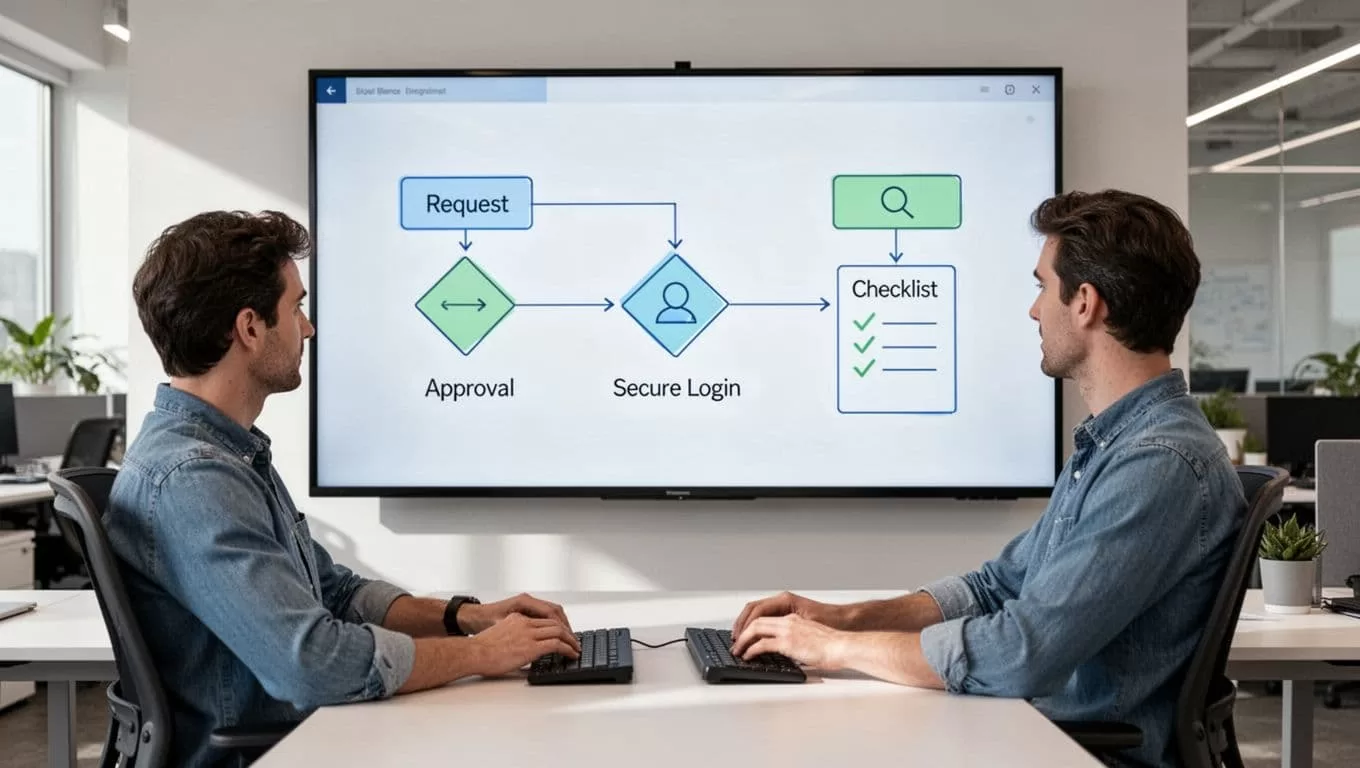
That workflow matters even more when I share files outside my main tenant or team. It keeps the process visible. It also gives me a clean paper trail if I need to review access later.
My Quick Checklist and Offboarding Routine
Before I share anything, I run through the same checklist:
- I confirm the contractor is tied to a real project.
- I place files in a separate contractor folder or shared drive.
- I grant the smallest role that fits the task.
- I turn on MFA or confirm it is already active.
- I set an expiration date or review date.
- I remove broad links and stick to named people only.
- I decide whether watermarking or download limits make sense.
- I record who approved the access.
Here is my sample contractor access policy in plain language:
| Policy item | My rule |
|---|---|
| Request approval | Manager and file owner must approve |
| Folder scope | Contractor files stay in a separate folder |
| Default permission | Viewer first, edit only when required |
| Link settings | Named access only, with an end date |
| Sensitive files | Download limits and watermarking when supported |
| Review cycle | Every 30 days for long projects |
When the work ends, I offboard in the same order every time:
- I remove the contractor from the folder or shared drive.
- I revoke any active links or guest access.
- I confirm final files are delivered and stored.
- I check the audit log for odd activity.
- I archive the folder if the project is complete.
That last step matters more than it sounds. A clean exit keeps old access from hanging around like a key under the mat.
The Simple Rule I Keep Coming Back To
Secure contractor access works when I act like every file has a purpose and an end date. I don’t need to lock down the whole company to stay safe.
I just need clear folders, tight roles, MFA, expirations, and regular reviews. Once I built that habit, sharing files with contractors became easier, not harder.

