How I Automate File Naming in Google Drive
Google Drive file naming gets messy fast when files come from different people, forms, and folders. I learned that the hard way, after too many downloads called final_final2.pdf. Google Drive can rename a file, but it doesn’t auto-ren...

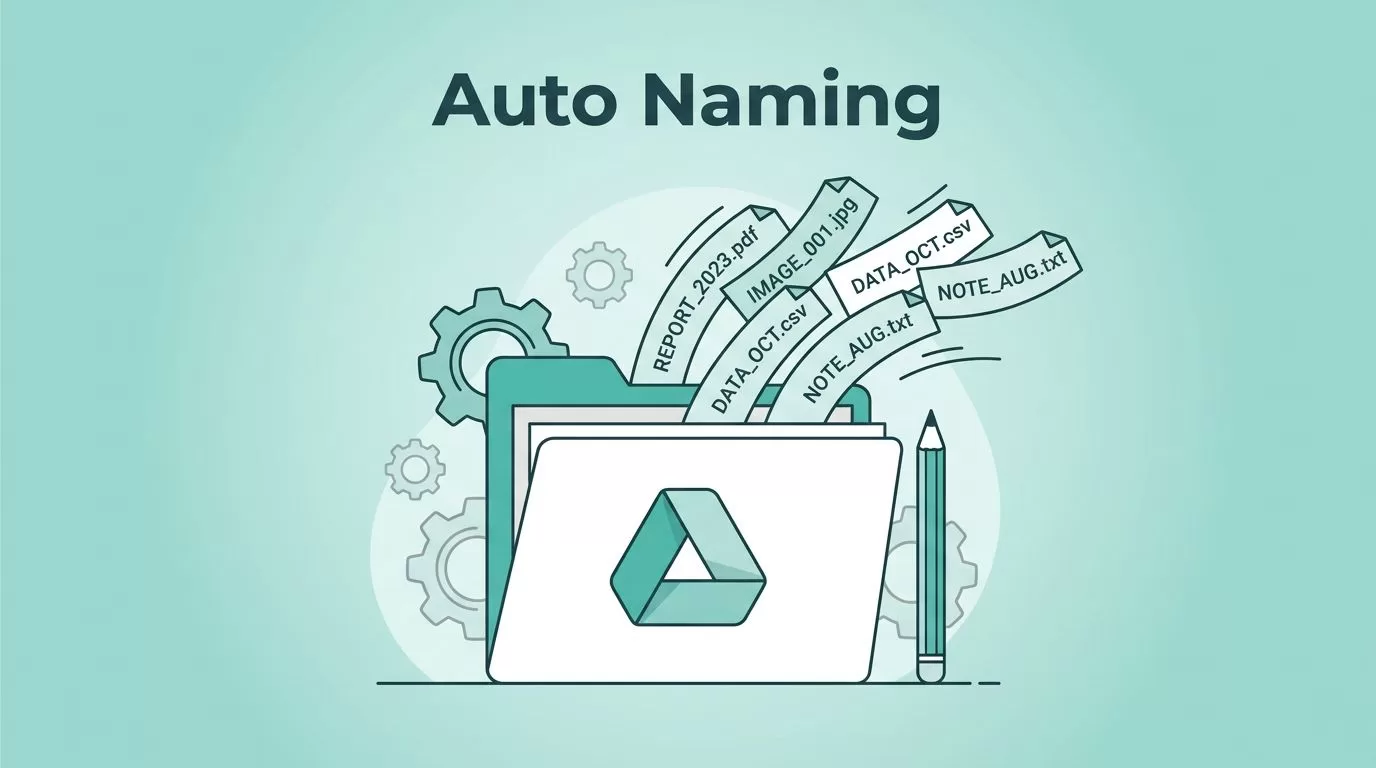
Google Drive file naming gets messy fast when files come from different people, forms, and folders. I learned that the hard way, after too many downloads called final_final2.pdf.
Google Drive can rename a file, but it doesn’t auto-rename every upload in every scenario. So I keep my naming rules simple, then I automate the repeat work with Google Apps Script or connected Google Workspace tools.
Why I don’t rely on Drive alone
I use Drive for storage, not for guesswork. A file named Screenshot 2026-04-18 10.42.11 tells me almost nothing later.
Before I automate anything, I make the folder structure clean. That usually means a shared team space with clear ownership, which is why I keep an eye on shared drive naming best practices and planning pooled storage in Google Workspace.
Drive is fine for manual rename jobs. It works for one-off files, quick fixes, and cleanup. It also helps with moving files, sharing, and version history.
For anything repeatable, I want a rule. That rule should work the same way for invoices, screenshots, and project docs.
| Method | Best for | Limitation |
|---|---|---|
| Manual rename in Drive | One file at a time | Too slow for bulk work |
| Built-in Drive organization | Folders and sharing | Doesn’t rename by rule |
| Apps Script or connected tools | Repeatable naming rules | Needs setup and testing |
The takeaway is simple. Drive gives me a place to keep files. Automation gives me a way to keep them named the same way.
The naming pattern I use for clean files
I keep my patterns short, readable, and boring in the best way. If I can scan a folder in five seconds, the naming rule is doing its job.
Here are the patterns I use most often:
| Use case | Pattern | Example |
|---|---|---|
| Client work | YYYY-MM_Client_Project_v# | 2026-04_Atlas_Invoice_v1.pdf |
| Meeting notes | YYYY-MM-DD_Team_Topic | 2026-04-18_Ops_Q2-Planning.docx |
| Screenshots | Project_Step_Date | Onboarding_LoginError_2026-04-18.png |
I like dates near the front because they sort well. I also keep the client or team name early in the file. That helps when I search by folder, project, or month.
For most files, I avoid long sentences in names. I skip extra punctuation too. A clean filename behaves like a good street sign. It points me in the right direction without making me think.
My Apps Script setup for folder-based renaming
This is the part I use when Drive alone isn’t enough. Apps Script lets me scan a folder, apply a naming rule, and rename files in bulk.


I usually start with one folder and one rule. Then I test it on a small batch before I let it touch everything.
- I create a dedicated folder for the files I want to rename.
- I open Apps Script and connect it to that folder ID.
- I write one rule, such as prefixing the creation date.
- I run it on a few test files first.
- After that, I schedule it or run it manually when needed.
A simple version looks like this:
function renameFilesInFolder() {
  const folder = DriveApp.getFolderById("FOLDER_ID");
  const files = folder.getFiles();


  while (files.hasNext()) {
    const file = files.next();
    const date = Utilities.formatDate(
      file.getDateCreated(),
      Session.getScriptTimeZone(),
      "yyyy-MM-dd"
    );
    const name = file.getName();


    if (name.startsWith(date + "_")) continue;


    const clean = name.replace(/s+/g, "-").toLowerCase();
    file.setName(`${date}_${clean}`);
  }
}
I keep the logic simple on purpose. If the rule is easy to read, it’s easier to fix later. For a deeper code walkthrough, I cross-check ideas with this Apps Script rename guide.
I never run a rename script across a full Drive folder without a test pass first.
That one habit has saved me from messy file names more than once.
How I make it hands-off with triggers
Once the script works, I use a trigger so I don’t have to babysit it. A time-driven trigger is enough for many jobs, especially when uploads arrive in batches.
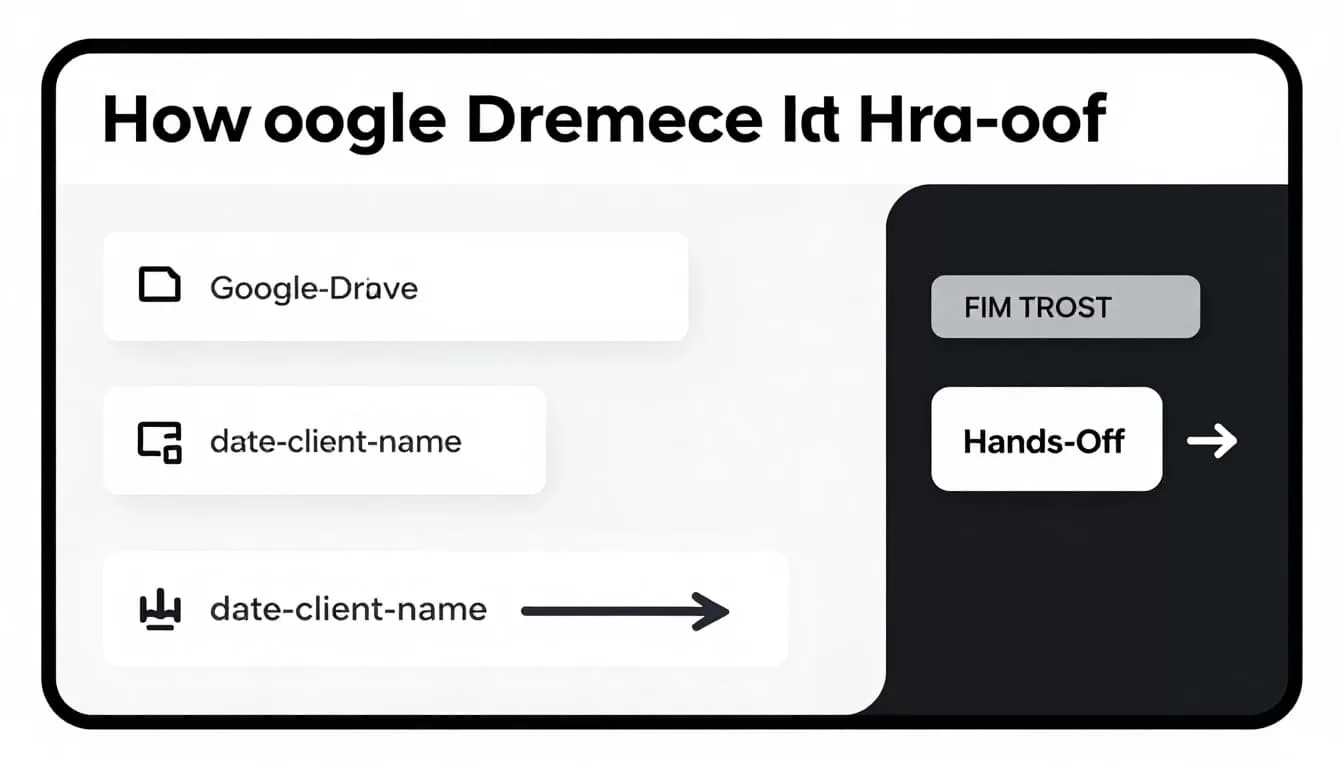
This setup works well when files come from a shared intake folder. I also use it when a Sheet tracks uploads and the script reads from that sheet before renaming.
That matters because Google Drive doesn’t natively auto-rename every file on upload. So I either rename on a schedule or set the filename earlier in the process, before the file lands in Drive.
I like this approach for client deliverables, weekly reports, and screenshot folders. It keeps the naming pattern steady without forcing me to open every file.
Real-world examples that save me time
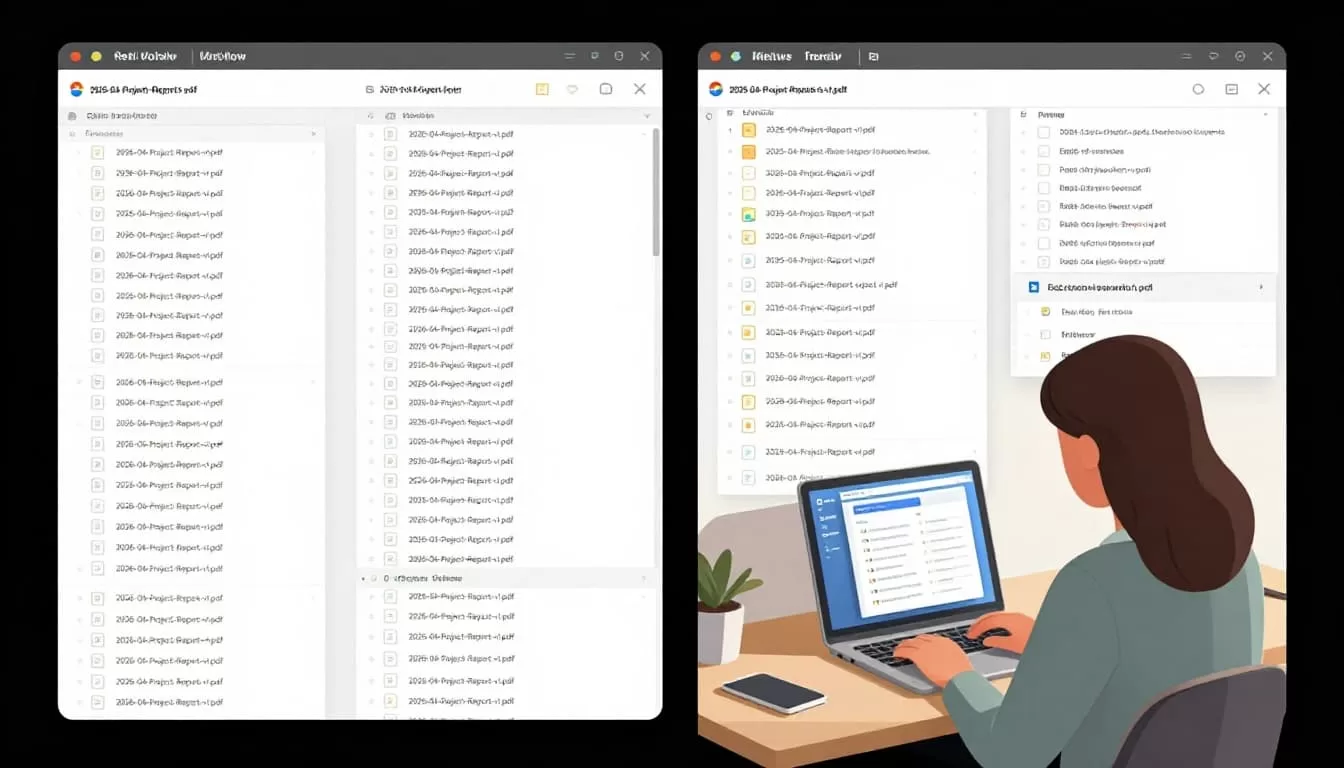
The best file names are useful outside the folder too. When I download something later, I want the name to still make sense.
These patterns work well for me:
2026-04_ClientA_Invoice_v1.pdffor billing files.2026-04-18_Sales_Lead-List.xlsxfor team exports.Onboarding_Chrome-Setup_2026-04-18.pngfor support screenshots.
If I need a find-and-replace style cleanup, I can adapt a bulk rename method from a Google Drive rename script example. That helps when old files follow a bad pattern and need a cleanup pass.
I still keep one rule in mind: the filename should tell the truth at a glance. If I have to open the file to understand it, the name failed.
Google Drive file naming gets easier once I stop treating it like a manual chore. I set one pattern, automate the repetitive part, and keep the folder rules clear.
That way, when a file lands in Drive, it already feels organized instead of waiting for me to fix it later.

