How I Organize Shared Templates for a Small Team
A small team can lose hours to one bad template. Someone grabs the wrong proposal, edits an old brief, or rewrites the same email for the third time. I keep shared templates in a simple system so the team can move fast without digging throu...

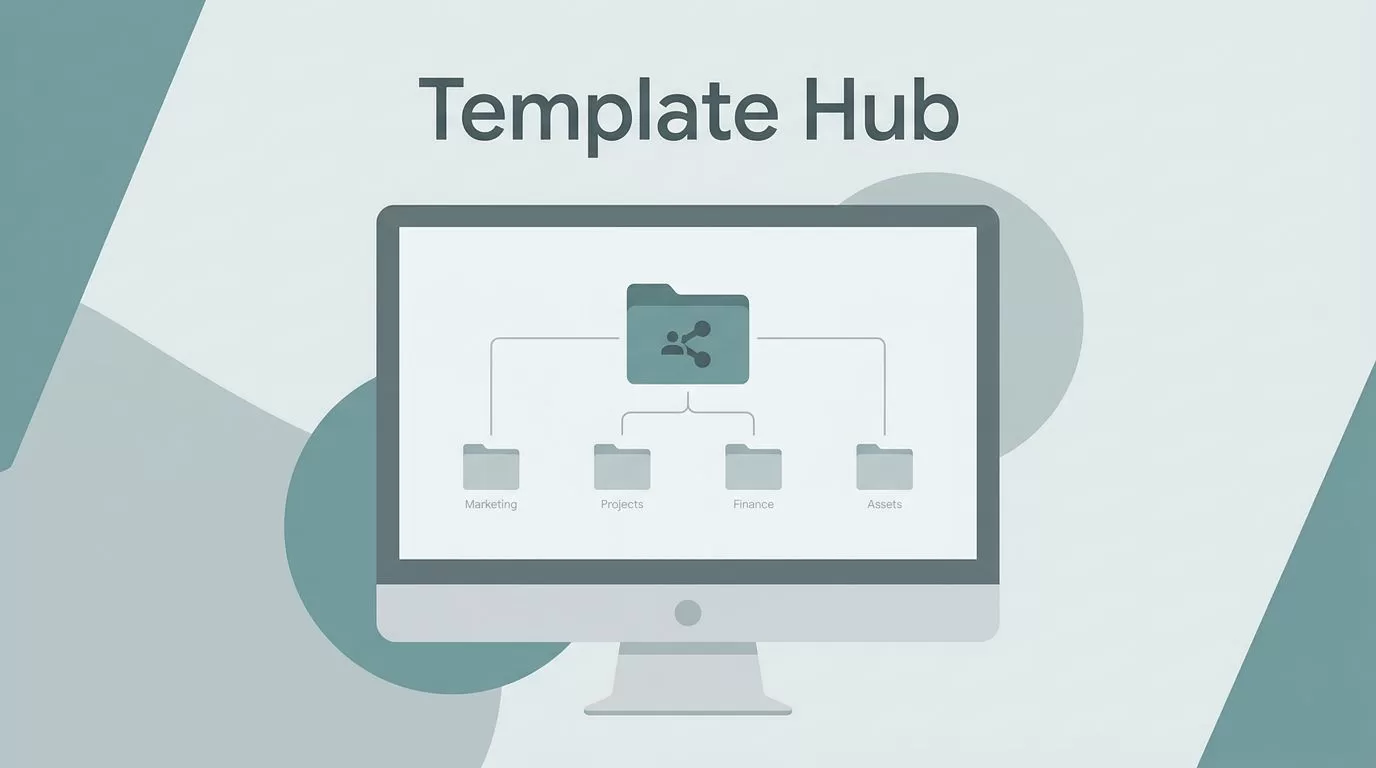
A small team can lose hours to one bad template. Someone grabs the wrong proposal, edits an old brief, or rewrites the same email for the third time.
I keep shared templates in a simple system so the team can move fast without digging through messy folders. The goal is not a huge library. The goal is one place that stays clear, even when the team grows a little.
I put every shared template in one home
I start with one master home for everything. For me, that usually means a shared drive or a team-owned folder, not a personal account. If a template lives in someone’s private space, it becomes fragile the moment that person is out sick or leaves.
I keep the main library in Google Workspace Shared Drives for small teams, because ownership stays with the group. That choice cuts down on cleanup, and it keeps the files easy to hand off later.
My folder tree stays shallow. I use one top-level folder for templates, then a few clear subfolders. I do not bury things three levels deep. That turns a simple search into a scavenger hunt.

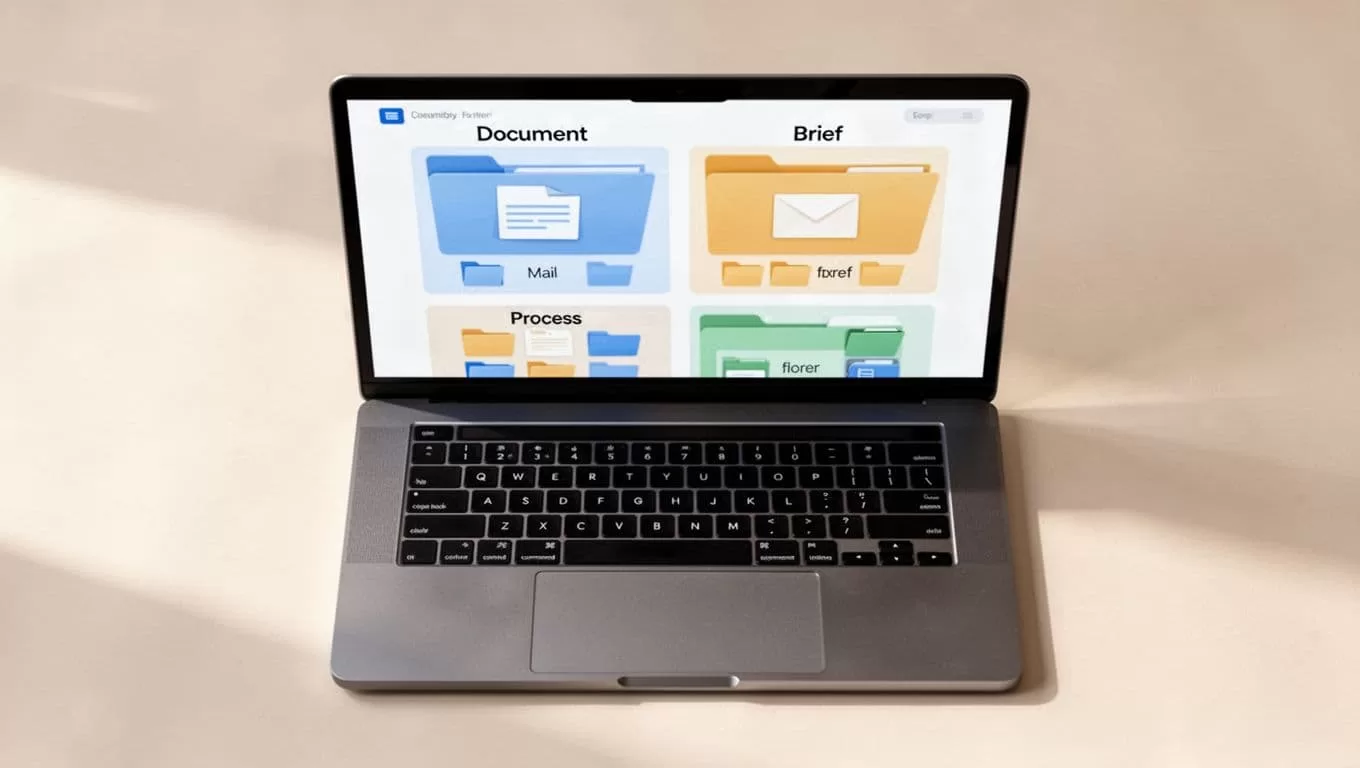
If a teammate can’t find the right template in 10 seconds, I haven’t organized it well enough.
I group templates by job, not by department
I do not build folders around org charts. I build them around work. That way, a person can find what they need without knowing who created it.
Here is the structure I use most often:
| Template type | What I keep inside | Who owns it |
|---|---|---|
| Documents | Proposals, briefs, notes, reports | The person who updates the content most often |
| Emails | Follow-ups, outreach, reminders, internal notices | Sales, support, or ops lead |
| Project briefs | Scope, goals, deadlines, handoff notes | The project owner |
| Recurring processes | Onboarding, launch checklists, review steps | The team lead who runs the process |
This setup works because each folder has one job. A sales rep does not need to guess where the project brief lives. An ops manager does not need to sort through old email drafts to find a checklist.
If a folder starts to swell, I split it again. That keeps shared templates useful instead of crowded.

I keep access simple
Small teams do not need a maze of permissions. I give edit access to the people who truly maintain the templates, and view access to everyone else. That keeps the system clean without adding admin work every week.
For sensitive docs, I use secure document sharing in Google Workspace so the right people can view or edit files without opening the door too wide. I also limit who can rename folders or move files. Too many hands on the controls leads to drift.
My rule is simple. If someone only uses a template, they should not manage it. If someone updates it often, they can own it.
I also write one short note at the top of the folder. It tells the team where to find active files, where to put drafts, and who to ask when a template breaks. That one note saves a lot of repeat questions.
I make names and versions easy to trust
File names matter more than people think. A good name tells me what the file is, who it is for, and whether it is current. A bad name turns the folder into noise.
My naming pattern stays the same across all shared templates:
- Template name first: I lead with the purpose, like “Client Brief” or “Follow-Up Email”.
- Add the team or use case: I include the group if it helps, like “Client Brief – Sales”.
- Use one version rule: I prefer dates or clear version numbers, not a string of “final” files.
- Archive old copies: I move outdated files out of the active folder instead of leaving them in place.
For example, “Client Brief – Sales – 2026-04” is easier to trust than “brief new final 2”. One points to the current file. The other invites mistakes.
I also avoid duplicate templates with tiny differences. If two files do nearly the same thing, I merge them. A small team needs fewer choices, not more.
I standardize the templates people use every week
Some templates need more than a file name. They need a structure people can reuse without thinking too hard.
I keep these three things consistent:
- Document templates: title, date, owner, summary, and next steps
- Email templates: subject line, opening line, main message, and call to action
- Project briefs: goal, scope, owner, due date, blockers, and review point

That structure makes each template feel familiar. The team spends less time learning the format, and more time filling in the real work.
For recurring processes, I keep a short checklist at the top. Onboarding, launch prep, and monthly reporting all follow the same rhythm. I also add a review date so the file does not age in silence. A template that nobody checks can become a trap.
I review shared templates on a schedule
I do not wait for a mistake before I clean up the folder. I set a monthly or quarterly review, then I remove stale files, merge duplicates, and rename anything that drifted.
I use a shared team calendar in Google Calendar for those review dates, because the reminder belongs with the rest of team work. That keeps the maintenance habit visible without turning it into a big task.
During review, I ask three questions. Is this still used? Is it still accurate? Does anyone own it? If the answer is no, I archive it.
That small routine keeps the library light. It also helps new teammates trust what they see.
A simple system stays useful longer
I organize shared templates so the team can open one folder and know what to do next. One home, clear names, tight permissions, and a short review habit keep the system from turning into clutter.
That approach works because it respects small-team reality. I do not need a heavy process. I need shared templates that stay easy to find, easy to update, and easy to trust.

