How I Build a Knowledge Base in Google Sites for a Small Team
Posted in :

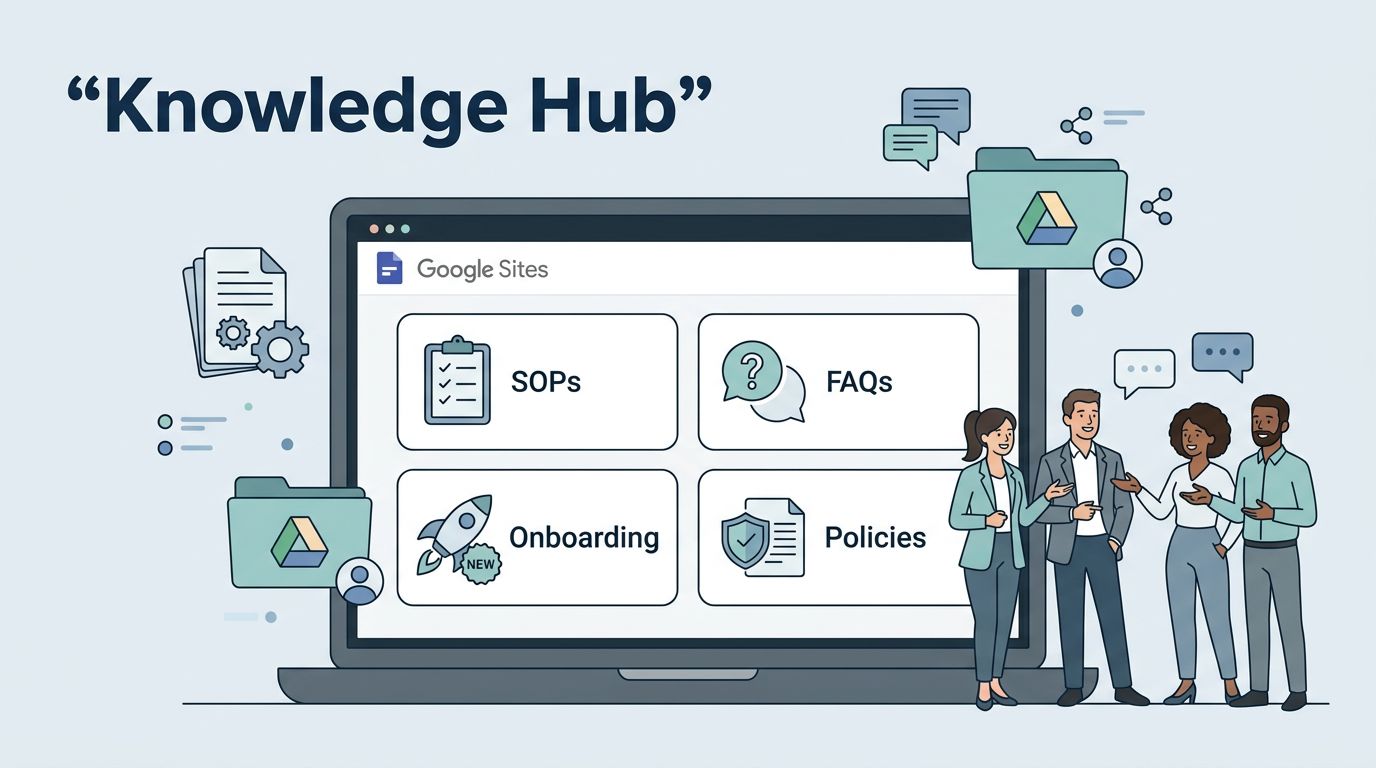
When I need to stop the same question from bouncing around a team, I build a Google Sites knowledge base. It gives me one shared place for SOPs, FAQs, onboarding, and policy notes.
I keep source docs in Google Workspace shared drives so the content stays owned by the team. That matters, because a knowledge base falls apart when files live in personal folders.
Google Sites works well for internal documentation, but it starts to feel thin when I need advanced search, article analytics, or customer support tools. So I build it with a clear job in mind.
Start with the job it needs to do
I ask one question before I touch the editor, who will use this site? If the answer is a small team, a department, or a new-hire group, Google Sites is a strong fit.
| Need | Google Sites | Dedicated knowledge base software |
|---|---|---|
| Internal SOPs | Strong fit | Strong fit |
| Onboarding hub | Strong fit | Strong fit |
| Team FAQs | Strong fit | Strong fit |
| Customer-facing help center | Limited | Strong fit |
| Search analytics and ticket deflection | Limited | Strong fit |
| Approval workflows and automation | Limited | Strong fit |
That table usually makes the choice clear. I use Google Sites when I want a clean internal binder. I pick dedicated software when I need support workflows, deeper reporting, or stronger automation.
If I want a second opinion on more automated tools, I look at how to create a knowledge base with AI. It helps me see where a lightweight site ends and a full platform begins.
Plan the structure before I open Sites
I start with a small map. For a beginner-friendly site, I keep the top menu short and predictable. My usual pages are Start Here, FAQs, Guides, Policies, and Requests.
When the team works across locations, I pair the site with Google Workspace collaboration tools for distributed teams. That keeps the docs, chats, and decisions closer together.
Before I build, I do four things:
- I gather the source files and trim out anything old.
- I decide which pages are for the whole team and which need tighter access.
- I write page titles in plain language.
- I assign one owner to each major section.
If a page needs a lot of links, I split it. Long pages turn into junk drawers fast. For drafts and review notes, I keep the workflow in secure document sharing in Google Workspace so changes stay controlled.
Build the site inside Google Sites
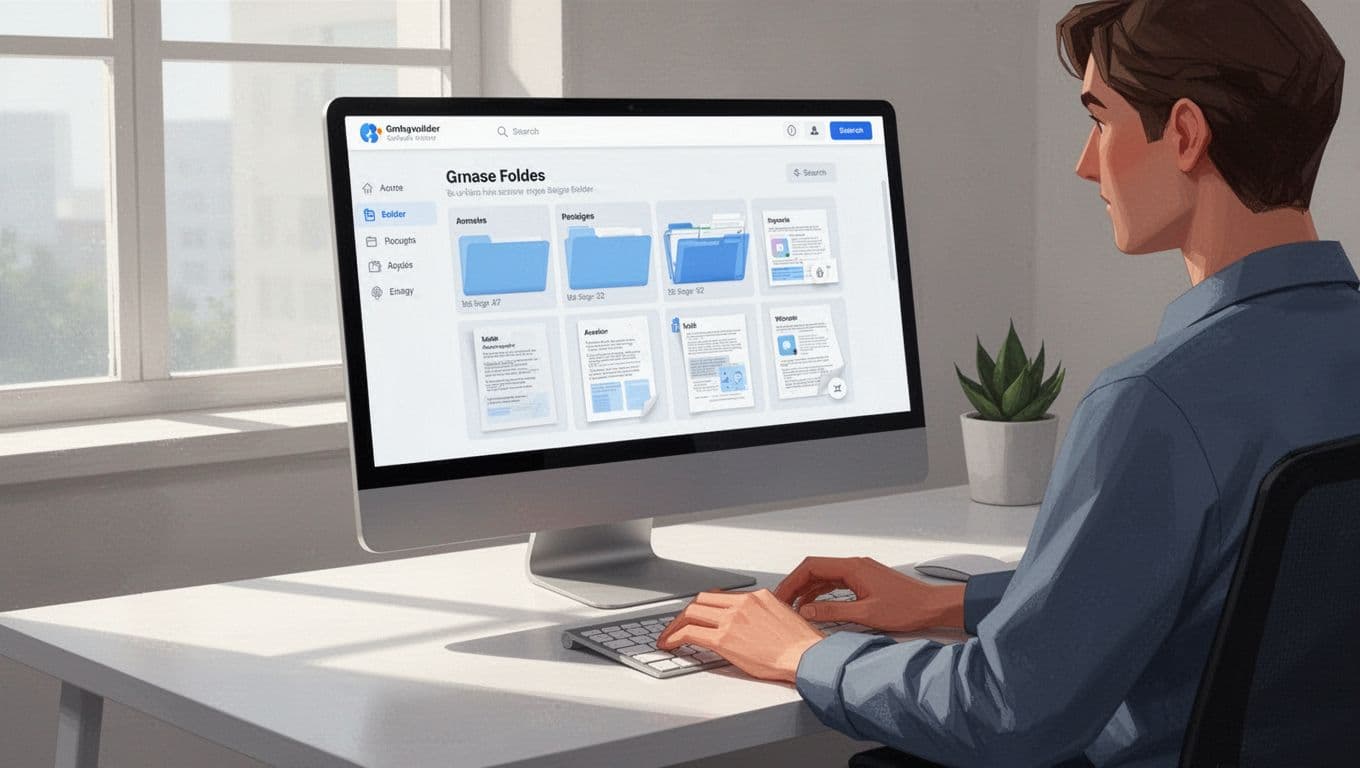
I go to sites.google.com, click the plus icon for a blank site, or start from a simple template. Then I rename the site, add a short description, and choose a theme that matches the team.
The main tools I use are easy to spot, the Pages panel, the Insert panel, and Themes. I use Pages to create the site map, Insert to add content, and Themes to keep the look steady. That workflow makes Google Sites friendly for beginners.
I usually build the site in this order:
- Create the top-level pages first.
- Add subpages only when a topic needs depth.
- Drop in text boxes, collapsible text, buttons, Docs, Sheets, or a Google Form.
- Add a table of contents on longer pages.
- Preview the site on desktop and mobile, then publish.
For layout ideas, I sometimes compare my draft with this Google Sites wiki template. It helps me keep the site simple instead of stuffing it with extra sections.
A good site feels calm. The pages load like labeled folders, not a pile of sticky notes.
Make navigation feel obvious
If readers have to hunt, they stop trusting the site. I keep labels short and plain. “How to request access” beats a vague title with internal jargon.
If a page needs three clicks, I split it.
I also use a few habits that make the site easier to scan:
- I put the most used pages first.
- I keep one page for one job.
- I use subpages for long topics.
- I add a request page for new questions and updates.
- I place buttons on the home page for the top tasks.
For long explanations, I add collapsible text blocks or a table of contents. That keeps the page readable on a phone, which matters because Google Sites is responsive, but long pages still feel cramped on small screens.

Know where Google Sites falls short
Google Sites is quick to launch, but I don’t use it for every documentation job. The limits show up when the site needs to behave like a true help desk.
| Area | Google Sites | Dedicated knowledge base software |
|---|---|---|
| Search | Basic page navigation and Workspace search | Strong article search and suggestions |
| Analytics | Limited | Detailed article and search reports |
| Workflows | Manual edits and reviews | Built-in approval flows |
| Customer support | Basic pages only | Ticketing and self-service flows |
| Customization | Simple themes and layouts | More branding and control |
The tradeoff is simple. Google Sites wins on speed and low setup friction. Dedicated software wins when I need support metrics, article suggestions, or customer-facing service features.
When I want a more polished public help center, I move beyond Google Sites. When I only need an internal wiki for SOPs and FAQs, Google Sites is usually enough.
Keep it updated without letting it rot
I treat updates like a routine task, not a rescue mission. I put a monthly review on a shared team calendar, then I check the pages that matter most.

My maintenance checklist stays short:
- I assign one owner per page or section.
- I review top pages every month.
- I remove duplicate answers.
- I replace old screenshots and steps.
- I check links and permissions after team changes.
- I move retired content to an archive page.
I also keep a simple request form on the site so people can report broken steps or missing topics. That turns the knowledge base into a living system, not a static folder.
When Google Sites is enough
When I build a knowledge base in Google Sites, I keep the scope tight, the labels plain, and the ownership clear. That is what makes the site useful.
If I need heavy search, support workflows, or deeper reporting, I move to dedicated software. If I only need a reliable internal hub for SOPs and FAQs, Google Sites does the job with less fuss. That tradeoff is easy for me to live with.

Gist Junction Editorial is the publishing team behind Gist Junction. We produce step-by-step guides on money transfer, workflow automation, SaaS metrics, and the software small teams use every day. Our guides are drafted with AI assistance and published on a schedule rather than individually reviewed, so we tell readers plainly to confirm live fees, exchange rates, and provider terms before acting on anything we publish.
View All Articles

