How I Summarize Long PDFs with NotebookLM
Long PDFs pile up fast in my work. Research reports hit 300 pages. Contracts span 500. I used to skim for hours or pay for summaries. Now NotebookLM cuts that time to minutes. This tool from Google handles massive files with its 1M-token co...

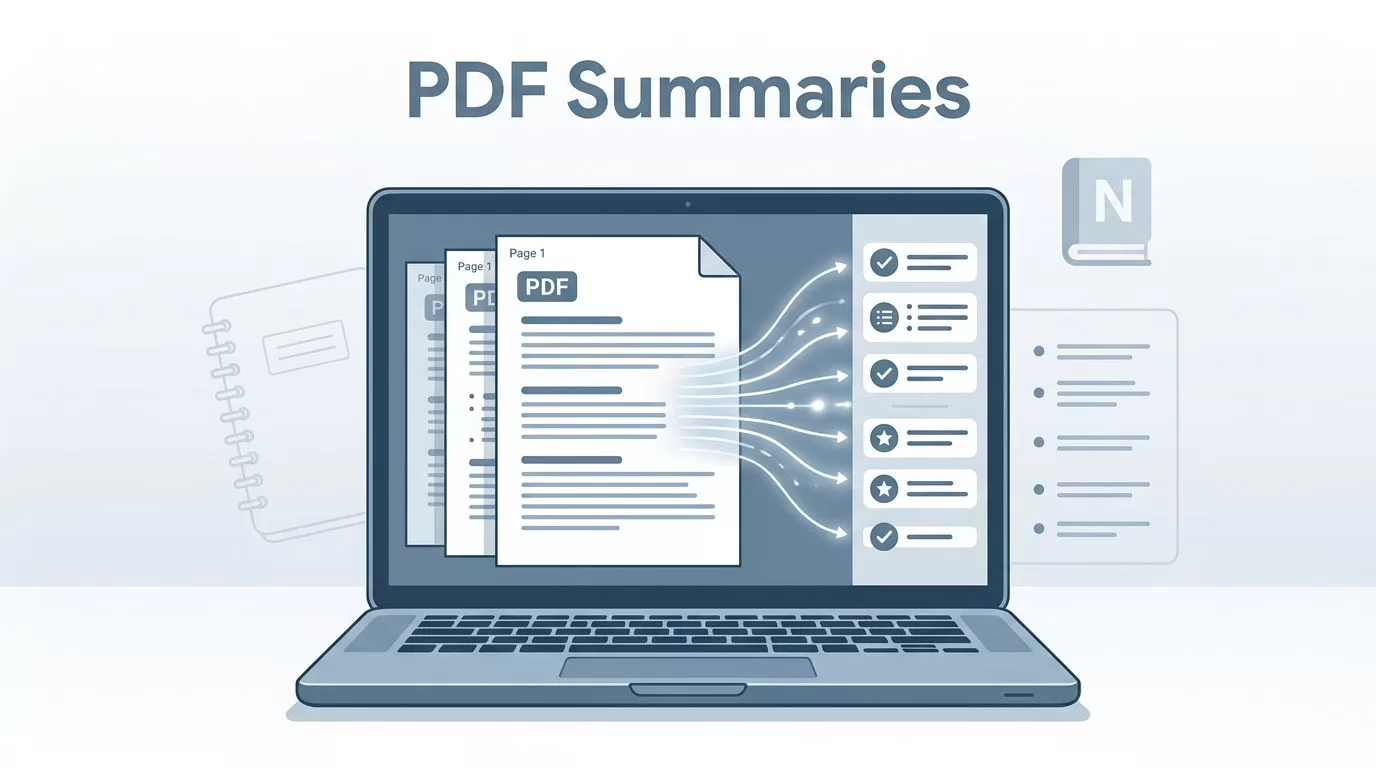
Long PDFs pile up fast in my work. Research reports hit 300 pages. Contracts span 500. I used to skim for hours or pay for summaries. Now NotebookLM cuts that time to minutes.
This tool from Google handles massive files with its 1M-token context window. It grounds answers in your upload, no wild guesses. I save reports for clients, study whitepapers for automation tools, and prep sales pitches from dense specs. You get accurate NotebookLM PDF summaries without the grind.
Follow my steps below. They work for business docs, academic papers, or finance guides.
Table of Contents
- Why I Use NotebookLM for Long PDFs
- Setting Up Your Notebook
- Generating the Summary
- Using Studio Tools for Better Outputs
- Best Practices and Tips
- Common Mistakes and Limitations
- Conclusion
- FAQ
Why I Use NotebookLM for Long PDFs
I run a blog on B2B tools. Data sheets flood my inbox. One 400-page CRM analysis took a full day before. NotebookLM changed that. I upload the PDF. It pulls key points across chapters.
Use cases fit my routine. For sales, I summarize competitor reports. Ask “Compare features in sections 1-5 and 200-250.” Results cite pages directly. In finance, I break down regulations. “List risks from page 150 onward.” Perfect for cross-border payments guides.
Students love it too. They handle theses. Pros extract insights from audits. Even ops teams parse vendor contracts. The three-column layout keeps everything in view. Sources left, chat middle, Studio right. No tab chaos.
It beats manual reading. Outputs stay tied to your file. I trust it for client briefs.
Setting Up Your Notebook
Start simple. Go to notebooklm.google.com. Sign in with Google. Create a new notebook. Name it after your PDF, like “Q2 Finance Report.”
Drag your long PDF into the left Sources panel. It processes fast, even 500+ pages. The 1M-token window grabs the whole thing. No need to split unless over limits.


Set custom instructions in chat. I type “Act as a business analyst. Focus on actionable insights.” This shapes every response. Add more sources if needed, like a related spreadsheet.
Free tier works fine. Paid plans lift query caps for heavy use.
Generating the Summary
Chat in the middle column. First prompt: “Give a NotebookLM PDF summary in bullet points. Cover main sections.” It spits out concise notes with page cites.
Dig deeper. “Outline chapter 3.” Or “Extract quotes on automation risks.” Responses ground in text. No fluff.
Refine with follow-ups. “Simplify for non-experts.” Or “Compare to 2025 data.” Iterate until sharp.

Export chat as PDF or copy to Docs. I paste into client decks. Takes seconds.
For scanned PDFs, run top OCR apps for PDFs first. NotebookLM needs selectable text.
Using Studio Tools for Better Outputs
Right panel shines. Generate infographics from summaries. Pick timeline for reports. Or process flow for workflows.
Click “Studio.” Choose flashcards for study. They persist across sessions now. Great for retention.

Make slides. Edit one at a time. Export to PPTX. Audio overviews sound like podcasts. I listen during commutes.
Revise: “Shorten slide 2. Focus on page 100.” April 2026 updates added 10 templates. They fit B2B needs perfect.
See NotebookLM upload best practices for source tips.
Best Practices and Tips
Upload clean PDFs. Text-based beat scans. Split giants into notebooks by theme.
Prompt specific. “Summarize costs in table format” beats “Tell me about money.” Use goals: “Prep for sales call.”
Combine sources. Add a web URL for context. Ask cross-questions.
For better results, delete old chats. Keeps focus fresh. Check how to use NotebookLM guide for advanced flows.
I pair it with tools like Someli AI for content automation. NotebookLM summarizes, Someli drafts posts.
| Prompt Type | Example | Best For |
|---|---|---|
| Outline | “Create chapter outline” | Structure grasp |
| Bullets | “Key points by section” | Quick scans |
| Compare | “Section 1 vs 10” | Analysis |
| Visual | “Timeline of events” | Presentations |
This table speeds my prompts.
Common Mistakes and Limitations
Don’t upload paywalled pages. It skips them. Free tier caps daily queries. Upgrade for volume.
Very long docs index partial sometimes. Split and reconnect in chat.
No real-time web search. Grounded in uploads only. Outputs need fact-checks on nuance.
Age rules block video features under 18. Slide edits stay prompt-based.
Workarounds: Chunk files. Use Google Workspace Standard vs Starter plans for NotebookLM access. Cross-check with sources.
Conclusion
NotebookLM transformed my PDF workflow. Long docs now yield fast, cited summaries. Studio tools turn them into client-ready assets.
Stick to clean uploads and sharp prompts. You cut hours to minutes. Try it on your next report.
FAQ
Can NotebookLM handle 500-page PDFs?
Yes. The 1M-token window processes full books. Split if over limits for best results.
Is NotebookLM free?
Core features are. Paid tiers raise caps. Check NotebookLM quick start for details.
What if my PDF is scanned?
Convert with OCR first. Avoid poor inputs for accurate NotebookLM PDF summaries.
How do I get visuals from summaries?
Use Studio. Templates make infographics or slides. Edit prompts refine them.
Does it cite sources?
Always. Responses link to exact pages in your upload.

