How I Recover Deleted Files in Google Drive
When I delete a file in Google Drive by accident, I move fast. As of April 2026, Trash keeps most files for 30 days, which gives me a real window to undo the mistake. After that, recovery gets much harder, especially if I emptied Trash or t...

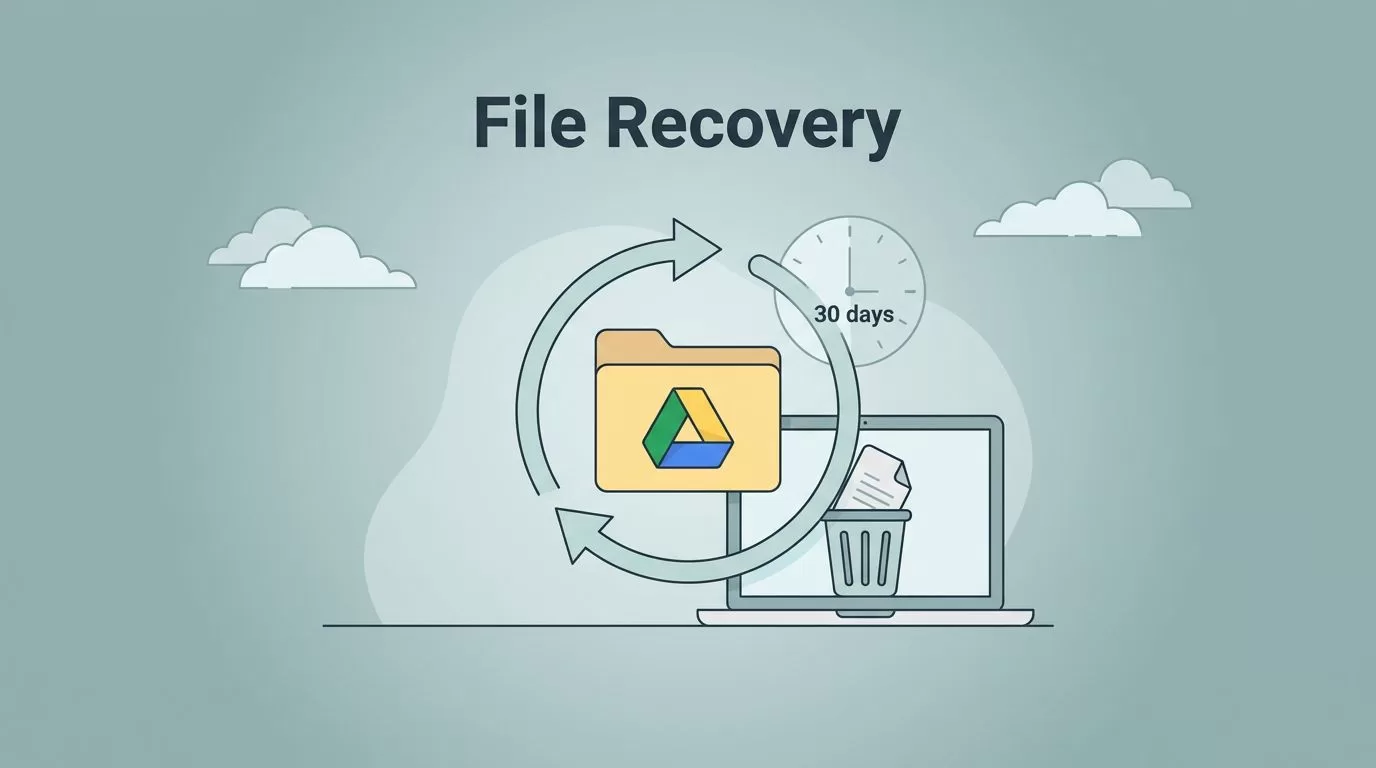
When I delete a file in Google Drive by accident, I move fast. As of April 2026, Trash keeps most files for 30 days, which gives me a real window to undo the mistake. After that, recovery gets much harder, especially if I emptied Trash or the item was purged automatically.
I also separate personal Google accounts from Google Workspace accounts. The recovery path changes, and so do the time limits. Google’s own Recover a deleted file in Google Drive help page and Find, delete, and recover files guidance match that rule.
From there, I follow a simple order: check Trash, restore the file, then look at admin options or backups if the standard path fails.
What happens after a file goes to Trash
When I delete a file, Google Drive moves it to Trash instead of wiping it right away. That means the file still exists, and it still uses storage until I restore or remove it.
| Account type | Trash retention | What I can do |
|---|---|---|
| Personal Google account | 30 days | Restore from Trash before it disappears |
| Google Workspace account | 30 days | Restore from Trash, then admins may still recover data for up to 25 more days after purge |
That 30-day clock starts the moment the file lands in Trash. If I delete it again from Trash, or empty the bin, the easy path is gone. For Workspace, the user-facing Trash window is still 30 days, but admins can sometimes restore data for another 25 days after purge. That extra time matters when a cleanup week gets messy.
If I work in a team, I also think about ownership. A file in a Shared Drive behaves differently from a file in My Drive, because the team owns it. I keep that in mind in my Google Workspace file storage strategy.
Recover deleted files from Google Drive on the web


I use the web version when I want the clearest view and the least guesswork.
- Open Google Drive in a browser and sign in.
- Click Trash in the left panel.
- Find the file. I usually sort by deleted date if the list is long.
- Right-click the file and choose Restore.
- Check the original folder. Drive puts it back where it came from.
I prefer the web when the file came from a shared folder, because I can see the full path more easily. If I do not see the file, I search by name, file type, or the person who last edited it. That helps when Trash is crowded.
If Trash is empty, I stop assuming the file is recoverable. At that point, standard restore is usually over.
Recover deleted files on Android and iPhone or iPad
On mobile, the path is almost the same. I only change the device menu.

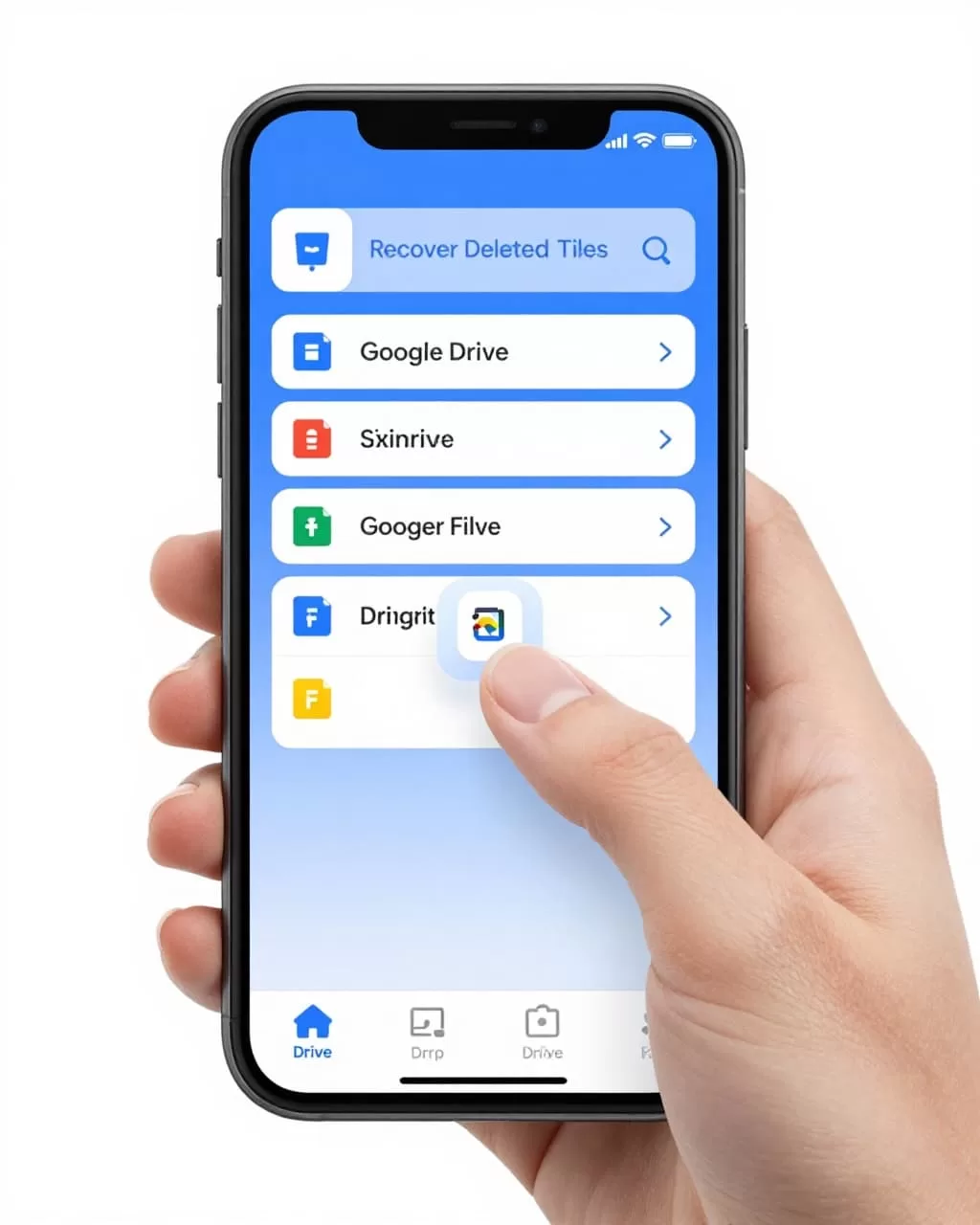
Android
- Open the Google Drive app.
- Tap the menu icon, then tap Trash.
- Tap the deleted file.
- Tap Restore.
After that, I check the original folder on another device if the app takes a moment to sync. Mobile recovery is simple, but a slow sync can make it feel like nothing happened. I also slow down when several files have similar names, because restoring the wrong draft is easy on a small screen.
iPhone or iPad
- Open the Google Drive app.
- Tap the menu icon, then Trash.
- Open the file.
- Tap Restore.
The result is the same on iPhone and iPad. The main difference is the layout, not the recovery rule. If I still cannot find the file, I move back to the web and search there, because the desktop view gives me more context.
Use Google Workspace admin recovery when I manage the account
If the file belongs to a Google Workspace user, I can sometimes recover it from the Admin console after Trash is gone. That option does not exist for personal Google accounts.

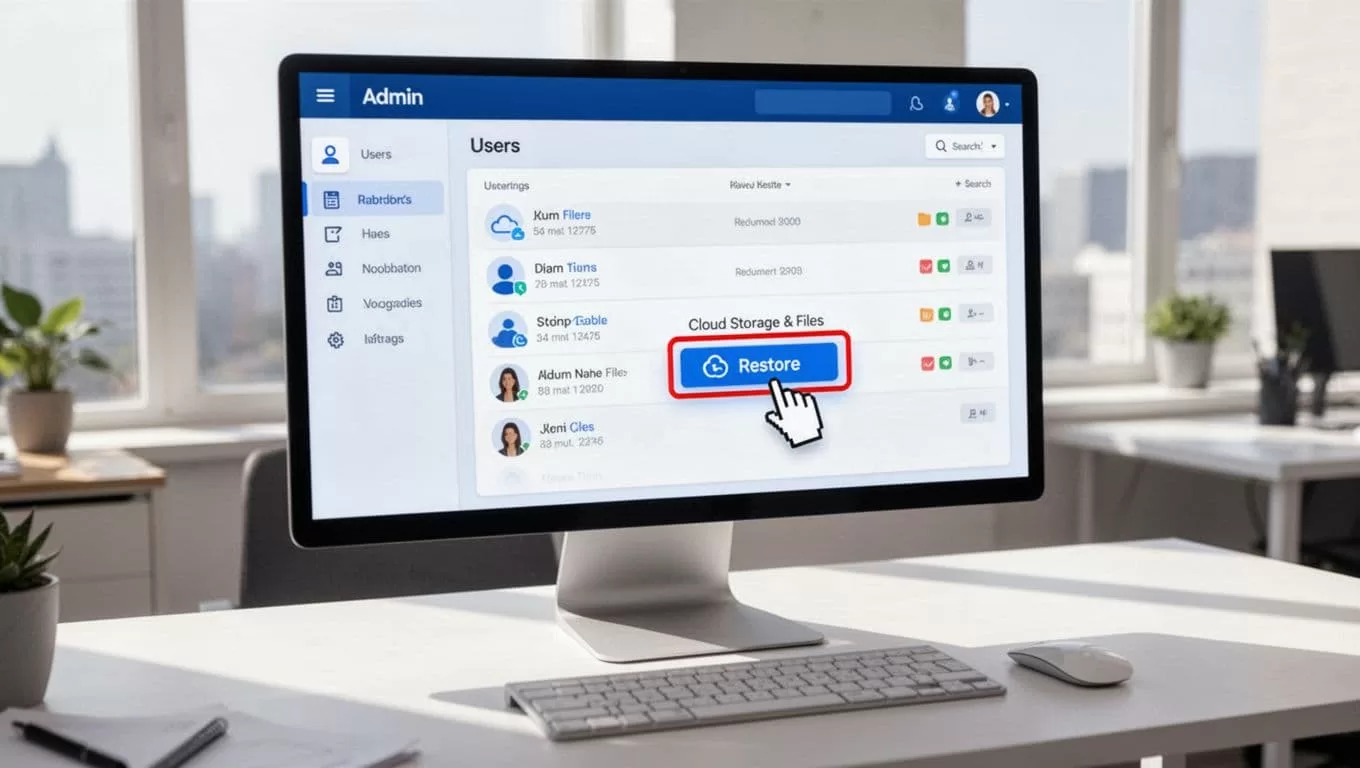
I start in the Admin console.
- Sign in at admin.google.com with an admin account.
- Go to Users and pick the user who deleted the file.
- Choose Restore data.
- Set Drive as the service and pick the date range.
- Run the restore and check the user’s Drive again.
I only use this path when I control the tenant. If I do not have admin rights, I ask the Workspace admin to run the restore. In practice, this path matters most when the user missed the 30-day Trash window. Still, I do not treat it like a safety net I can ignore.
If the file lives in a team setup, I also think about how I organize shared ownership, like I describe in my Google Workspace file storage strategy.
When the restore button is gone
Once Trash is emptied or the retention window ends, Google Drive usually can’t bring the file back. I treat that point as permanent loss, not a delay.
When that happens, I try a few practical checks:
- I search email for old attachment copies or share links.
- I ask collaborators if they still have the file in their Drive.
- I open version history if the document still exists but the content changed.
- I check backups, sync tools, or exports from other software.
- I review sharing settings if the file was shared widely, because someone else may still have access. My Google Drive sharing permissions guide helps me spot where a copy might still live.
If I used Docs, Sheets, or Slides, version history may still save me when the file itself remains. That only helps when the document still exists. If the file was already purged, I don’t keep guessing. I switch to copies and backups instead.
The fastest recovery habit I rely on
I don’t wait when I notice a missing file. I open Trash first, restore second, and only then sort out the longer path. That habit saves me more often than any trick.
The key is simple. Trash is a timer, and Google Workspace gives me a bit more room than a personal account. Once that timer runs out, recovery depends on backups, copies, or an admin window that has not closed yet.

